


Keyword distribution, tags and keyword research
See how many keywords you have in each position range, group them with tags to compare topics, and find new keyword ideas from seeds, pages or competitor domains.
3 min read · Last updated November 13, 2026

Three tabs of the Keywords section help you see the shape of your rankings, compare topics and find what to target next. The screenshots use SEOcrawl AI's own project.
Keyword Distribution: how many keywords in each position range
Open Keywords and select Keyword Distribution. Each bar is one day, and it is split into five colours by position.
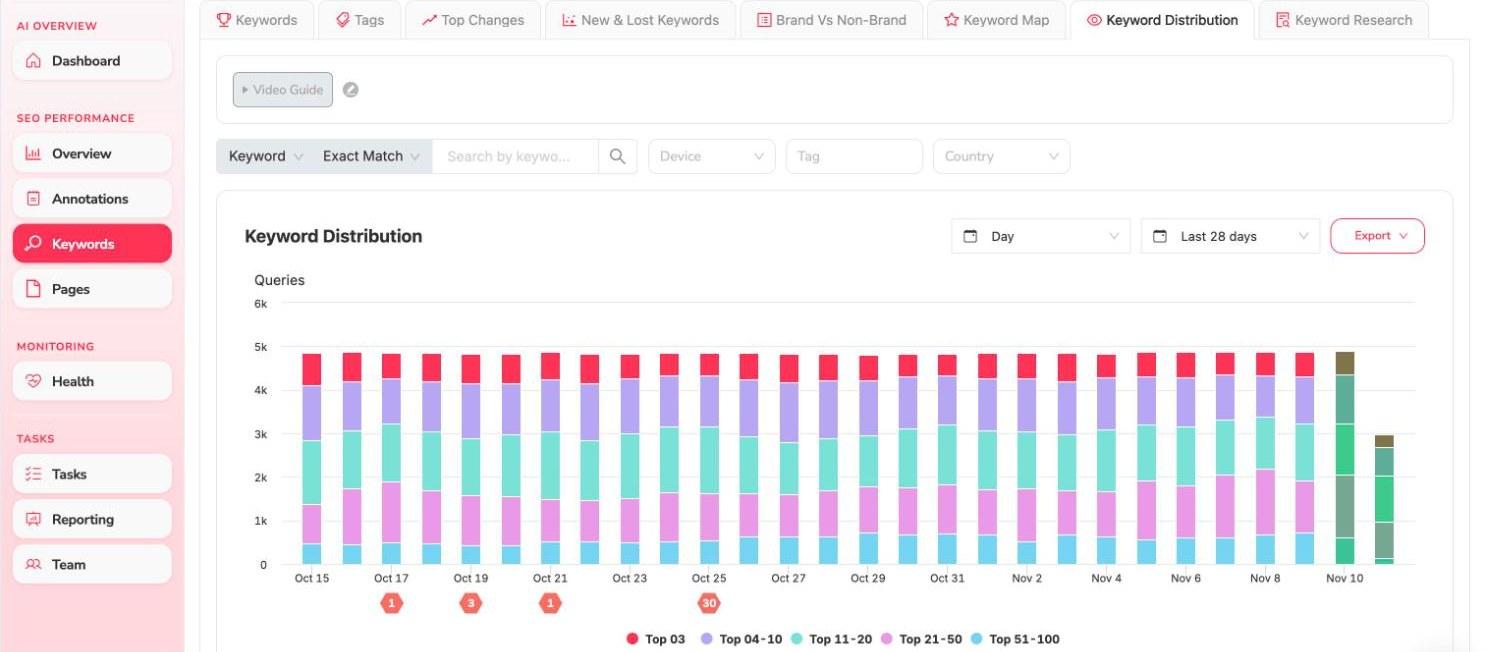
- The ranges are Top 03, Top 04-10, Top 11-20, Top 21-50 and Top 51-100.
- Use the filters above the chart to narrow it by Device, Tag and Country, or search for a keyword.
- Change the grouping with the Day selector and the period with the date selector, and use Export to take the data out.
Below the chart, the tabs Top-3 Keywords, 4-10 Keywords, +10 Keywords, Improved, Declined, New Keywords and Lost Keywords list the queries behind each group, with clicks, impressions, CTR and average position and their change.
Tags: compare groups of keywords
Select Tags to see your tags side by side. Each tag is a line in the chart and a row in the table.
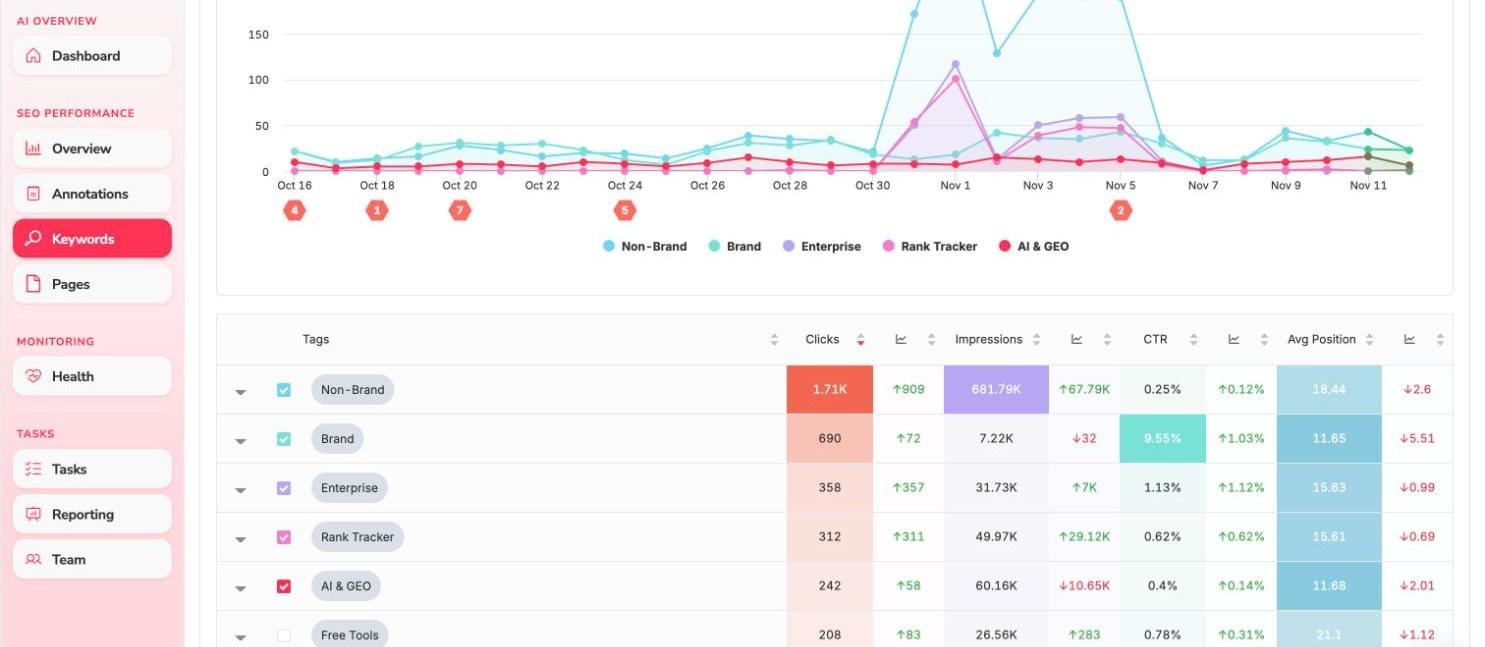
- Choose the metric at the top: Clicks, Impressions, CTR or Avg Position.
- Switch between Keywords and Pages.
- Tick or untick a tag in the table to show or hide it in the chart.
- Filter by Device or Country, search, and use Export.
- Use Manage tags to create and edit tags.
Tags let you answer questions such as “is the AI & GEO topic growing faster than Rank Tracker?” without reading a list of keywords.
Keyword Research: find new ideas
Select Keyword Research to look for new keywords, next to what the project already ranks for.
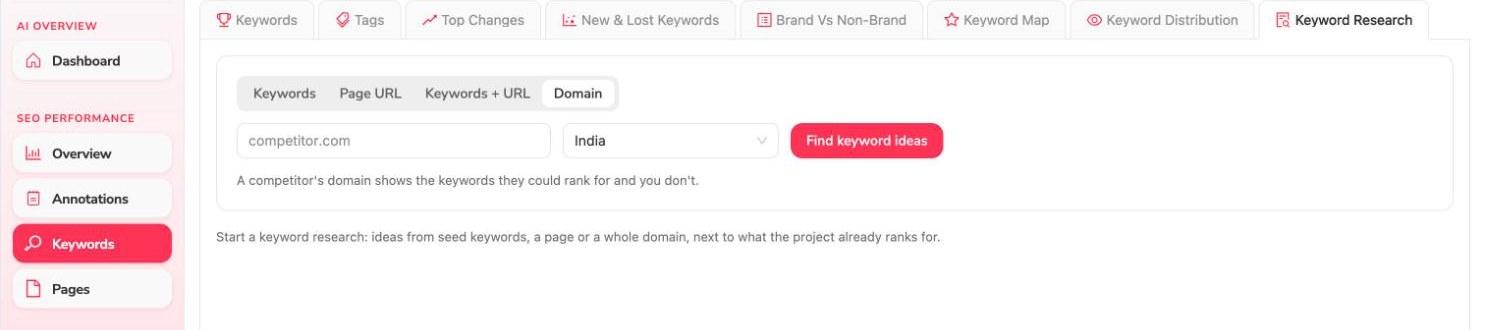
Choose how to start:
| Mode | Start from |
|---|---|
| Keywords | Seed keywords |
| Page URL | A page |
| Keywords + URL | Both |
| Domain | A competitor's domain, to see the keywords they could rank for and you do not |
Pick a country and select Find keyword ideas.