


Connect Google Search Console to SEOcrawl AI
Add your first project by connecting a Google Search Console property to SEOcrawl AI, step by step.
2 min read · Last updated November 10, 2026
Everything in SEOcrawl AI starts from a project, and a project starts from a Google Search Console property. This guide shows how to connect one.
Add your project
- In your Projects dashboard, click New Project.
- Check Your current Google account. If it is not the account that has access to your property, click Switch account.
- Open the URL of your project dropdown and select your property.
- Click Add project.
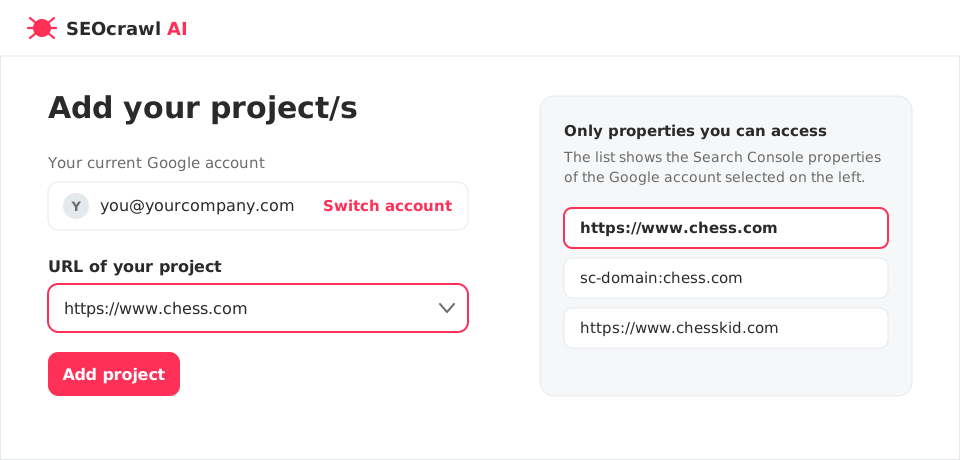
Domain and URL-prefix properties
Search Console offers two kinds of property, and both can appear in the list:
| Type | Looks like | Covers |
|---|---|---|
| Domain property | sc-domain:example.com | All subdomains and protocols of the domain |
| URL-prefix property | https://www.example.com | Only URLs under that exact prefix |
Pick the one that matches the data you want to see. If you are unsure, the domain property usually gives the most complete picture.
If your site is not in the list
The dropdown only shows what the selected Google account can access. If your property is missing:
- Click Switch account and choose the account that owns it.
- Or ask the property owner to add your Google account as a user in Google Search Console under Settings → Users and permissions, then reload the page.
Next step
With the project created, connect Google Analytics 4 to see traffic and conversions next to your search data.