Excluded by 'noindex' Tag: What It Means and How to Fix It
You opened Google Search Console, spotted a batch of URLs flagged "Excluded by 'noindex' tag," and now those pages are invisible in search.
If you've spotted a batch of URLs labeled "Excluded by 'noindex' tag" in Google Search Console, your pages are being deliberately kept out of Google's index, and the fix is usually simpler than it looks: find the directive, remove it, and ask Google to crawl again.
This guide explains exactly what triggers this status, how to pinpoint the noindex directive causing it, and the precise steps to remove it across every major CMS so your pages can rank again. The same check runs automatically in the SEOcrawl AI Crawler, which flags noindex directives across your entire site without URL-by-URL checks.
What does "Excluded by 'noindex' tag" mean in Google Search Console?
The "Excluded by 'noindex' tag" status means Googlebot crawled your page, found a noindex directive, and honored it by keeping the page out of Google's index. Your page won't appear in search results as long as that directive remains.
Where this status appears in GSC
In the old Coverage report (replaced by the Page indexing report in 2022), this status appeared under "Excluded." In the current Page indexing report (Indexing › Pages), you'll find it under "Not indexed," in the "Why pages aren't indexed" table, with the reason "Excluded by 'noindex' tag." Google groups all affected URLs under this label so you can export and review them in bulk.
How Google discovers and respects the noindex directive
Google's documentation on blocking indexing with noindex describes two delivery methods: a <meta name="robots" content="noindex"> tag in the page's HTML <head>, or an X-Robots-Tag: noindex directive in the HTTP response headers. When Googlebot encounters either one, it drops the page from the index entirely, even if the page was indexed before. For the basics of the tag itself, see our guide to the noindex meta tag.
Is this always a problem? When exclusion is intentional
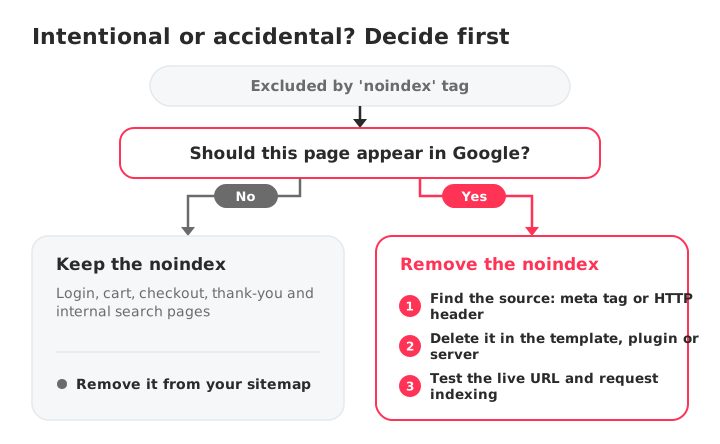
Not every "Excluded by 'noindex' tag" URL is an error. Admin pages, login screens, cart and checkout flows, thank-you pages, and internal search results are intentionally kept out of Google's index. If those pages show this status, the system is working as designed. The real problem starts when pages you want to rank carry this label.
Common causes of the "Excluded by 'noindex' tag" status
A noindex directive can reach your page through several different vectors. Knowing which one is active on your site determines the fix.
Meta robots tag with "noindex" in the <head>
The most common source. A line like <meta name="robots" content="noindex"> in your page's HTML tells Googlebot not to index it. It can be hardcoded in the template or injected dynamically by a CMS, a plugin, or a theme function.
X-Robots-Tag in HTTP response headers
The X-Robots-Tag works exactly like the meta tag but lives in the HTTP response header, not in the HTML. Server configurations, CDN rules, or .htaccess directives can add it. For example:
Header set X-Robots-Tag "noindex"
This affects every file matching the rule, including PDFs and images that don't have an HTML <head> section. Many site owners overlook this vector entirely because the directive isn't visible in the page source.
CMS settings accidentally blocking indexing
WordPress has a checkbox under Settings › Reading called "Discourage search engines from indexing this site." When it's ticked, WordPress adds a robots noindex tag to every page of the site. Many site owners enable it during development and forget to uncheck it after launch.
Shopify can apply noindex through theme code or apps. Some account and system pages are kept out of the index by Shopify itself, which is correct, but a theme edit or an SEO app can add noindex to product, collection or blog pages by mistake.
Wix applies noindex to any page whose SEO settings stop search engines from indexing it. A common trigger is duplicating a page and inheriting the original's noindex setting without realizing it.
Plugin or theme conflicts adding noindex
SEO plugins let you set noindex per post, page, or content type. A misconfigured global rule, a plugin update that resets settings, or a theme that overrides plugin directives can push noindex across dozens of pages at once. If you recently updated a plugin or switched themes, check this first.
Staging environment settings pushed to production
A surprisingly common source of accidental noindex tags. Your staging site uses noindex to keep it out of Google. When the build pipeline pushes staging configuration to production, the noindex directive goes with it. This typically affects entire sections of a site at once and is one of the hardest causes to diagnose if you're only checking individual pages.
How to diagnose which pages are affected
A repeatable diagnostic workflow catches all affected URLs without guessing. Start with Search Console for the list, then drill down to individual pages to find the source.
Using the Page indexing report to export affected URLs
Open Google Search Console and go to Indexing › Pages. Click "Excluded by 'noindex' tag" in the "Why pages aren't indexed" table. Search Console shows a sample of affected URLs; use the Export button to download the list for processing.
Inspecting a single URL with the URL Inspection tool
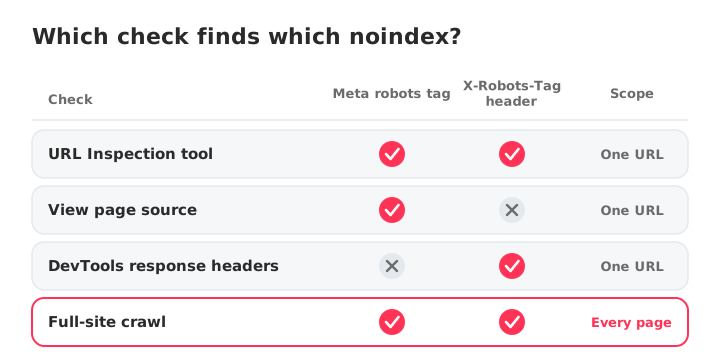
Paste any URL into the search bar at the top of Search Console. The URL Inspection tool shows whether Google saw a noindex directive and where it found it: under "Indexing allowed?" it reports whether the noindex came from the robots meta tag or the X-Robots-Tag HTTP header. Click View crawled page to see the exact HTML Googlebot received. This is the fastest single-page check available.
Checking the page source for noindex meta tags
Open the page in your browser, right-click and select View page source, then search for "noindex" (Ctrl+F or Cmd+F). If you find <meta name="robots" content="noindex"> or similar, the meta tag is your culprit. If you don't find it in the source, the directive may be coming from the HTTP header instead.
Using browser DevTools to check HTTP headers
Open DevTools (F12, or right-click › Inspect), go to the Network tab, reload the page, and click the main document request. Look in the Response Headers section for X-Robots-Tag: noindex. This is the only in-browser way to catch header-based noindex directives that don't appear in the HTML.
Crawling your site with Screaming Frog or SEOcrawl AI
For site-wide diagnosis, a crawler catches every affected page in one pass. Screaming Frog SEO Spider can filter pages by indexability across meta tags and headers. The SEOcrawl AI Crawler crawls every page, flags each one with a noindex directive under Indexability, and returns an Audit Health Score, so you see the full scope without exporting and filtering by hand.
How to fix "Excluded by 'noindex' tag": step by step
This is the most actionable section. Work through the fix that matches your diagnosis from the previous section.
Removing the noindex meta tag from the page source
Edit the page template or content to remove <meta name="robots" content="noindex"> from the HTML <head>. On custom-built sites, check the template files directly. If the tag is injected by JavaScript, find the script responsible and remove or condition it.
Before:
<meta name="robots" content="noindex">
After:
<meta name="robots" content="index, follow">
Or simply remove the tag entirely. Google treats the absence of a noindex directive as "indexing allowed."
Fixing the X-Robots-Tag in your server or CDN configuration
Check your .htaccess (Apache), nginx.conf (Nginx), or CDN rules for any X-Robots-Tag: noindex directives. Remove them, or scope them to the specific paths that should be excluded rather than the pages you want indexed. For example, you might keep noindex on /staging/ while removing it from /blog/.
How to fix in WordPress
Two checks, in order:
- Site-wide setting: go to Settings › Reading and uncheck "Discourage search engines from indexing this site." This is the single most common cause of site-wide noindex issues in WordPress.
- Per-page settings in SEO plugins:
- Yoast SEO: open the post or page, scroll to the Yoast meta box, click the Advanced tab, and set "Allow search engines to show this content in search results?" to "Yes."
- Rank Math: open the post, go to the Rank Math meta box, click the Advanced tab, and set "Robots Meta" to "Index."
- All in One SEO: edit the post, open the Advanced tab of the AIOSEO settings, and make sure "No Index" is not ticked in the robots settings.
Also check each plugin's global settings for whole content types (tags, categories, custom post types) set to noindex. For the rest of the WordPress setup, see our guide to connecting WordPress to Google Search Console.
How to fix in Shopify
In Shopify, noindex usually comes from theme code or an app. Open Online Store › Themes › Edit code and search theme.liquid and the page templates for a robots meta tag with noindex. Then check your SEO apps for rules that hide products, collections or blog posts, and any product or page using the seo.hidden metafield. Account and other system pages are kept out of the index by Shopify and should stay that way.
How to fix in Wix, Squarespace, and other website builders
Wix: open the page's SEO settings (from the page menu) and turn on "Let search engines index this page." If you duplicated a page, the copy may have inherited a noindex setting from the original.
Squarespace: check the site-wide SEO settings for any option that hides the site from search engines. For individual pages, open the page settings and look for "Hide page from search results" under the SEO tab. Squarespace also keeps some system pages, such as the cart, out of search results by default.
After the fix: requesting re-indexing in Google Search Console
Removing the noindex tag tells Google it can index the page, but you still need Googlebot to recrawl it to confirm the change.
Using the URL Inspection tool to request indexing
Paste the fixed URL into the Search Console search bar. Click Test live URL to confirm that indexing is now allowed, then click Request indexing. Google will queue the URL for recrawling. You can submit several URLs this way, but Search Console limits how many you can request per day.
How long does it take Google to re-index a page?
Typically a few days to a few weeks, depending on how often Googlebot crawls your site. High-traffic, frequently updated sites get recrawled faster; new or low-traffic sites may wait weeks. Requesting indexing is the fastest signal you can send, but it's not a guarantee: it puts your URL in the crawl queue, it doesn't force an immediate recrawl.
Submitting an updated XML sitemap to speed up crawling
If you've fixed many pages at once, submit an updated XML sitemap in the Sitemaps section of Search Console. This signals that your site has changed and encourages a broader recrawl. A clean sitemap without noindexed URLs also avoids sending conflicting signals, which we cover next.
When you should keep the noindex tag (intentional exclusions)
Not every noindex tag needs removing. Some pages should never appear in search results, and indexing them adds thin or duplicate pages to Google's view of your site and wastes crawl attention.
Pages that should never be indexed
- Login and registration pages
- Cart, checkout, and order confirmation pages
- Internal search result pages (to prevent duplicate content)
- Thank-you pages (lead magnets, form submissions)
- Admin and backend pages
- Staging and development environments
- Filter and parameter pages that generate duplicate URLs
Using noindex vs. robots.txt: key differences
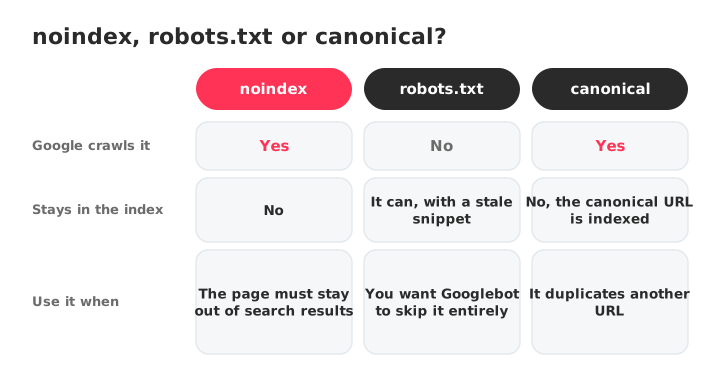
robots.txt blocks crawling. noindex allows crawling but blocks indexing. If you block a page in robots.txt, Googlebot never reads it, which means it never sees the noindex tag either. If you want a page out of the index, use noindex. If you want Googlebot to skip the page entirely (to save crawl budget), use robots.txt.
A common mistake: using robots.txt to block a page that's already indexed. Google can't see the noindex tag if it can't crawl the page, so the URL may stay in the index with an outdated title and snippet. The correct approach is to allow crawling and use noindex to remove the page from the index.
Canonical tags vs. noindex: choosing the right directive
A canonical tag (rel="canonical") tells Google "this page is a copy of that other URL, rank that one instead." A noindex tag tells Google "don't index this page at all." They serve different purposes:
- Use canonical when you have duplicate or near-duplicate content and want to consolidate ranking signals to one URL.
- Use noindex when the page should not appear in search results under any circumstances.
Combining both on the same page sends conflicting signals: one says "fold this page into another URL," the other says "drop it." Pick the one that matches what you want.
Preventing accidental noindex tags in the future
Fixing noindex issues reactively is necessary, but preventing them saves hours of diagnosis and lost traffic.
Setting up Search Console alerts for indexing drops
Google Search Console emails verified owners and users when it detects new indexing issues on a property. Make sure email notifications are turned on in your Search Console email preferences. If indexed page counts drop suddenly, the alert gives you a head start before traffic follows.
Adding noindex checks to your pre-launch QA checklist
Before deploying any site or pushing staging to production, check for noindex directives. A 30-second check with "View page source" and a search for "noindex" catches the most common deployment mistake. For larger sites, crawl before and after the deployment and compare the number of noindexed pages. Add it to your technical SEO checklist so nobody skips it.
Scheduled crawls to catch rogue noindex directives
Run a full crawl on a schedule, and after any plugin update, theme change or migration, to catch rogue noindex tags before they cost you traffic. The SEOcrawl AI Crawler lets you compare crawls, so you see which pages turned noindex and when, and SEO Monitor alerts you the moment one of your key pages gains a noindex tag.
FAQs
What does "Excluded by 'noindex' tag" mean in Google Search Console?
It means Google found and respected a noindex directive on your page, so the page will not appear in search results. The status appears in the Page indexing report of Search Console, under "Not indexed."
It is not always an error: pages you intentionally exclude, like login or checkout pages, should show this status.
How do I fix "Excluded by 'noindex' tag" in WordPress?
Check two places, in order. First, go to Settings › Reading and make sure "Discourage search engines from indexing this site" is unchecked. Second, open each affected post or page in your SEO plugin (Yoast, Rank Math, All in One SEO) and confirm the per-page robots setting allows indexing.
How long does it take Google to index a page after removing noindex?
Typically a few days to a few weeks, depending on how often Googlebot crawls your site. Request indexing with the URL Inspection tool after removing the directive, and submit an updated XML sitemap to speed things up. High-traffic sites get recrawled faster than new or low-traffic ones.
Can a page be excluded by noindex even if it's in my sitemap?
Yes. The noindex directive overrides sitemap inclusion. Google may still crawl the URL from your sitemap, but it will not index it while noindex is present.
Either remove the noindex so the page can be indexed, or remove the URL from the sitemap if the exclusion is intentional. Listing noindexed URLs in a sitemap sends conflicting signals.
What is the difference between noindex and blocking a page in robots.txt?
robots.txt blocks Googlebot from crawling the page; noindex allows crawling but prevents indexing. If you block a page with robots.txt, Google can't read the noindex tag, so an already-indexed page may stay in the index with stale content. Use noindex to remove a page from the index, and robots.txt only when you want to prevent crawling entirely.
How do I check if a page has a noindex tag?
Three methods, from fastest to most thorough: use the URL Inspection tool in Search Console, view the page source and search for "noindex" (Ctrl+F), or check the HTTP response headers in your browser's DevTools (Network tab, look for X-Robots-Tag). Only the URL Inspection tool and DevTools catch a noindex sent in the header.
Should I be worried if many pages show "Excluded by 'noindex' tag"?
Only if those pages should be indexed. Export the list from Search Console, compare it against your intentional exclusions (login, cart, admin, thank-you pages), and fix only the pages that should rank in search. If every affected page is one you deliberately excluded, the status is working correctly.
Author: David Kaufmann

I've spent the last 10+ years completely obsessed with SEO — and honestly, I wouldn't have it any other way.
My career hit a new level when I worked as a senior SEO specialist for Chess.com — one of the top 100 most visited websites on the entire internet. Operating at that scale, across millions of pages, dozens of languages, and one of the most competitive SERPs out there, taught me things no course or certification ever could. That experience changed my perspective on what great SEO really looks like — and it became the foundation for everything I've built since.
From that experience, I founded SEO Alive — an agency for brands that are serious about organic growth. We're not here to sell dashboards and monthly reports. We're here to build strategies that actually move the needle, combining the best of classical SEO with the exciting new world of Generative Engine Optimization (GEO) — making sure your brand shows up not just in Google's blue links, but inside the AI-generated answers that ChatGPT, Perplexity, and Google AI Overviews are delivering to millions of people every single day.
And because I couldn't find a tool that handled both of those worlds properly, I built one myself — SEOcrawl AI, an enterprise SEO intelligence platform that brings together rankings, technical audits, backlink monitoring, crawl health, and AI brand visibility tracking all in one place. It's the platform I always wished existed.
Discover more content about this author