robots.txt: Complete Guide to Configuration

Tired of hearing about robots.txt and not knowing what people are talking about? Don't worry, today we're bringing you the solution to your problem. In this post we'll do our best to explain what robots.txt is, how to configure it (especially in WordPress) and what impact it can have on the SEO of our project.
Let's get to it!
What is robots.txt and what is it for?
The robots.txt is simply a file hosted in your web root that lets you prevent certain bots (like Google's or Bing's) from visiting your website or parts of it.
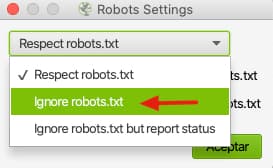
HEADS UP: it's important to know that this is a protocol and as a general rule all "good" bots comply with it (GoogleBot, BingBot, Semrush, ...) but any bot with bad intentions can skip it, such as Screaming Frog by checking this option:
Why is the robots.txt file important for SEO?
As we mentioned before, all good bots (like GoogleBot) comply with this protocol so what we can do is use this file to guide Google through our website. Pages you disallow here surface as "Blocked by robots.txt" in Google Search Console.
What? What do you mean? Guide Google with the robots.txt?
Yes, don't worry, we'll explain it with an example so it becomes much clearer:
Imagine that on your website you have a private area that only registered users can access, and as we well know, Google can't access any site that requires login (yet...).
So, wouldn't it make sense for Google not to waste our crawl budget crawling pages that have no value for it?
Exactly! One of the most important uses of the robots.txt is to block paths that have little value for Google and, in this way, make it focus on the important pages of our website. For this reason, robots.txt should be one of the pillars to keep in mind within our SEO strategy.
This is just one example out of the thousands of things we can do with this file. Other examples include indicating our sitemap, reducing the crawling interval, blocking the crawling of resources, ...
How to create the robots.txt file
Well... let's get to work!
Creating this file is really simple, you just need to grab your text editor (Notepad on Windows or TextEdit on Mac) or use an online one and after drafting your robots.txt, export it as a txt file.
Once we have it, we just need to name it "robots.txt" and upload it to your web root through your server panel or via FTP.
To check whether it has been uploaded correctly, you just have to add "/robots.txt" to your domain, for example https://seocrawl.ai/robots.txt
HEADS UP: Be careful with the cache, it's better to view it in incognito ;)
What if I have WordPress?
If you have WordPress it's simpler because the best SEO plugins such as Rank Math or Yoast come with a built-in add-on to edit the robots.txt directly.
In the case of Rank Math you'll find it under Rank Math > General Settings > Edit robots.txt
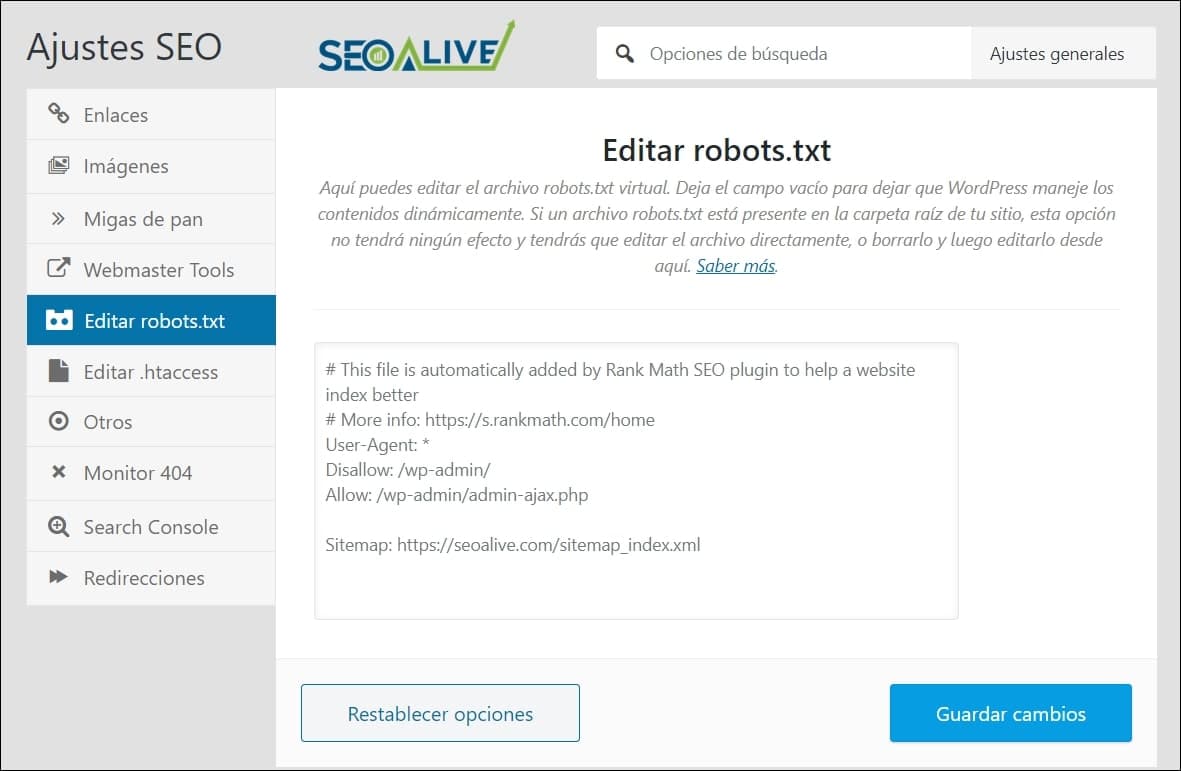
In the case of Yoast we'll need to go to SEO > Tools > File Editor
This way you can easily edit or create the file without having to perform any of the steps explained above.
Commands
Below we'll take a look at many of the commands we have available along with their corresponding examples:
Block crawling of your website
User-agent: * Disallow: /
NOTE: If you're developing your website and you don't want any bot to enter, read and index your content, this rule works great.
Block crawling of a page
User-agent: * Disallow: /url-of-page-i-dont-want-crawled
Block crawling of a folder
User-agent: * Disallow: /folder/
Allow access to a page
User-agent: * Allow: /page
Block a folder and allow a page in that folder
User-agent: * Disallow: /folder/ Allow: /folder/page
Indicate the sitemap
Sitemap: https://domain.com/sitemap.xml
Give orders to specific bots
In this case we'll dwell on it a bit more. If you've noticed, most of the previous directives started with:
User-agent: *
That "*" refers to all bots. That is, all directives after that line apply to all bots. If what we want to do is send specific orders to certain bots, we'll need to change that as follows:
User-agent: Googlebot If we want to refer to Google's bot
User-agent: Bingbot If we want to refer to Bing's bot
User-agent: DuckDuckBot If we want to refer to DuckDuckGo's bot
All you have to do is find out what the bot you want to send an order to is called and name it as we just showed you.
Review and test the robots.txt file
Now that you've finished "tuning" your robots to leave it fully optimized and customized for your website, the only thing left is to test it.
Test it? What for?
Well, test it to make sure we haven't messed up on any line and that it's actually working to block the parts of the website we want to block.
For that we recommend using this tool.
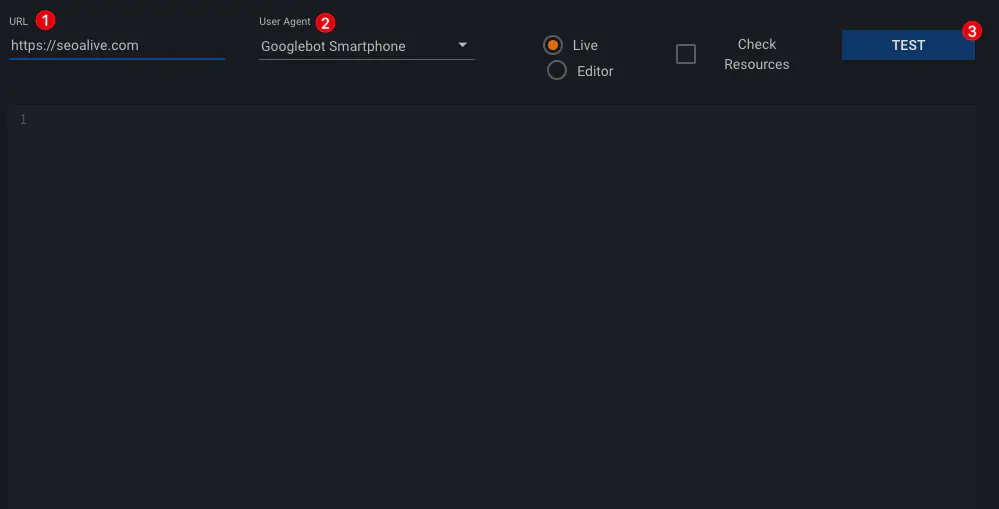
Once you're inside you just have to:
-
Enter the URL you want to check whether crawling is allowed
-
Choose the User Agent
-
Click TEST
Right after, our entire robots.txt file will load and below it will tell us whether access is allowed or not.
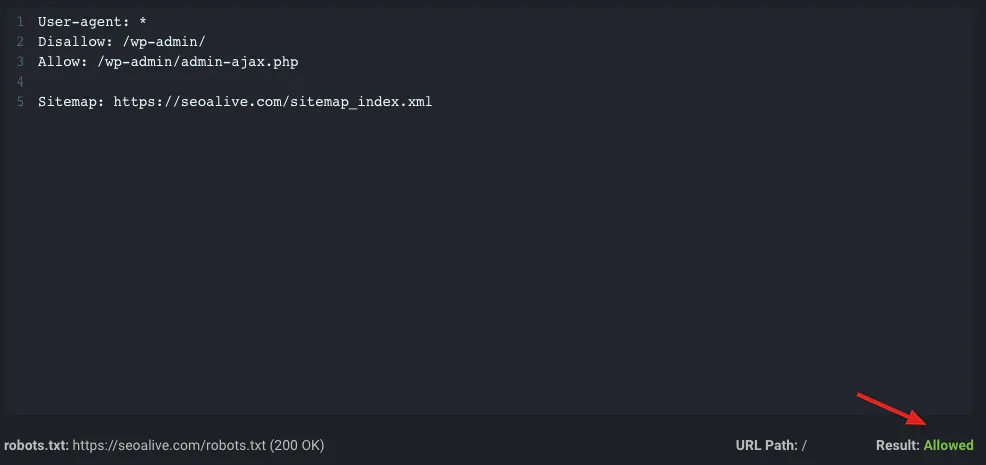
In this case, as we can see, it gives us a positive result, but if we were to enter a URL that isn't allowed, it would also highlight the line that's blocking it:
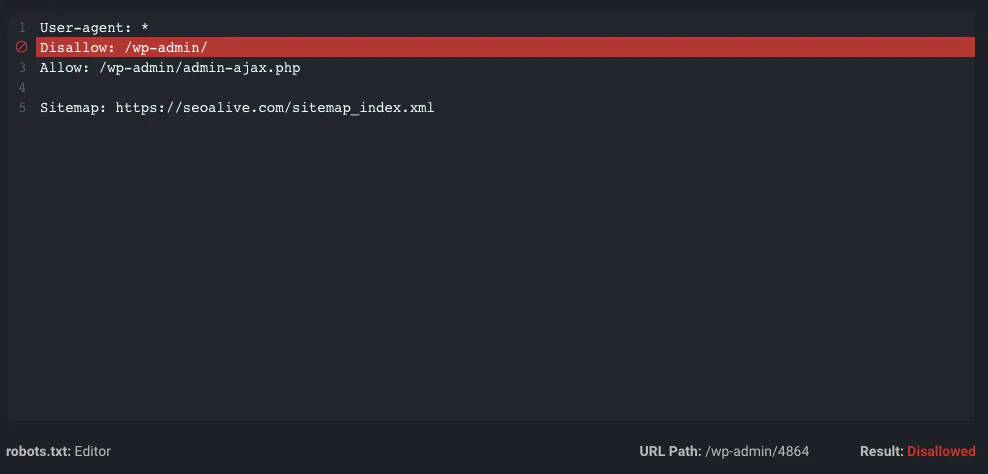
In addition, this tool lets us edit our robots.txt file directly from there to make any modifications we need so the result matches our goal. Once modified and tested, we just need to apply those new modifications to our robots.
Bonus tip: make your robots.txt unforgettable
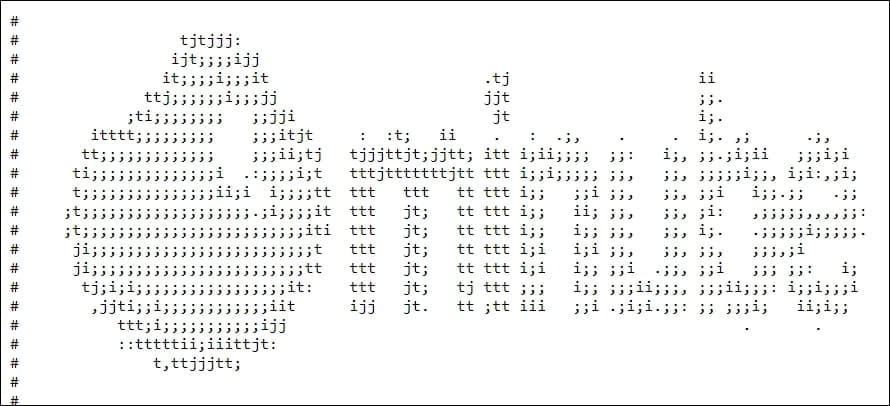
We've shown you a ton of lines of code that work for bots, but you can also insert comments by starting the line with a "#". That is, anything starting with "#" will be ignored by the bots. This opens up a world of possibilities and inside jokes. For that reason we encourage you to check out the robots.txt of windupschool, pccomponentes or Minube, you're sure to come across a surprise ?
Conclusion
As you've seen, the robots.txt file has a lot to offer and also requires a lot of care because a poorly placed directive can block the crawling of your website.
We hope this guide is useful to you and, for any questions, we'll see you in the comments.
Author: David Kaufmann

I've spent the last 10+ years completely obsessed with SEO — and honestly, I wouldn't have it any other way.
My career hit a new level when I worked as a senior SEO specialist for Chess.com — one of the top 100 most visited websites on the entire internet. Operating at that scale, across millions of pages, dozens of languages, and one of the most competitive SERPs out there, taught me things no course or certification ever could. That experience changed my perspective on what great SEO really looks like — and it became the foundation for everything I've built since.
From that experience, I founded SEO Alive — an agency for brands that are serious about organic growth. We're not here to sell dashboards and monthly reports. We're here to build strategies that actually move the needle, combining the best of classical SEO with the exciting new world of Generative Engine Optimization (GEO) — making sure your brand shows up not just in Google's blue links, but inside the AI-generated answers that ChatGPT, Perplexity, and Google AI Overviews are delivering to millions of people every single day.
And because I couldn't find a tool that handled both of those worlds properly, I built one myself — SEOcrawl AI, an enterprise SEO intelligence platform that brings together rankings, technical audits, backlink monitoring, crawl health, and AI brand visibility tracking all in one place. It's the platform I always wished existed.
Discover more content about this author