The definitive guide to WordPress SEO
We are late if we want to talk about the importance of SEO in such a digital communication ecosystem. Large companies, SMBs, freelancers and individual users alike can have access to a website, and this is where WordPress comes in: the CMS with the most users in the world (27+ million sites use it, which represents 50%+ of CMSs on the internet).
In the following article we are going to talk about WordPress SEO starting with the most basic concepts and gradually moving up to an advanced level.
Subdomain redirects — with or without www?
We start with a recommendation for those who are going to install WordPress: before installing, decide which version of the domain you prefer, with www or without it, because when you launch a WordPress installation app — for example in CPANEL — it gives you the option to perform the whole installation under your preferred option, so that the version you did not choose is later redirected.
If you have skipped this step, you will have to work with the htaccess file. There are plugins like WP HTACCESS EDITOR that make editing the file easier, but I recommend that if you are not sure of what you are doing, you ask for help, because this file is fundamental for the website to work.
If you still decide to work with this option, this is the code you should add.
Redirect domain without www to with www
RewriteEngine On
RewriteCond %{HTTP_HOST} ^yourdomain.com [NC]
RewriteRule ^(.*)$ http://www.yourdomain.com/$1 [L,R=301]
Redirect domain with www to without www
RewriteEngine on
RewriteCond %{HTTP_HOST} ^*www.yourdomain.com*
RewriteRule ^(.*)$ http://yourdomain.com/$1 [R=301,L]
Even so, I want to emphasize again that editing the htaccess file is something you need to be very clear about, so if you are going to edit it, make a backup first.
Installing WordPress: first steps in optimization
First of all, you have to understand how Google works and that every action you take should — as much as possible — make Googlebot's job easier when it visits our site.
Why do I say this?
Because this point is one of the most common mistakes made by users — not only of WordPress, but of every web designer or webmaster.
If your content is not finished, don't allow Googlebot to access it, because you will slow down the ranking process of your URLs.
So if I have to recommend something before starting, it's "discourage search engines from indexing my content."
WordPress indexing: When should I index my site?
While performing the installation we have the option to block access from search engines on the setup screen. But if we have skipped this step, we can do it from Settings > Reading.
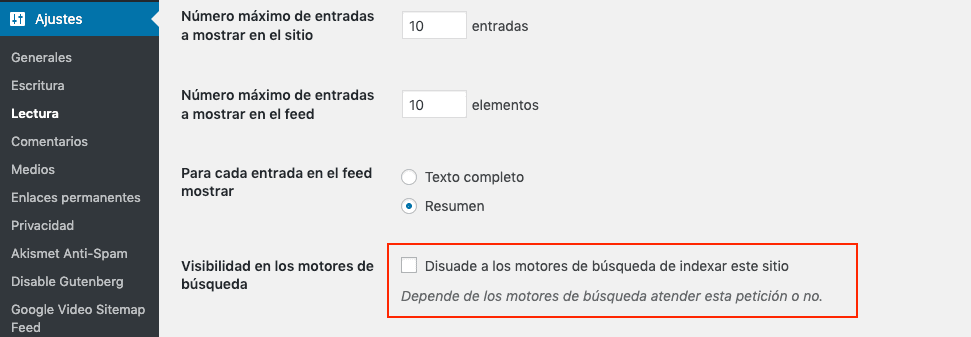
Option to block robot access
This "prohibition" can also be done from the popular Robots.txt file. If you are a user with more experience in web development, through an FTP account that has been created or provided by your hosting provider, you will be able to add this file to the main path where your site is hosted.
The Robots.txt file can be created simply with Notepad (Windows) or TextEdit (Mac), but remember that it has to be a text file; in which we will add these two lines:
*User-agent: **
Disallow: / In this list we can see the most popular Google Crawlers (User-Agents)
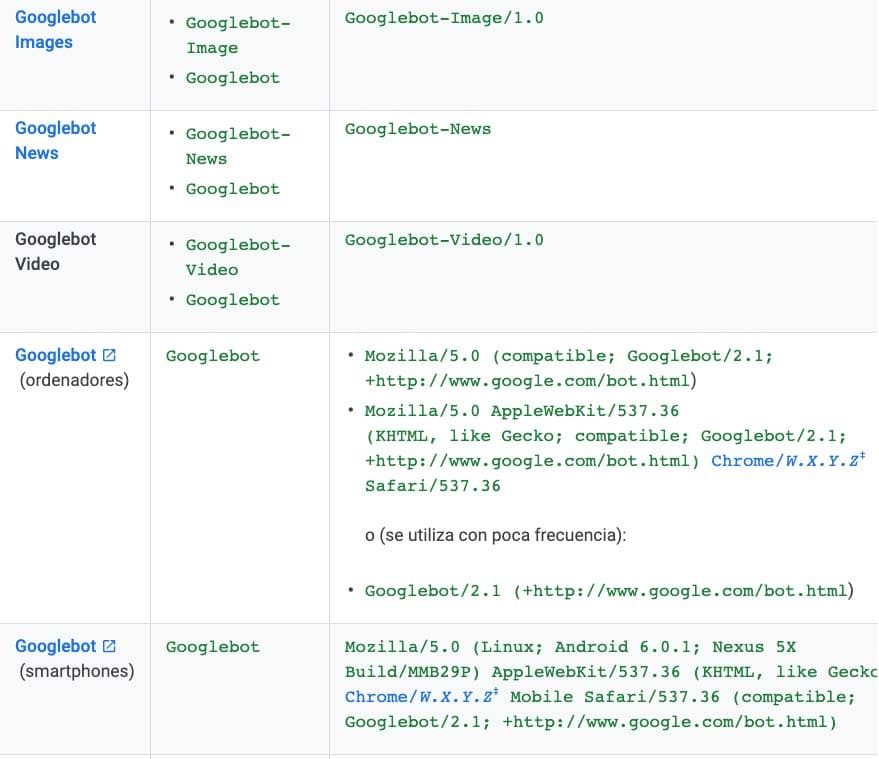
Different Google user agents
In our code, if we indicate User-agent: * we are saying that we refer to all bots — none of them will be able to access our website. We can also refer to a single Bot (Googlebot, Googlebot-Video, etc.) but at this point I do not recommend it. So, all blocked.
URL structure and friendly URLs
Once we have made clear what our preferred domain is and blocked access to robots, we are going to move on to the URL structure.
This is a step that must be done before crawling and indexing, because otherwise we would have to get into the world of redirects and that is not ideal.
WordPress provides you by default with options so you can choose the one that will best structure the content of your site. This choice depends on the project and on each person; all options are feasible if the project requires it.
Let me explain:
Once inside the WordPress dashboard we will go to Settings > Permalinks
And we will find this screen:
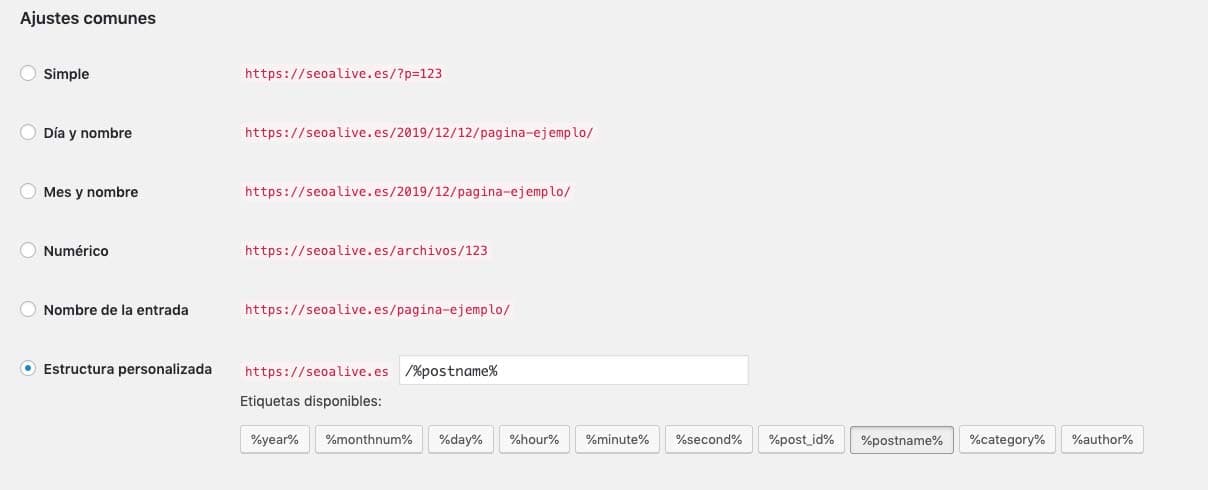
URL structure with permalinks
As I said above, the choice depends on each person, but if we are talking about SEO, it is preferable to work with a more friendly URL format.
What are friendly URLs?
We call friendly URLs those URLs that are understandable to the user and provide, at a glance, a semantic interpretation of the URL's content.
- Friendly URL: /blog/
- Non-friendly or dynamic URL:*
https://seocrawl.com/?ref=13535?sfas
The first URL gives you information about the content you are going to find, the second does not, but this does not mean Amazon is doing things wrong — rather, it uses different control parameters to internally identify its URLs.
Keep in mind that with millions of products and categories, numbers make control easier for them.
Once this clarification is made and looking at the options, we have 3 types of URLs:
- With date
- With the name of the entry or post
- Customizable through variables.
Permalinks in WordPress
URLs with Date

Many SEO consultants reject these URLs, especially because they give away the creation date of the entry, but this type of URL is very useful when you have a large volume of content.
For example, the case of news media. If you look at all their URLs, they have the date. For a news outlet, having a logical structure to be able to store its URLs in the archive is essential, and it is also an identifier that comes in handy for knowing when a story was published.
El País uses a mixed type of URL, since it has semantic information such as category name, date and subcategory, and ends with a news identifier.
Other newspapers, in addition to the news identifier, also include terms from the headline of the news in the URL.
When working with URL syntax, there is a very interesting option that is often filtered: stop words.
Stop words are terms that we want to avoid when creating a new URL. This action is done through programming — in our case of WordPress, through PHP.
Examples of stop words would be: articles, pronouns, numbers, etc.
Rank Math has an option that lets you avoid this type of term.
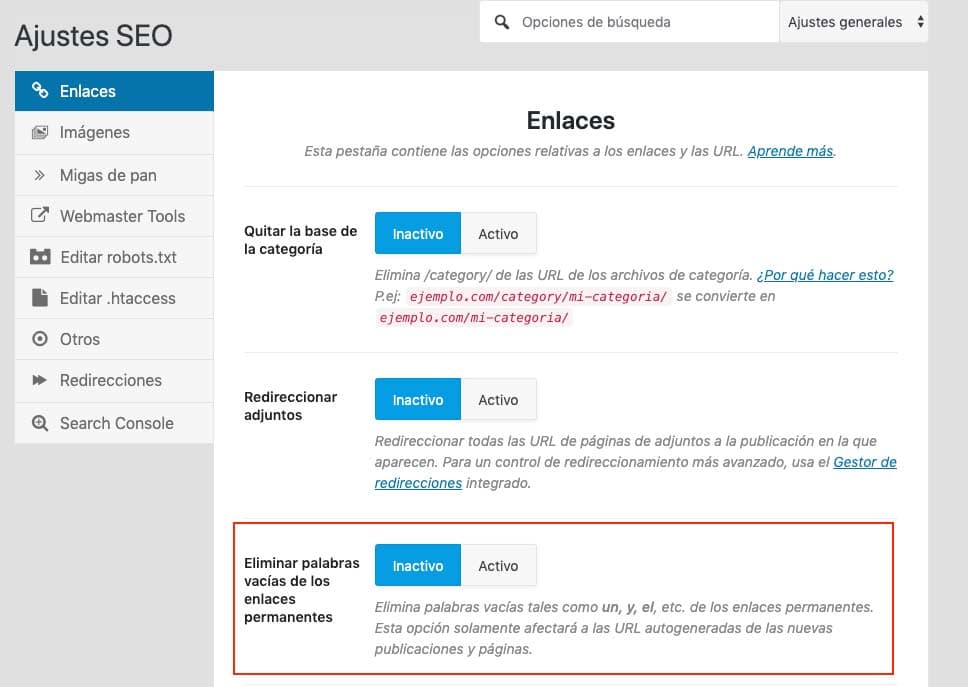
Removing stop words when creating URLs
URL with the name of the entry or page

A simple and widely used option. Our URLs will be formed with the name of the entry or with the slug that has been modified.
The Slug or permalink can be edited in entries, so if we don't want the automatic option WordPress gives us, we will manually modify the URL (only the entry, not the domain).

Custom URL using variables

As you can see, different variables come into play here to build a URL to our liking.
Variables will give more information to the user. If you want to structure your content in a way that requires adding some variable, select this option.
I'll give you an example: we want to indicate in our URL the category, the year, the post name and the identifier.
https://seocrawl.ai/%category%/%year%/%postname%/%post_id%/
Information Architecture: categories, parent pages and tags
We need to understand all the possibilities WordPress gives us to work with content before starting with Information Architecture.
As you probably already know, WordPress has its peculiarities and although a post and a page may seem the same on the surface, the functionality and plugins do differentiate them.
Content structuring is a fundamental part of SEO in order to work on linking and relating similar content — what is known as content clusters.
For this we can work with:
- Categories
- Tags
- Entries (Posts)
- Pages
- Subpages
Categories, Tags and Entries (Posts)
There are two ways to automatically group entries in WordPress: with categories and with tags.
When do we use categories and when do we use tags?
Understanding that Categories and Tags help us with content grouping, the decision to use them must always be subject to the amount of content we are going to generate because otherwise we may be duplicating content.
Both categories and tags will help us with internal linking and with Google crawling all our content, but as we have said, you need to know how to use them.
My advice is to use categories when we are going to create content frequently within the theme of our site.
We will use tags if within specific topics there is a large amount of content that has something in common.
I'll give you an example:
Sports would be a category, but Cristiano Ronaldo could be a Tag — even so, you should ask yourself: how many stories am I going to produce about Cristiano Ronaldo?
If we are not going to generate enough content for our page groupings to actually differ from each other, we have two options: either not create the category/tag or not index them.
When we work with categories and tags, there are other add-ons that will help our content relate to similar content.
Breadcrumb or Navigation Path
WordPress builds the navigation path through the structured content of Category and Post, so if we want to use breadcrumbs to ensure our content is well linked, we should opt for this type of architecture.
So our post would look like this:
- URL : sitename.com/category/category-name/post-name
- Breadcrumb: Home > Category Name > Post Name
There are plugins to add breadcrumbs but they all pull from the DB structure we have in our WordPress; to this day I don't know of a plugin that gives you flexibility in its definition.
As you will have already noticed, the URL of a post with a category introduces the term CATEGORY.
This comes stock with WordPress, meaning you will find it in every WordPress, and the option given to you in the permalinks only lets you change one name for another (category for another term).
We have several options to solve this — once again Rank Math gives us the option:
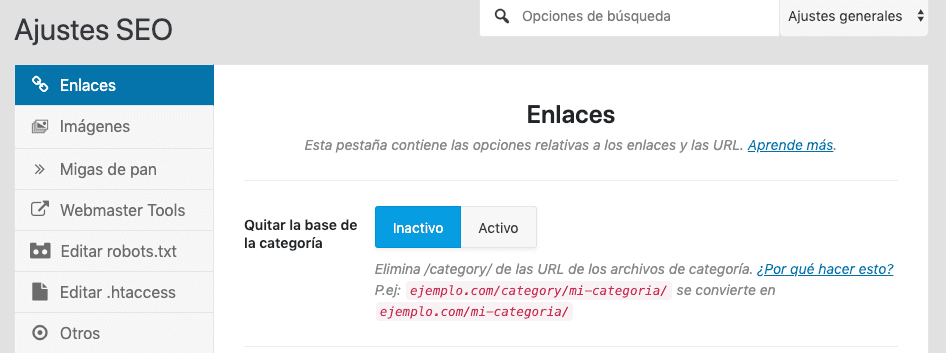
And there are also plugins that help you eliminate this term and leave a cleaner URL.
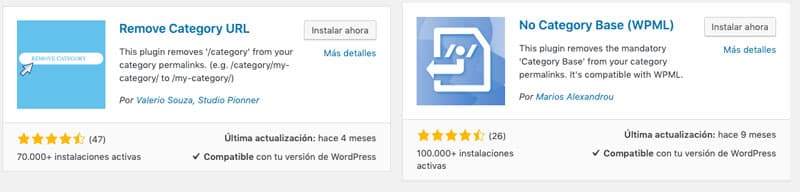
Plugins to remove Category from the WordPress URL
Parent Page and Subpage
Going back to content structure, there is one way of working that I like, and it is with pages and subpages. I usually use this kind of structure for service Landing Pages or Hub pages.
The difference is mainly in the design flexibility that a page gives you and a category does not. Both categories and posts are dictated by the WordPress Theme or template, but pages can be designed to your liking with the help of Page Builders (plugin or add-on to customize the site using blocks).
When should we use a page and a subpage?
The clearest example that comes to mind is when we have a general service and several more specific services. We will create a page for the generic service and subpages for the specific service.
- Generic Landing Page: Design
- Specific Landing Page: Web Design, Graphic Design, Product Design, Industrial Design...
URL example:
sitename.com/design/web/
sitename.com/design/graphic/
sitename.com/design/product/
Breadcrumb: *Home > Design > Web Design *
To do this, from the article editor (post or entry) we need to enable the Page Attributes panel, which is found at the top.

Now, on the right side of our page, a module with the page attributes will have been added.
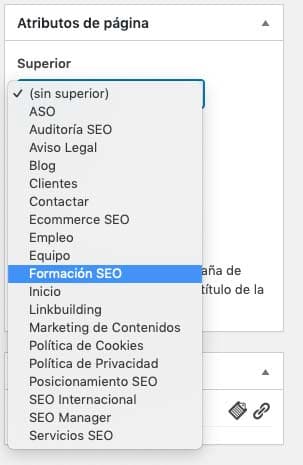
By choosing one of the existing pages, the current page will depend on the one selected, making it a subpage of it.
SEO Plugin for WordPress: Rank Math, Yoast...
Once we have clear our URL structure and part of the information architecture, I wanted to include at this point the installation of the SEO Plugin (Rank Math, Yoast, All In One SEO...). Currently these plugins make your life easier in terms of SEO, as they have the essential tools to work on SEO in your content.
Once this plugin is installed, it is time to add the tracking and verification code of the website we want to track. As analytics tools, there are no better tools than Google Analytics and Search Console.
Tracking code or Google Analytics code
As you will see in WordPress — if you haven't already — there are always several ways to do a process.
To insert the Analytics tracking code or tracking ID we can do so through code in the page's own HTML, through the template that usually provides a space to insert code in the Header, or with a plugin.
If you don't know how to get the Analytics tracking ID, from Google's support page they show you the way https://support.google.com/sites/answer/97459?hl=en
Google has its own plugin for WordPress (Site Kit Google), where we can have the complete analytics part.
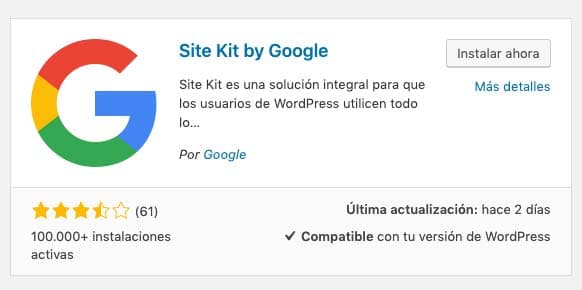
We also have simple options to add the Google Analytics tracking code.

Nowadays designers already take these webmaster needs into account and offer, in the template configuration, a box to insert the code in the header.
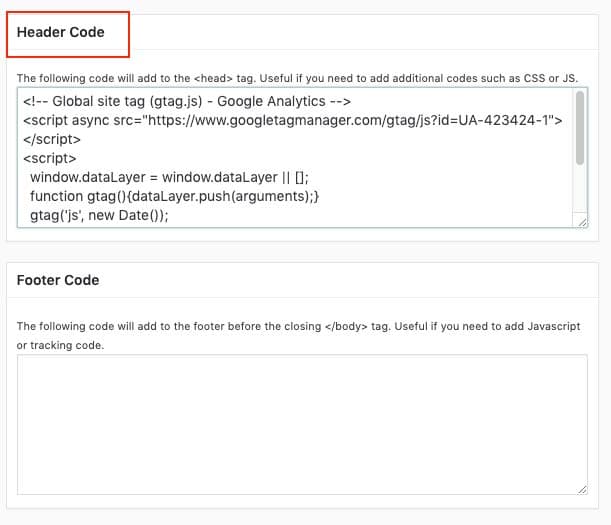
Verifying our WordPress in Search Console
There are different ways to verify a domain in Search Console, I am going to tell you about 2: one with Google's verification file and another with the SEO plugin we are going to work with.
- Google Search Console verification file.
- With the property's verification code
For easy verification we can use Rank Math again.
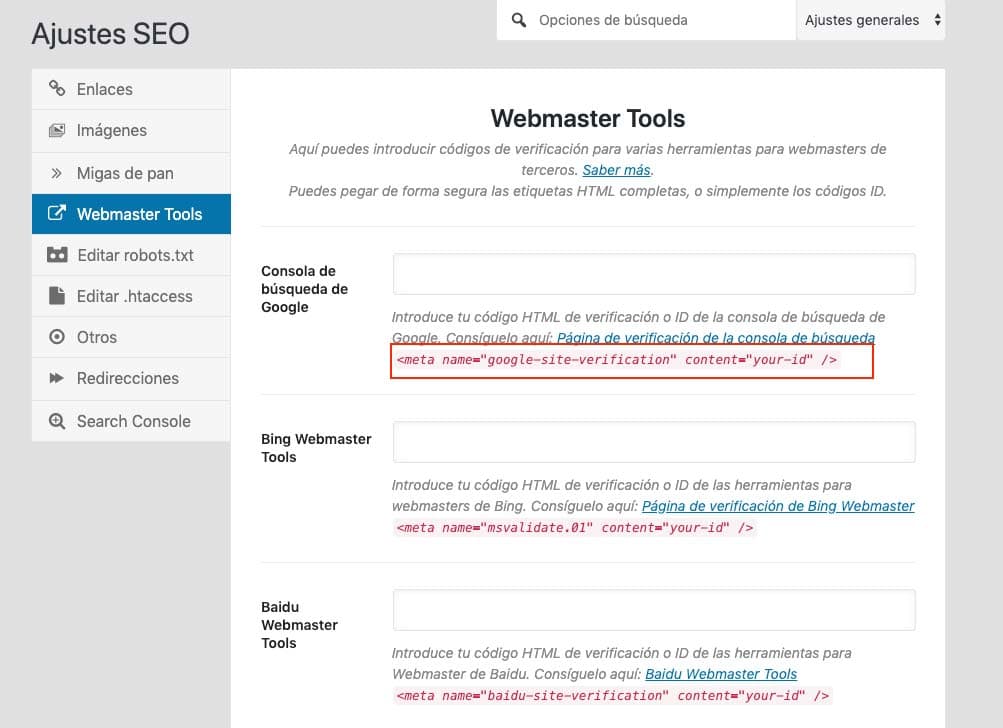
In the first field we can directly enter the ID we find in the Search Console verification part (if we click on the text in the box it takes us directly to the URL that gives us that information).
Then we just have to add the ID marked in red below.
<meta name="google-site-verification" content="example code" />
How to make a Sitemap in WordPress
Another point that generates controversy in the SEO sector are sitemaps. This file used to be important so that Google could access all our URLs.
It's true that things have changed and Google doesn't need a file to fully crawl your site. But equally it is true that with Search Console and sitemaps you will have additional information that can help you solve future URL problems.
There are many ways to make a Sitemap, but the ideal is that it is a dynamic file that updates with new entries or pages.
Whether we use Yoast or Rank Math or any other type of SEO plugin, to access this functionality we just have to indicate it.
To explain it I am going to use the tool provided by Rank Math and we are going to go to the Sitemap Settings option.
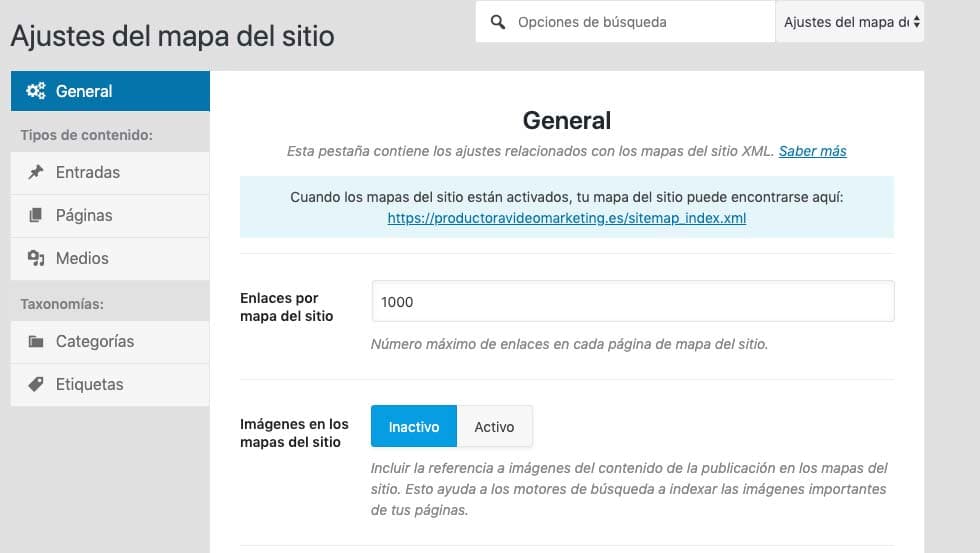
Example of sitemap configuration in Rank Math
As we see in the image, we can customize different options about the type of URL we are going to work with.
- Links per sitemap: 1000 (we leave the predefined option, this refers to the number of URLs we want in our file)
- Images in sitemaps: I recommend activating this option if your images are original and provide information to the article.
In any case, if you use images in your content, Google will crawl them easily.
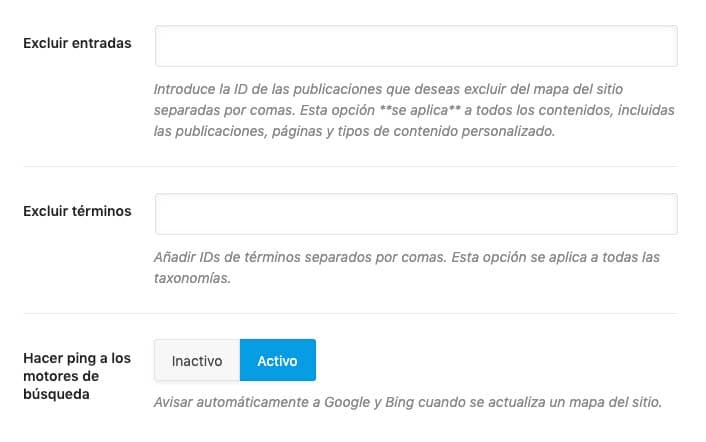
The first two boxes of this part of the configuration are to exclude entries or pages that you don't want to add to the sitemap.
This is done through the identifier and we can find it as follows.
When we go to the entries or pages section, if we hover the cursor over an entry without clicking, the URL will appear in the lower part.
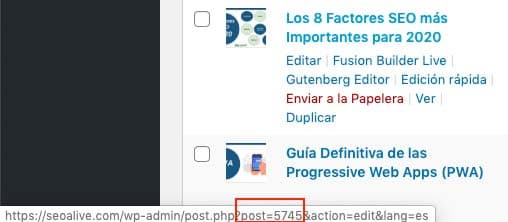
If we look at the bottom, in the red box, we see post=5745 — the number is the identifier we have to use to prevent this page from appearing in the sitemap.
The next option is with Taxonomies, that is, to do the same with TAGS and Categories.
The Rank Math option is limited and comes predefined to generate 5 types of sitemaps (entries, pages, media, category and tags)
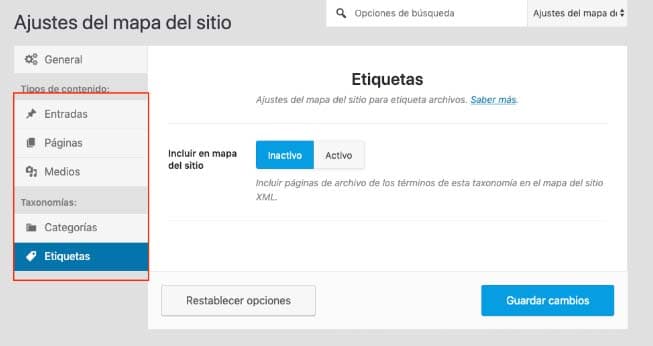
It's up to you to decide which sitemap you don't want — my advice is that you don't make a sitemap of URLs that you don't want Google to see (noindex or blocked by robots).
Once this initial part is done, we are going to move on to the content part and explain what factors you should be aware of, and how WordPress works for content optimization.
Optimizing Content for WordPress
When we start to optimize a page or entry, we have to know what we must take into account.
The most important tags in content optimization are:
- Title <title> in HTML
- Description <meta name="description" content=" descriptive text" >
- Heading hierarchy <h1, h2, h3, h4… >
- ALT tag <img src="image url" alt="image description">
WordPress page speed optimization (WPO)
Now let's get serious — this is a part that really gives every webmaster headaches because many variables affect loading. We have different tools to measure loading speed — I will tell you about the ones I use and how I use them.
Basic concepts
A WPO (Web Performance Optimization) analysis is performed to improve your site's loading. The tools used are not 100% accurate and each user can get different load times for the site.
That's why, when we optimize a site, our aim is not to get the maximum possible score in the auditing tools used, but to improve certain aspects so that, regardless of the user, they will see improvement in our site's loading.
When we work on WPO, what we try to optimize is what is within our reach:
- Request: Requests made by resources to the origin (our server or another external server)
- Total Page Size: Size of the resources a page loads.
- Fully Loaded Time: Total page load time.
Other aspects such as server response, although we can work to improve it, are not as accessible to us.
Gtmetrix and Lighthouse
We are going to take an approach with two accessible and free tools — well, Gtmetrix has a paid version but the features of the free version are enough for us.
For the explanation I am going to use a site I own on which I have deactivated the plugins that help me with optimization.
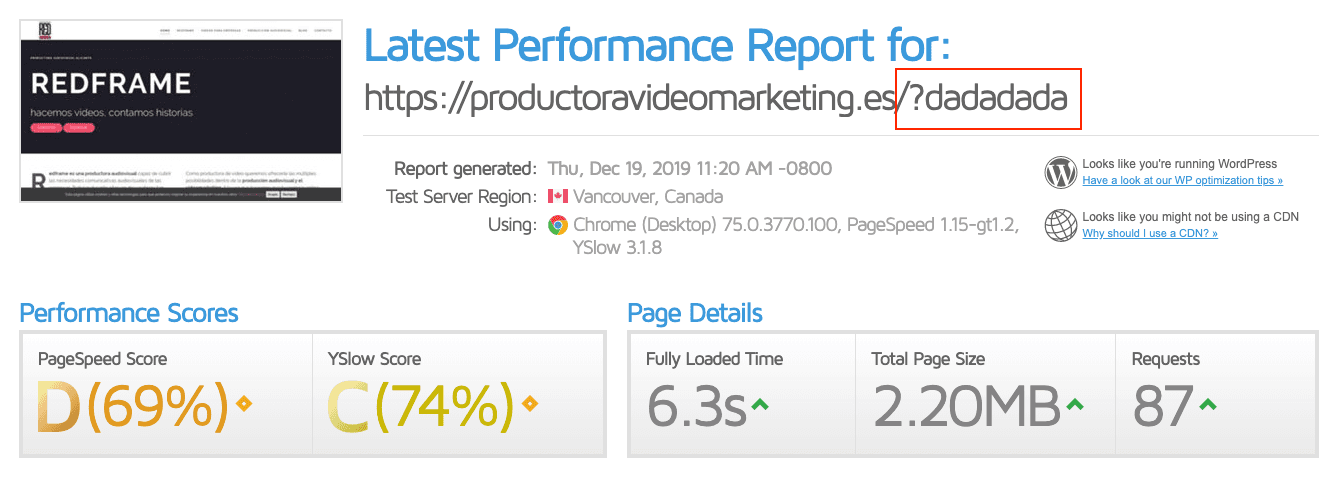
I had to use a new cache version because the tool was reading the old cached version (with the plugins activated) and it was giving me good optimization results, which for my example was not what I wanted.
Remember, if you want a new cache version, add ? to your URL followed by any type of character, for example url?version1
As we said before, requests are one of the basic factors we have to work on. To do this, we are going to analyze what is known as the Waterfall or cascade of execution times.
Waterfall
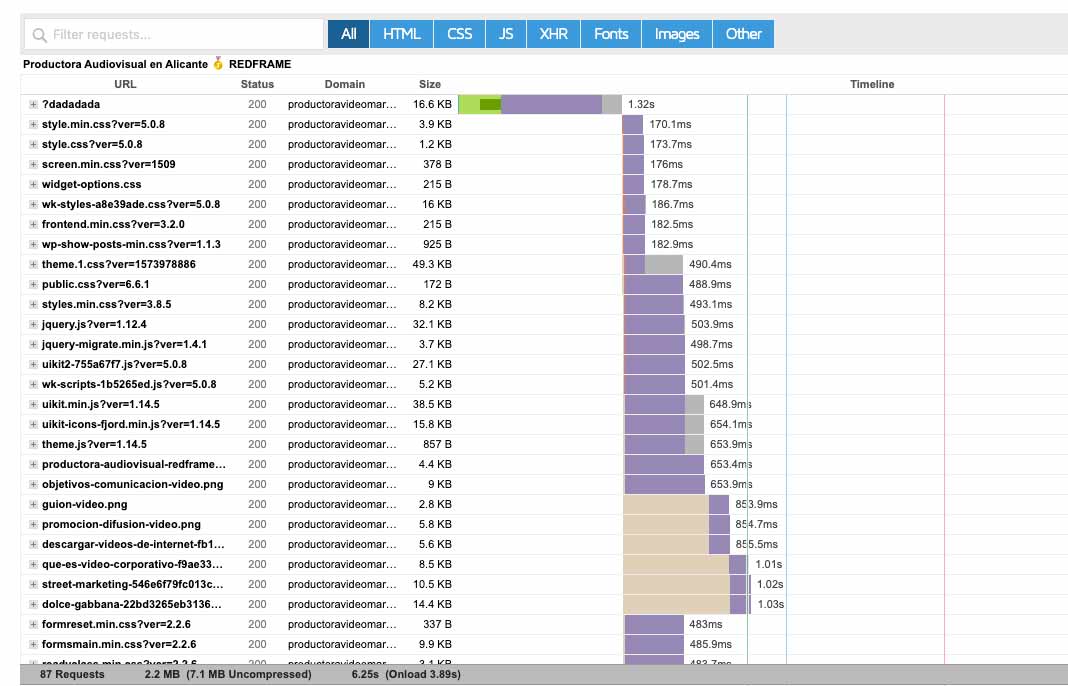
As we see in this cascade we have 87 requests made. Each of these requests has a name, a status, the location and the size.
How do we start working?
Images
If we look at any WPO analysis tool on a non-optimized site, we will see that they recommend 4 types of actions to take on image resources.
Reduce their resolution
There are millions of tools to use, both online and for PC or MAC. I like to do everything with Photoshop, but of course it all depends on the number of images you have to optimize. As an online tool you can use Kraken.io but as I told you before, I stick with Photoshop because it can do a more precise optimization.
Serve images at the maximum read size
It is a very common mistake. Using a stock photo site, downloading a 2800 x 1600 image and using it on our site at a resolution of 900 x 400.
My recommendation is that you use the inspector with the maximum size of the page and look at the size that is being used.
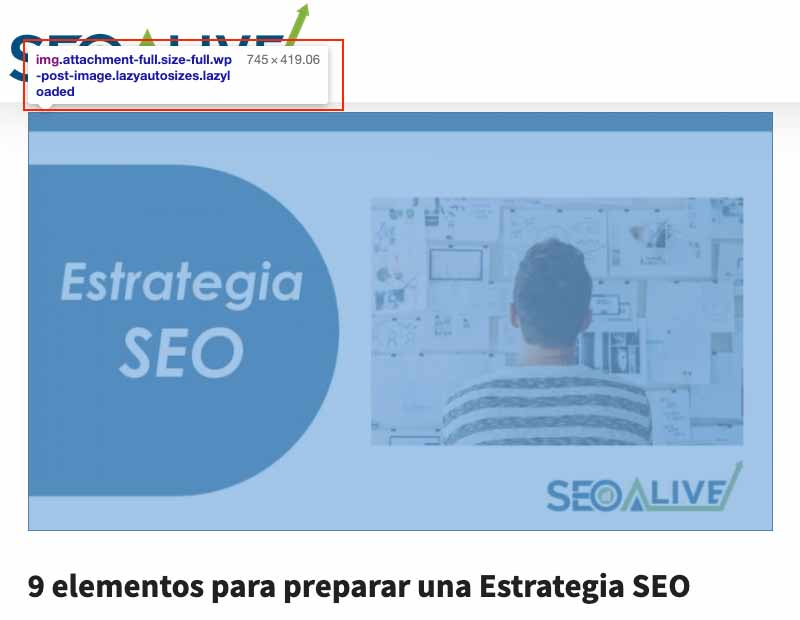
We see how the inspector tells us the maximum size being used in our blog images — that should be the size of our image.
Use next-generation formats or formats with good compression
If you don't want to complicate your life too much with formats like webp (developed by Google but not yet supported by 100% of browsers), use JPEG and avoid PNG unless you need a transparent channel.
Use the lazy loading function
Lazy load or deferred loading is one of the most interesting features to prevent elements such as images or videos from loading initially. What it does is defer the loading of images at the first moment.
Think about the images we have at the bottom of our page — why do we want to load them if the user has not yet reached them?
Plugins for image optimization
Although personally I am not a big fan of this type of plugin, I am going to recommend some that can solve optimization problems if you come across sites with many images.
- Imagify
- EWWW Image Optimizer
- WP Smush
Minify and Combine CSS, HTML and JavaScript
The action of minifying aims to reduce the weight of these resources — the less weight a page has to load, the faster that load will be.
Although it seems like a basic action (since everyone recommends it), it is not an action from which we are going to get great results.
On the other hand, the action of combining will be more useful, but it is more delicate.
What would be ideal?
The ideal is to have small files with the JS functions or CSS styles that are really being used in that HTML, however each designer and each programmer decides what to put in their CSS and JS. Take a look at my site's example before optimizing. Well, I'm lying because even though I have deactivated the plugins, I still have minified files.
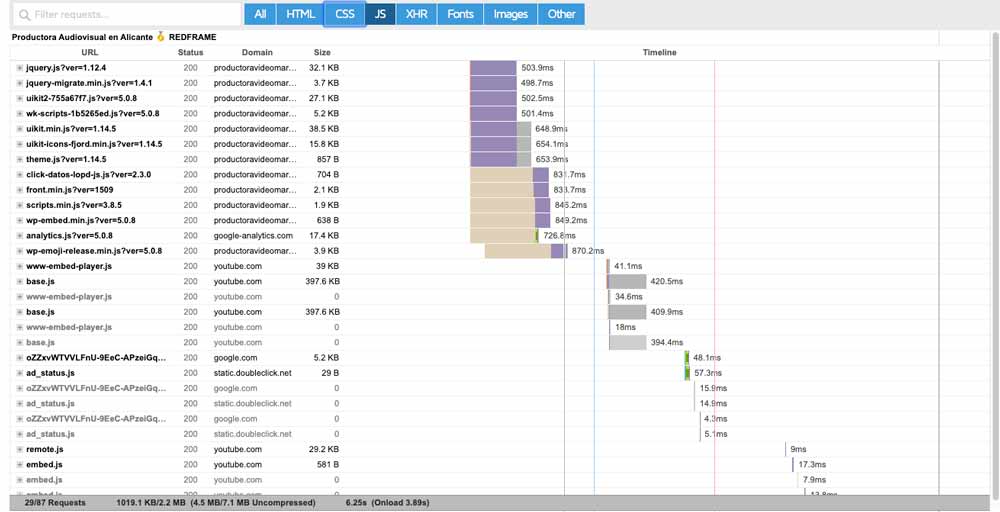
29 requests for JavaScript alone. This is outrageous but bear in mind that when you do something like embedding a Youtube video, you are loading a JS (Javascript) resource, so if you have several videos, it all multiplies.
And now I am going to show you the resource loading once optimized.

Now we only have 4 JS. This is due to the combine function.
With the CSS the same thing happened — we see the before:
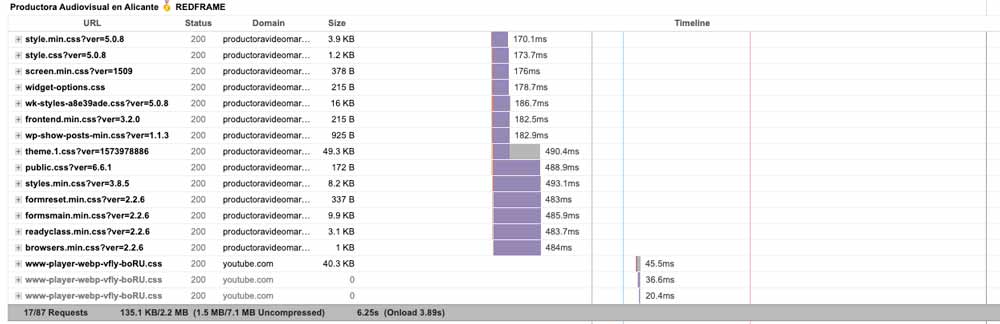
And after:

The reduction in requests has not only been due to combining CSS and JS — we have also stopped loading certain resources that were not necessary, such as the typical Wp-emoji-release.js (emojis in WordPress).
What's left for us to do?
Well, to continue optimizing we would have to attack the JS individually and see if a deferred or asynchronous load can be performed.
- JS Async: The resource is downloaded without stopping the HTML load but once downloaded it does stop the load to execute the JS.
- JS defer: The resource is also downloaded in parallel with the HTML load but it is executed at the end of the load — there is no blocking by the script.
It must be clear that this attribute is for external JS and not for those that are executed INLINE (in the same HTML).
Cache Optimization
Without a doubt one of the most important parts of loading speed optimization, but we have to take into account that for this to be useful, the user must have previously entered our site and downloaded the resources the browser needs.
That is, cache optimization is important, but it may not be transcendental if "that user" does not visit our site again.
Cache optimization is one of the parts that all load audit tools value most. Below I am going to explain the parts to take into account.
What does a cache plugin do?
What a cache plugin does is make copies of the different processed parts of a site (page, objects, DB queries) to then serve them and save waiting time when making requests to the server.
- Useful life or maximum cache age before it is cached again: this factor depends a lot on the type of site you have — if your content does not change frequently you can use a longer duration, if your site is updated frequently or several times a day, shorten that duration.
If we have carried out this operation with any of the cache plugins on the market that we will see shortly, we can check from the Chrome developer tools how we have worked on this function:
We have several caching methods:
- Last-Modified
- ETag (Entity Tag)
- Expires
- Max-age
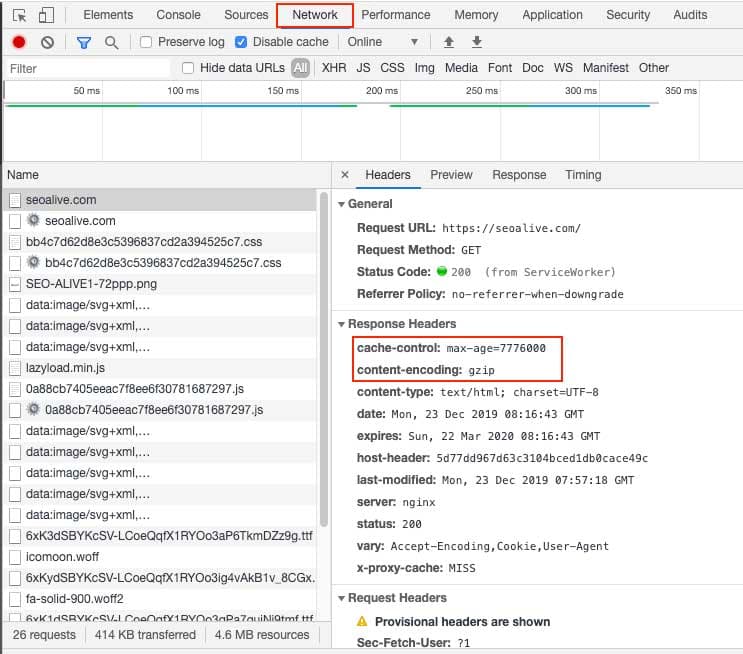
Let's load our site with the Chrome developer tools open and select the Network option — now we can see all the resource requests that our browser makes. By clicking on any of these resources and selecting the Headers option, we will be able to see the response of these files' headers and whether we have caching activated and which method is used.
In SEOcrawl AI, we see that it is via MAX-AGE. In this part, we also see if GZIP compression is being performed from the server.
- Cache for logged-in users: this function is important so as not to serve cached pages to logged-in users if they are going to be updating WordPress, because otherwise they will not see the changes they are making.
- Mobile cache: many plugins give the option to generate different "caches" for different devices — I recommend it if your mobile version is customized and not a responsive version.
Plugins to optimize loading speed in WordPress
I wanted to explain the most important parts to perform optimization before we get into the subject of plugins, since in almost all plugins what has been explained above are activation options and it is you who must consider whether to activate them or not.
That is why I preferred to explain it so that you understand it, before telling you which plugins you have to perform these actions. These are the most popular plugins for WordPress.
- WP Rocket
- W3 Total Cache
- WP Fastest Cache
- Autooptimize
In all of them, you have the options we have discussed above, although it may be that to work with JS they are more limited in terms of load type.
Tools to measure loading speed
As you can imagine, there are a multitude of tools that help us know a site's loading speed.
Bear in mind that a WordPress is made up of different types of pages and each of them will respond differently, so if you have to do a WPO audit, do it of:
- Home
- Categories
- Pages
- Entries
It is also important for you to know that Google Analytics has a metric that measures the speed of a site and if you pull a metric by day of the week or month, it can be useful for drawing conclusions.

These are the most popular tools to perform a WPO audit:
- Google PageSpeed Insights
- GTmetrix
- Pingdom Tools
Structured Data in WordPress
If you are just starting out with SEO you probably don't recognize the concept of Semantic Web, but today it is difficult to do SEO without understanding this concept.
Google works day by day to improve the reading and interpretation of websites, and data markup through the implementation of semantic metadata makes this work easier.
For this we have different plugins that help us mark up the different content of our site's pages.
If you have installed Rank Math you have a list of metadata for your content through the plugin, visible in the Rich Snippet tab.
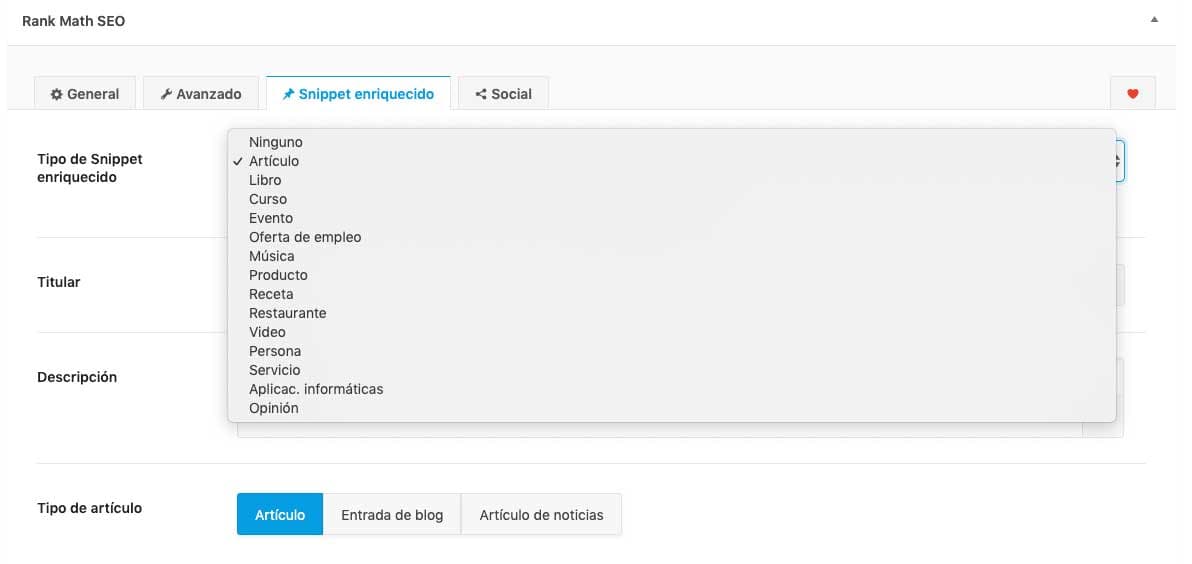
The downside of this option is that many times a piece of content can have more than one data markup — for example:
You can tag content as Blog Posting and have 3 unmarked videos in the content.
If you are familiar with structured data, you can add HTML blocks with Gutenberg (WordPress block editor) and add it manually.
Google makes a tool available for you to validate that your structured data is correctly implemented.
Recommended plugins to improve SEO in WordPress
To close this article, I would like to recommend some SEO plugins for WordPress that can help you improve your site.
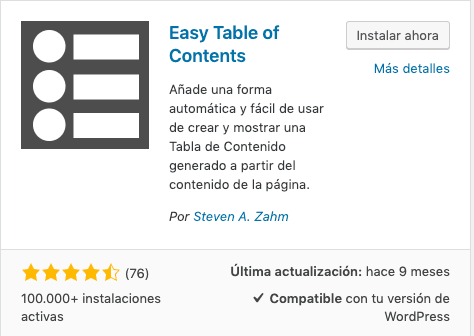
Table of contents
Although this plugin can easily be made with HTML, the style and design options it provides make it a basic for improving user navigation on the page.
Related posts
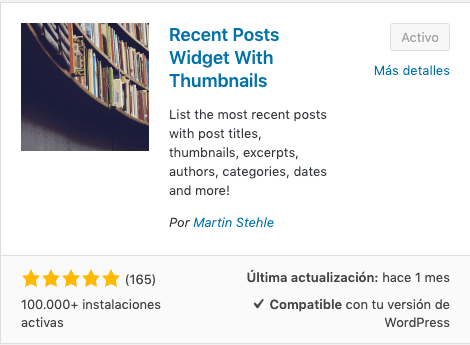
Nowadays many plugins have the related entries option, but remember that if yours doesn't, this option is very important so that your content is always linked to one another.
I'll leave you with this plugin that has helped me a lot with certain templates.
AMP
Developing a page in AMP can be a good option for different reasons: speed, usability... or to work on positioning in carousels such as the news carousel in the mobile version where this kind of technology takes precedence.
So I'll leave you with a plugin if you want to have your pages in AMP — although there are many options available.
Video Sitemap and Google News
Although many SEOs no longer use sitemaps, I always turn to them to have better control of the indexing of my content. Here I leave you a plugin to create a video sitemap and another for Google News.
I hope this article is, in some of its parts, useful and interesting for you, and of course if you have any questions I can answer, you have the comments to reach me.
Author: David Kaufmann

I've spent the last 10+ years completely obsessed with SEO — and honestly, I wouldn't have it any other way.
My career hit a new level when I worked as a senior SEO specialist for Chess.com — one of the top 100 most visited websites on the entire internet. Operating at that scale, across millions of pages, dozens of languages, and one of the most competitive SERPs out there, taught me things no course or certification ever could. That experience changed my perspective on what great SEO really looks like — and it became the foundation for everything I've built since.
From that experience, I founded SEO Alive — an agency for brands that are serious about organic growth. We're not here to sell dashboards and monthly reports. We're here to build strategies that actually move the needle, combining the best of classical SEO with the exciting new world of Generative Engine Optimization (GEO) — making sure your brand shows up not just in Google's blue links, but inside the AI-generated answers that ChatGPT, Perplexity, and Google AI Overviews are delivering to millions of people every single day.
And because I couldn't find a tool that handled both of those worlds properly, I built one myself — SEOcrawl AI, an enterprise SEO intelligence platform that brings together rankings, technical audits, backlink monitoring, crawl health, and AI brand visibility tracking all in one place. It's the platform I always wished existed.
Discover more content about this author
On-page SEO is everything you control on a page: content, title, meta description, headings, URL, images and internal links. Here is a checklist element by element, an audit process and what changes with AI Overviews and AI Mode.