Google Analytics + Search Console Integration: How to Connect Them
The Google Analytics Search Console integration links a Google Analytics 4 property with a Search Console property to add two extra reports to GA4: Google Organic Search Queries and Google Organic Search Traffic (this is the one you need the most).
You set it up from Admin → Product links → Search Console links in GA4, the integration takes about five minutes to configure, and data starts flowing 48 hours after Search Console collects it. That's the short version.
What nobody tells you is the little catches. The integration ships with the Search Console reports unpublished inside GA4; you can only cross Search Console metrics with one GA4 dimension; the reports don't draw time-series charts; and the Comparisons toggle is there but doesn't return anything.
This guide walks through the integration setup step by step, how to work around the setbacks, and what to do when the native integration runs out of road.
Google Search Console vs. Google Analytics (and why you need both)
The two tools answer different questions. Neither one replaces the other, but connecting them lets you see both halves of the journey in one place. If you're still setting up the search side, start with our complete Google Search Console guide.
| Google Search Console | Google Analytics 4 | |
|---|---|---|
| What it measures | Pre-click activity in Google Search | Post-click behavior on your site |
| Key metrics | Impressions, clicks, CTR, average position | Sessions, users, engagement rate, conversions |
| Primary unit | Query and URL | Session and user |
| Source of truth for | Organic search performance | On-site behavior and attribution |
| Data retention | 16 months | Configurable up to 50 months (free tier) |
| Refresh cadence | ~48 hours | Near real-time |
A common point of confusion worth clearing up: Search Console is not part of Google Analytics. They are separate products. The integration only imports two specific Search Console reports into the GA4 interface — it doesn't merge the tools.
What you need before linking GSC and GA4
These are the four prerequisites for a successful Google Search Console and Google Analytics integration:
- A verified Search Console property for the same domain you're tracking in GA4.
- A Google Analytics 4 property with at least one web data stream.
- The same Google account holding the Editor role on the GA4 property and verified-owner status on the Search Console property.
- The GA tag firing on the same pages Search Console indexes. Coverage mismatches are the single biggest cause of data discrepancies later.
Haven't verified your Search Console property yet? The setup differs by platform — see our guides for WordPress, Webflow, Shopify, HubSpot and Wix.
How to connect Google Search Console to Google Analytics 4
The link can be created either from GA4 or from Search Console. The GA4 route is the cleaner one because it handles both halves of the link in a single flow.
1. Open Admin in GA4 and find Search Console links
In GA4, click the gear icon at the bottom left to open Admin. Under the Property column, scroll to Product links and click Search Console links.
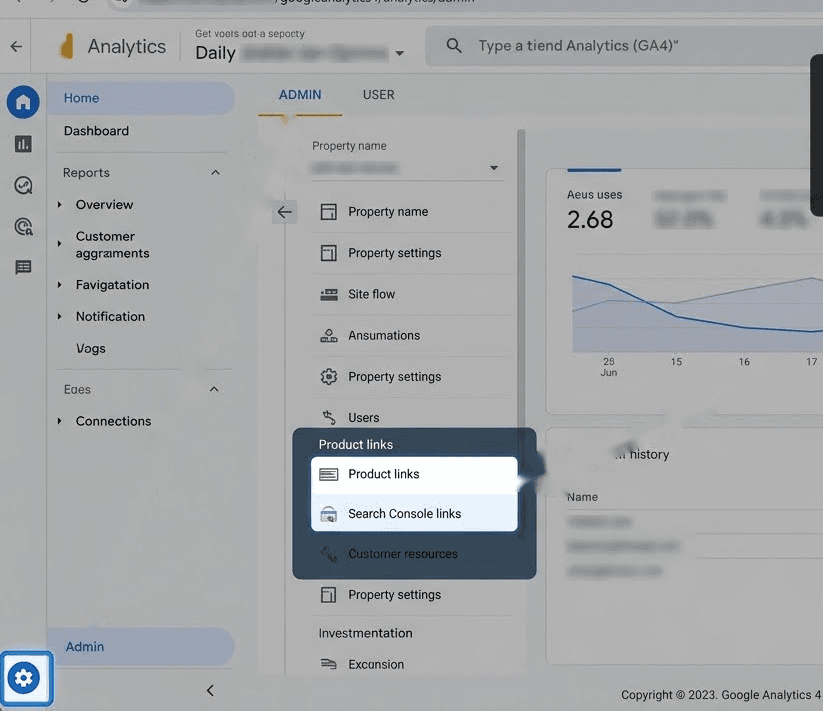
Google moved this section during the 2024 UI refresh, so if you can't find it, look under Property settings rather than Account.
2. Click Link and choose your Search Console account
Click the blue Link button in the top right, then Choose accounts. GA4 lists only the Search Console properties where your current account is a verified owner.
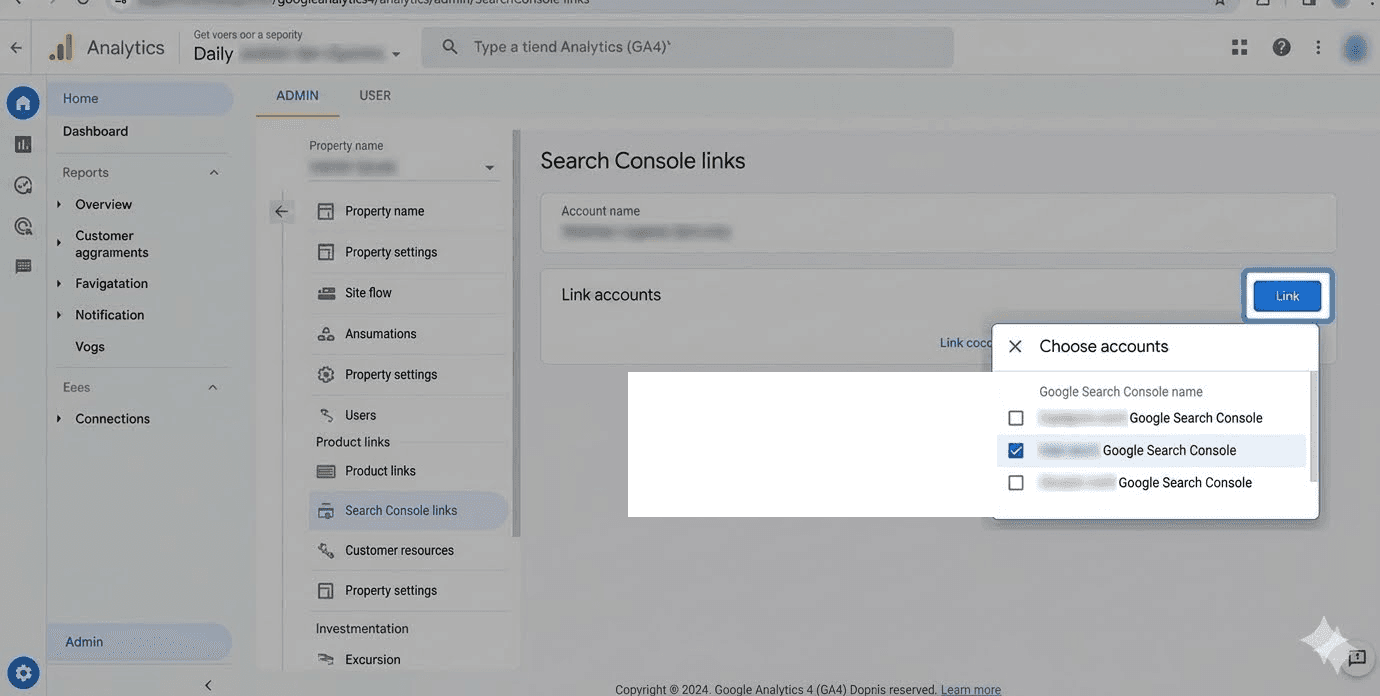
If the property you want doesn't appear, you're not a verified owner on it. Fix that first in Search Console under Settings → Users and permissions.
3. Select the web data stream you want to connect
GA4 enforces a hard limit: one web data stream can be linked to only one Search Console property, and each Search Console property can be linked to only one web data stream.
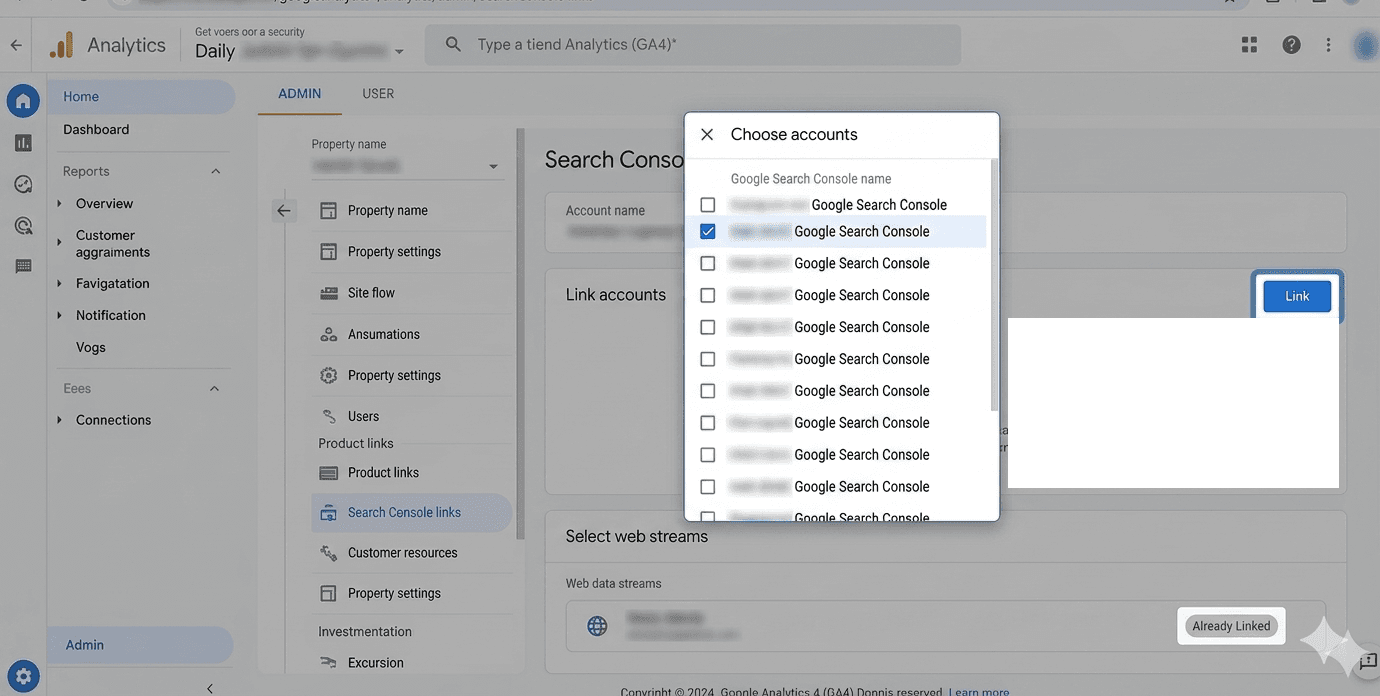
If the stream already has a link, GA4 shows the existing link instead of letting you create a new one.
4. Review and submit
Confirm the configuration and submit. A green Link Created badge confirms the connection.
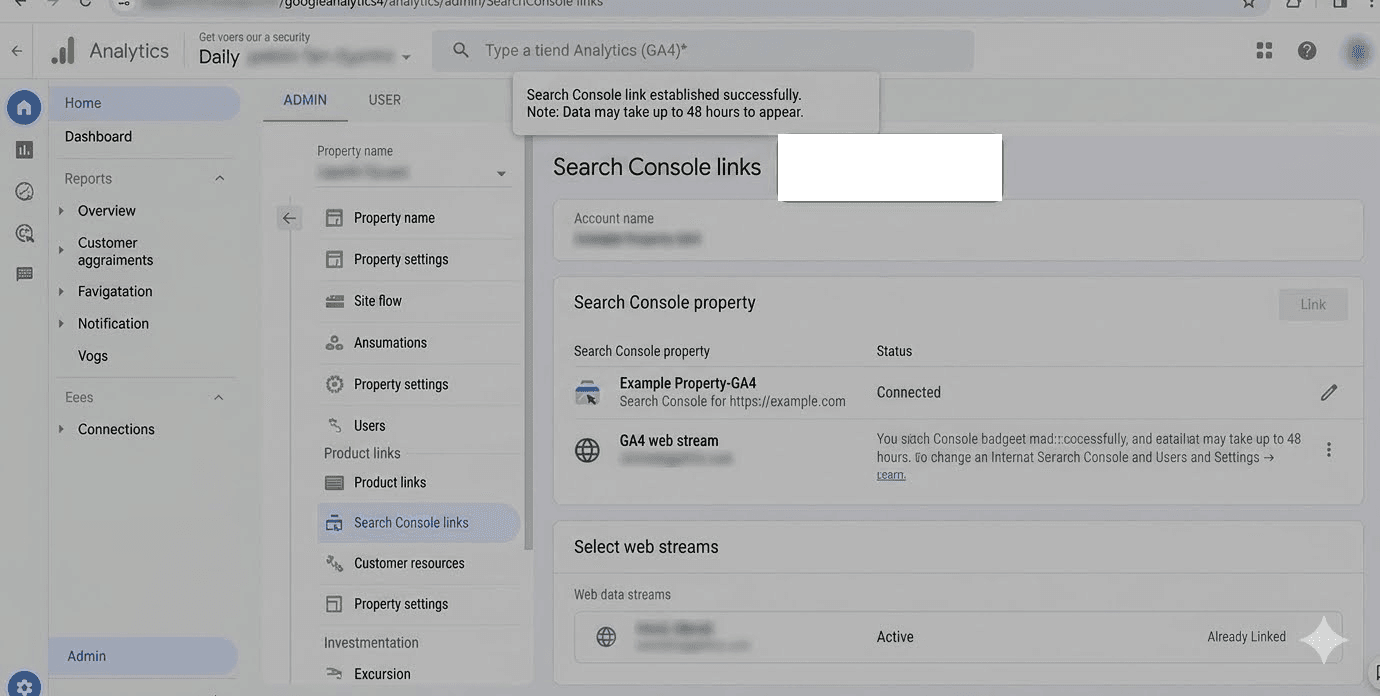
Don't expect data immediately. Per Google's documentation, Search Console data becomes available in Analytics 48 hours after Search Console collects it.
Bonus step: publish the Search Console reports (the part nobody mentions)
By default, the Search Console collection ships unpublished in GA4. The reports exist in your property, but nothing shows up in the sidebar.
To make them visible:
- Open Reports → Library.
- Find the Search Console collection card.
- Click the three dots and select Publish.
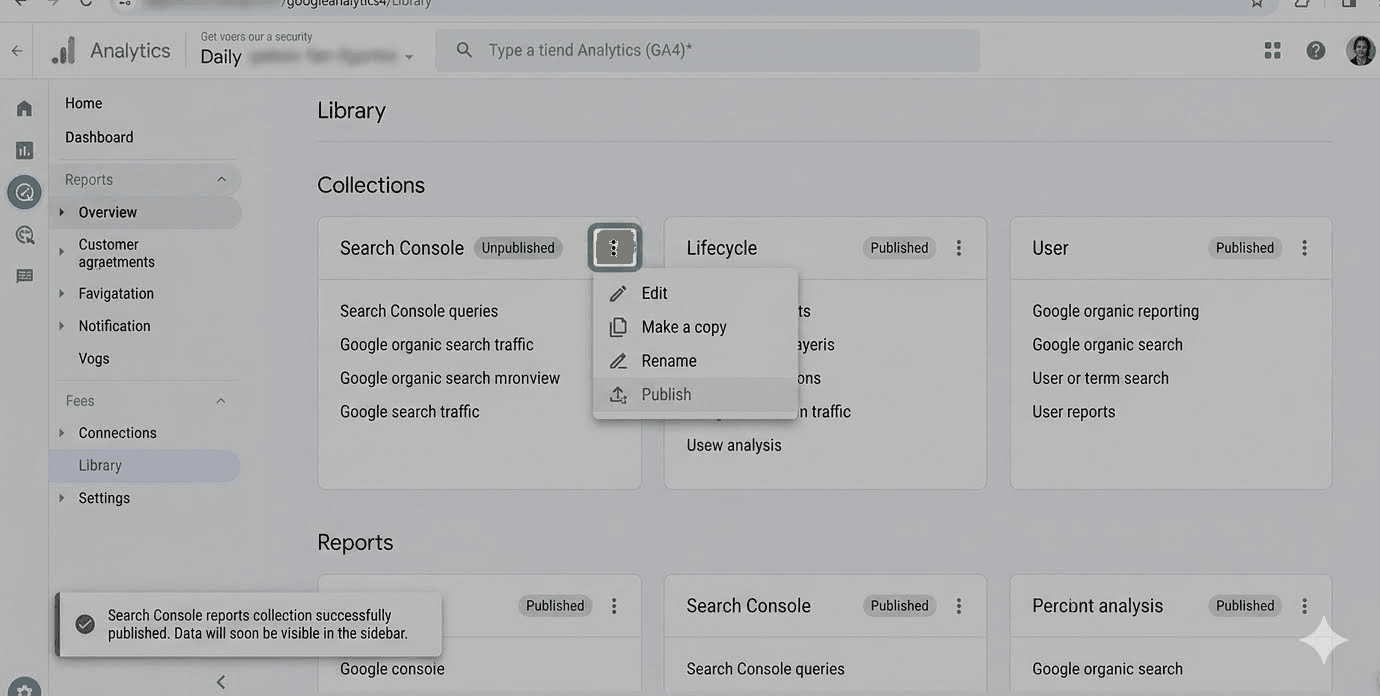
A handful of users have reported the Publish option missing from the card. The community workaround that consistently works is to rename or copy the widget first, then publish the renamed version.
If you don't see Search Console in your GA4 sidebar 48 hours after linking, the link isn't broken — the collection is unpublished.
What data you'll actually see (the two GA4 reports)
The integration adds two reports inside Reports → Acquisition → Acquisition overview.
Google Organic Search Queries
This report lists the search queries that brought visitors to your site, paired with the standard Search Console metrics: clicks, impressions, click-through rate and average position.
You can drill in by Search Console dimensions, but not by any GA4 dimension.
Google Organic Search Traffic
This is the report that makes integrating GSC and GA4 worth it. It pairs landing pages with GA4-side metrics: engaged sessions, engagement rate, average engagement time, event count, and ad revenue.
This means you can essentially see which search-driven pages actually engage users. It also breaks the data down by Country and Device.
The 4 limitations of GA4's Search Console integration no one tells you about
Here's where the native integration works against your strategy.
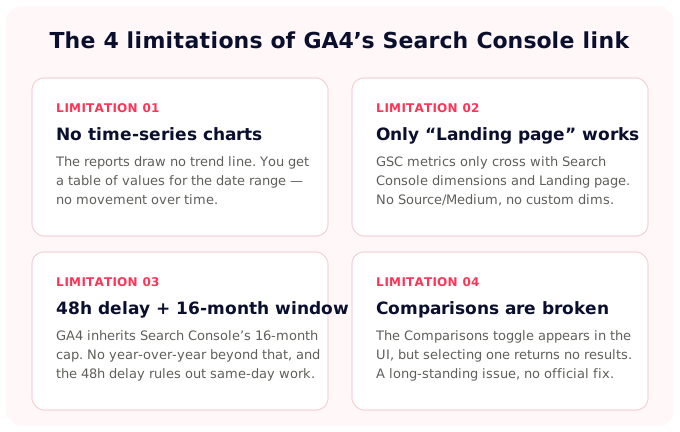
1. No time-series charts
Google states this directly in the support documentation: the Search Console reports in GA4 currently do not support time-series charts. You get a table of values for the chosen date range, but no line chart, no trend.
2. Only the "Landing page" GA4 dimension works with GSC metrics
Search Console metrics are only compatible with Search Console dimensions and the Landing page Analytics dimension. You cannot cross queries with User dimensions, Source/Medium, or any custom dimension, which rules out most of the analysis SEO teams actually want to run.
3. 48-hour delay + 16-month rolling window
Search Console retains 16 months of data, and GA4 inherits that window for these reports. Year-over-year analysis beyond 16 months isn't possible inside the linked reports, and the 48-hour delay rules out same-day analysis on top of that.
4. The Comparisons feature is broken for these reports
GA4's Comparisons toggle appears in the UI when you're viewing the Search Console reports, but selecting a comparison doesn't return results. This is a long-standing community-reported issue with no official fix announced.
Put together: the native GA4 link samples data, drops after 16 months, and hides part of the join. SEOcrawl AI keeps GA4 and Search Console together, unsampled and with full history, so clicks, sessions and conversions line up on one row.
What if the native integration isn't enough?
None of this means GA4 + GSC is useless. Most teams just need to work beyond it. Here are some tools that improve the Search Console + GA4 integration:
Looker Studio
Google's own recommended path for richer visualization is free, supports time-series, and lets you cross more dimensions. Google provides an official Looker Studio template that pulls from both Search Console and GA4 side by side.
The trade-offs: API quotas, no proper attribution model, manual configuration, and the 16-month Search Console retention cap still applies.
Site Kit
If your site runs on WordPress, Site Kit is Google's official plugin that surfaces Search Console, GA4, AdSense, and PageSpeed Insights inside the WordPress admin.
It's a clean fit for small and mid-sized sites and skips the GA4 reporting complexity entirely. It isn't built for multi-domain or multi-market reporting.
A dedicated SEO platform (like SEOcrawl AI)
For teams that want the integration without the four limitations above, SEOcrawl AI connects Search Console and GA4 into one dashboard and removes each of those blockers.
Time-series is out of the box, every dimension is cross-able, and there's no 16-month retention cap.
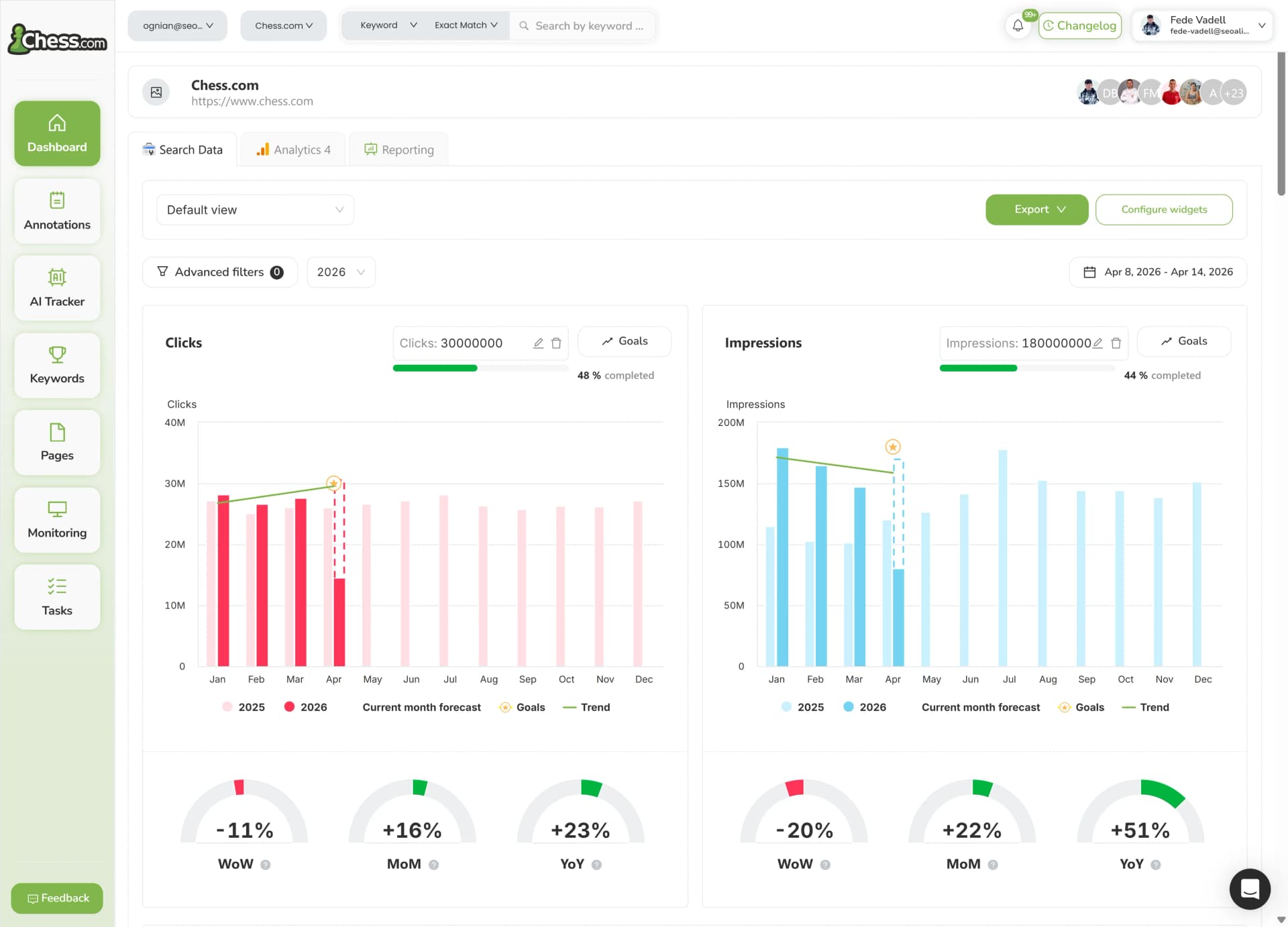
The AI Dashboard layer also splits your traffic between your traditional SEO and LLM referrers (ChatGPT, Claude, Gemini, Perplexity, Copilot), which is becoming useful as AI search starts to claim a meaningful share of organic visits.
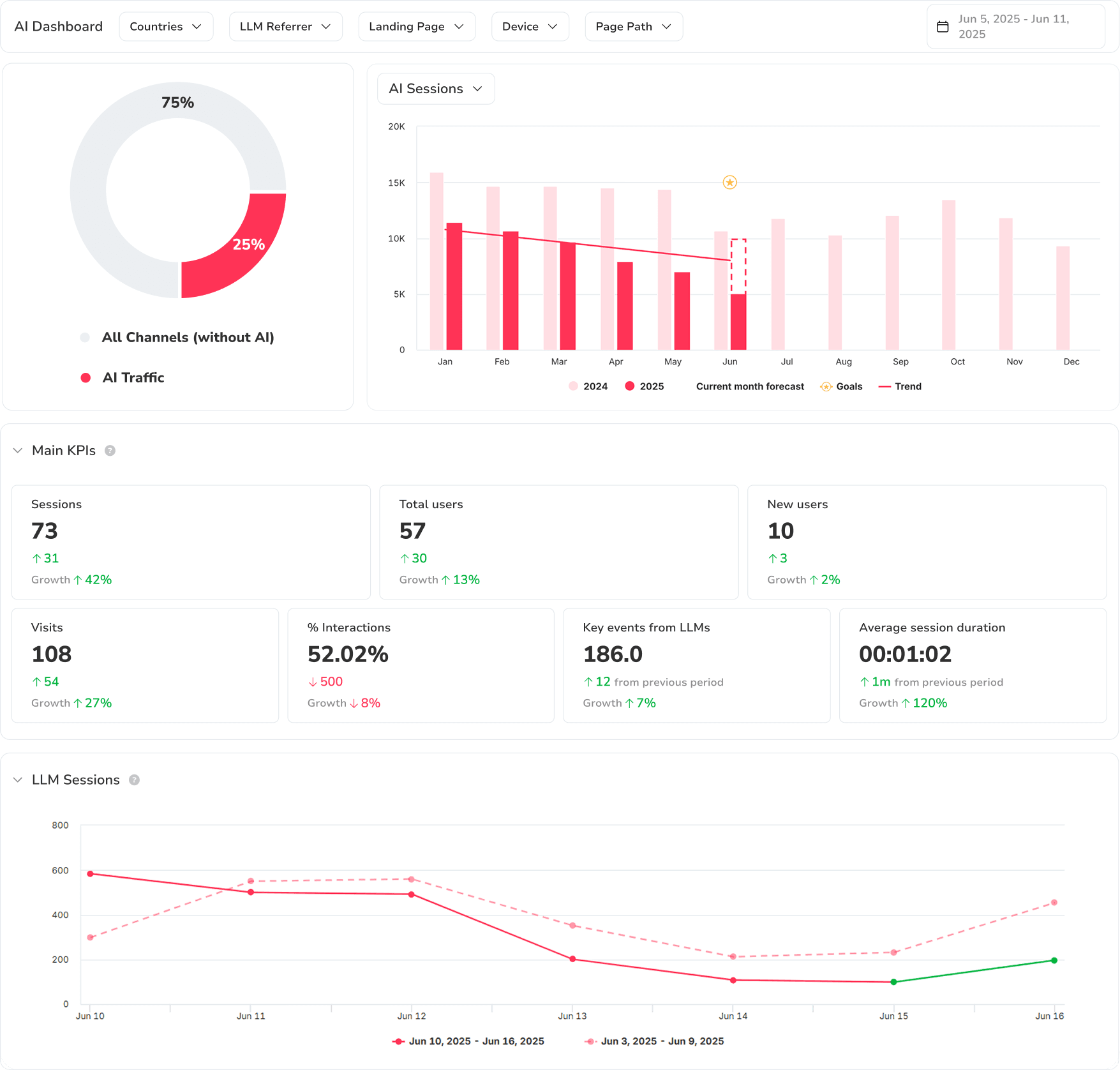
See your GA4 + Search Console data in one dashboard.
Query the integrated data from ChatGPT or Claude (MCP)
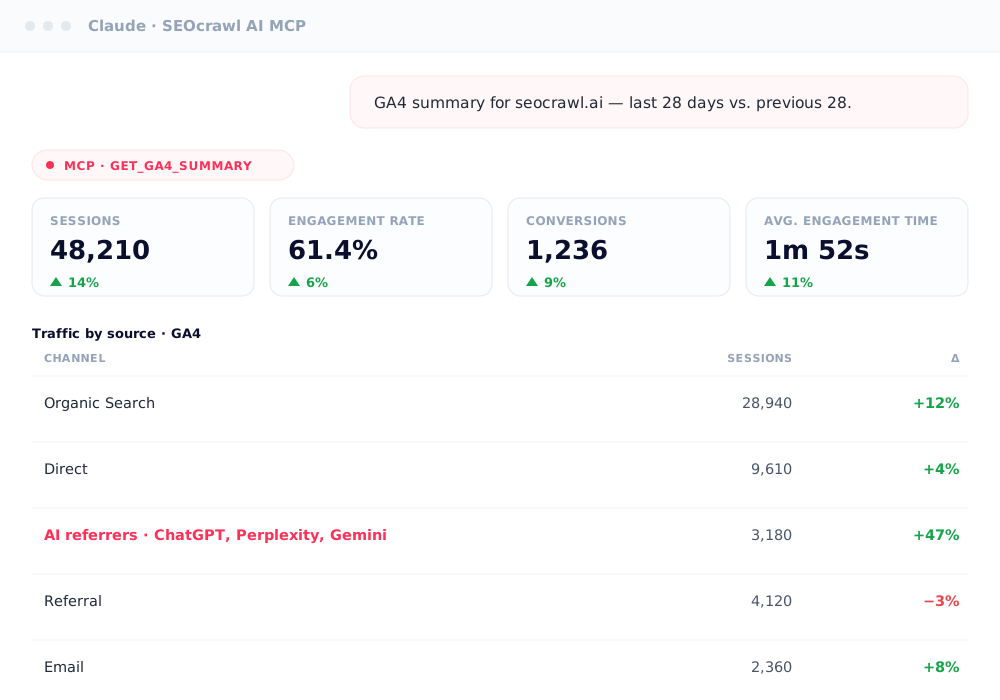
If you'd rather not open a dashboard at all, the SEOcrawl AI MCP brings the same combined dataset into ChatGPT, Claude, and any other MCP-compatible AI client. It exposes both your Search Console and your GA4 data — GA4 summaries, top pages, traffic by source, and even the AI-referrer split — so you can ask questions like "compare my organic clicks with GA4 sessions for the top landing pages this month" in natural language and get the answer without the native integration's limits.
Troubleshooting: why your data isn't showing up
Wait at least 48 hours after creating the link before assuming something is broken. Then work down this list. These causes are pulled directly from Google's data discrepancies guide:
- The GA tag isn't firing on the pages Search Console tracks.
- The Search Console reports are still unpublished. Open Reports → Library and check.
- Time-zone mismatch. Search Console uses Pacific Time and can't be changed; your GA4 property might be set to a different zone.
- Users are rejecting tracking cookies, which skews GA4 numbers down but leaves Search Console untouched.
- Canonical URL differences. Search Console reports only the canonical URL; GA4 reports any URL with the tracking tag, so the URL lists won't perfectly overlap.
- Non-HTML pages like PDFs are counted by Search Console when clicked, but they require enhanced measurement to show up in GA4.
- GA4 filters known bot traffic. Search Console does not, so click counts will run higher than session counts on busy sites.
Small discrepancies between Search Console clicks and GA4 sessions are normal because the two systems measure different things.
Worry only when the gap exceeds about 30%, and monitor those gaps over time rather than reacting to single-day spikes.
FAQs
Is Google Search Console the same as Google Analytics?
No. They are separate Google products. Search Console reports on how your site performs in Google Search: impressions, clicks, queries, average position. Google Analytics tracks user behavior on your site after they arrive: sessions, engagement, conversions.
The integration imports two specific Search Console reports into Google Analytics 4; it does not merge the tools.
What's the difference between Google Analytics 4 and Search Console?
Search Console focuses on the pre-click side of search: impressions, clicks, queries, and ranking in Google Search results. Google Analytics 4 focuses on the post-click side: how visitors interact with your site once they arrive — sessions, engagement, conversions, attribution.
How long does it take for Search Console data to appear in GA4?
Google's documentation states that Search Console data becomes available in Analytics 48 hours after Search Console collects it.
If you don't see data after 48 hours, check that the Search Console collection is published under Reports → Library. The unpublished collection is the most common reason new links appear to be broken.
Why don't my Search Console clicks match my GA4 sessions?
The two tools measure different things and process the data differently. The most common reasons are time-zone mismatch, missing GA tags on some pages, user consent rejection, canonical URL reporting differences, bot traffic that GA4 filters but Search Console does not, and attribution model differences.
Gaps under 30% are normal and don't require action.
Can I link multiple Search Console properties to one GA4 property?
No. Each web data stream can be linked to only one Search Console property, and each Search Console property can be linked to only one web data stream.
If you manage multiple Search Console properties for the same site (for example, a domain property and a URL-prefix property), pick the one that best matches the GA4 data stream's tracking scope.
Do I need a paid plan or a plugin to connect Search Console and GA4?
No. The integration is free and built into Google Analytics 4. There's no plugin or paid Google Workspace tier required.
Author: David Kaufmann

I've spent the last 10+ years completely obsessed with SEO — and honestly, I wouldn't have it any other way.
My career hit a new level when I worked as a senior SEO specialist for Chess.com — one of the top 100 most visited websites on the entire internet. Operating at that scale, across millions of pages, dozens of languages, and one of the most competitive SERPs out there, taught me things no course or certification ever could. That experience changed my perspective on what great SEO really looks like — and it became the foundation for everything I've built since.
From that experience, I founded SEO Alive — an agency for brands that are serious about organic growth. We're not here to sell dashboards and monthly reports. We're here to build strategies that actually move the needle, combining the best of classical SEO with the exciting new world of Generative Engine Optimization (GEO) — making sure your brand shows up not just in Google's blue links, but inside the AI-generated answers that ChatGPT, Perplexity, and Google AI Overviews are delivering to millions of people every single day.
And because I couldn't find a tool that handled both of those worlds properly, I built one myself — SEOcrawl AI, an enterprise SEO intelligence platform that brings together rankings, technical audits, backlink monitoring, crawl health, and AI brand visibility tracking all in one place. It's the platform I always wished existed.
Discover more content about this author