How to Add Google Search Console to Shopify: Setup Guide
Connecting your Shopify store to Google Search Console is one of the highest-leverage SEO tasks you can tick off in under ten minutes. Once verified, you get a front-row seat to how Google sees your store: which queries drive impressions, which pages are indexed, which aren't, and what's blocking you from showing up in search. This guide walks through the three reliable verification methods, how to submit your Shopify sitemap, and how to confirm everything is wired correctly.
3 Ways to add Google Search Console to Shopify
There are three production-grade ways to prove you own your Shopify store to Google. Pick whichever matches the access you already have.
1) Verify via HTML Tag (Recommended)
This is the most reliable method — no dependency on other tools, no DNS changes.
- Go to Google Search Console > Add property and enter your store URL
- Select HTML tag as the verification method and copy the meta tag
- In Shopify, go to Online Store > Themes > Actions > Edit code
- Open
theme.liquidand paste the tag inside the<head>section, before</head> - Click Save
- Go back to Google Search Console and click Verify
2) Verify via Google Analytics or Google Tag Manager
You can use this method if you already have GA4 or GTM connected to your Shopify store.
- Go to Google Search Console > Add property and enter your store URL
- Select Google Analytics or Google Tag Manager as the verification method
- Google will automatically detect the existing tag on your site
- Click Verify
3) Verify via DNS Record
- Go to Google Search Console > Add property, select Domain as property type and copy the TXT record
- Log in to your domain registrar (GoDaddy, Namecheap, Cloudflare, etc.)
- Add a new TXT record: Host
@, Value[the code from Google], TTL3600 - Go back to Google Search Console and click Verify
How to submit your Shopify sitemap to Google Search Console
Shopify automatically generates a sitemap for your store. You don't need to create it — it's already live at yourdomain.com/sitemap.xml. Here's how to submit it to Google Search Console:
- Open your property in Google Search Console
- Go to Indexing > Sitemaps
- Type
sitemap.xmlin the field and click Submit
That's it. Every time you add or remove products, pages or blog posts, Shopify updates the sitemap automatically.
How to check that Google Search Console is working on your Shopify store
Go to Indexing > Pages and confirm your main pages (homepage, collections, product pages) show as Indexed. Then open Performance > Search results and wait 48–72 hours for impressions and clicks to come through.
If product or collection pages show as Discovered but not indexed, give it a few days and check again. If the issue persists, make sure those pages are not set to noindex in Shopify.
Monitor your Shopify SEO data with SEOcrawl AI
Once verified, SEOcrawl AI pulls your Google Search Console data and turns it into actionable insights for your Shopify site: keyword tracking, traffic drops, indexing issues and more, all in one place.
Want to take your SEO to the next level? Explore SEOcrawl AI's SEO Dashboard.
FAQs
How do I add Google Search Console to Shopify?
Add your store as a new property in Google Search Console and verify ownership using one of four methods: HTML tag in theme.liquid, Google Analytics, Google Tag Manager, or DNS record.
How do I submit my Shopify sitemap to Google Search Console?
To submit your Shopify sitemap to Google Search Console, go to Google Search Console > Indexing > Sitemaps and submit sitemap.xml. Shopify generates it automatically at yourdomain.com/sitemap.xml.
How do I verify my Shopify store in Google Search Console?
The most reliable method to verify your Shopify store in Google Search Console is the HTML tag. Copy it from Google Search Console and paste it inside the <head> section of your theme.liquid file in Shopify's theme editor.
How do I get my Shopify store to appear in Google Search?
To get your Shopify store to appear in Google searches, verify your store in Google Search Console, submit your sitemap, and make sure your products and pages are not set to noindex in Shopify.
Can I connect Google Analytics and Google Search Console to Shopify at the same time?
Yes, you can connect Google Analytics and Google Search Console to Shopify at the same time. They are separate tools and independent integrations. Google Analytics tracks user behavior on your site; Google Search Console tracks how your site performs in Google Search. You can and should have both connected simultaneously.
Author: David Kaufmann

I've spent the last 10+ years completely obsessed with SEO — and honestly, I wouldn't have it any other way.
My career hit a new level when I worked as a senior SEO specialist for Chess.com — one of the top 100 most visited websites on the entire internet. Operating at that scale, across millions of pages, dozens of languages, and one of the most competitive SERPs out there, taught me things no course or certification ever could. That experience changed my perspective on what great SEO really looks like — and it became the foundation for everything I've built since.
From that experience, I founded SEO Alive — an agency for brands that are serious about organic growth. We're not here to sell dashboards and monthly reports. We're here to build strategies that actually move the needle, combining the best of classical SEO with the exciting new world of Generative Engine Optimization (GEO) — making sure your brand shows up not just in Google's blue links, but inside the AI-generated answers that ChatGPT, Perplexity, and Google AI Overviews are delivering to millions of people every single day.
And because I couldn't find a tool that handled both of those worlds properly, I built one myself — SEOcrawl AI, an enterprise SEO intelligence platform that brings together rankings, technical audits, backlink monitoring, crawl health, and AI brand visibility tracking all in one place. It's the platform I always wished existed.
Discover more content about this author
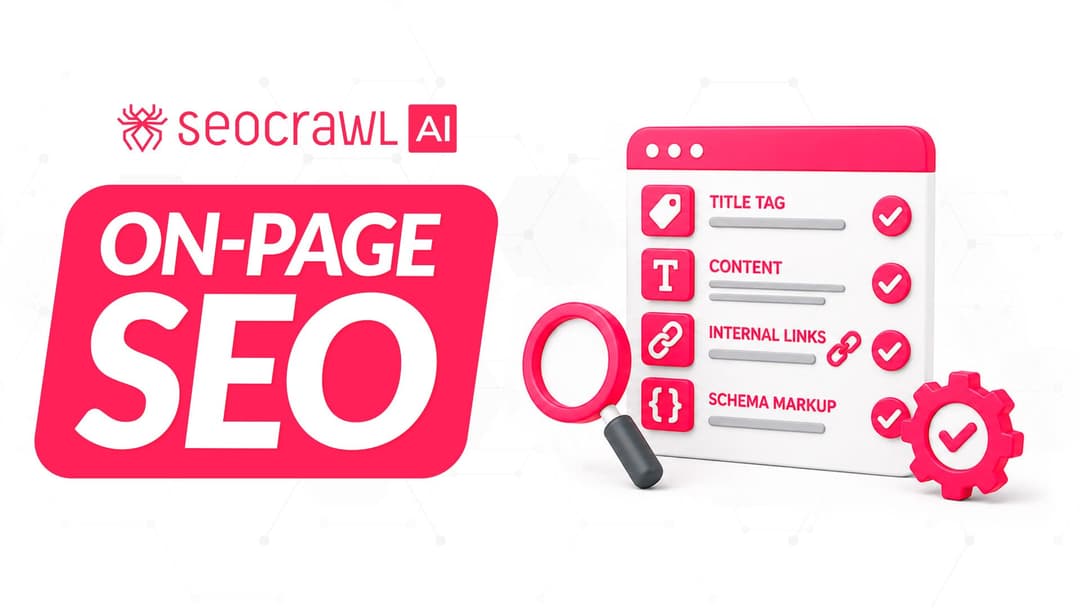
On-page SEO is everything you control on a page: content, title, meta description, headings, URL, images and internal links. Here is a checklist element by element, an audit process and what changes with AI Overviews and AI Mode.