Google Search Console Permissions: Share Access the Right Way
Add the right people at the right level, without ever sharing passwords or risking your account security.
To share Search Console access, an owner goes to Settings, opens Users and permissions, clicks Add user, enters the person's Google account email, and selects a permission level. That is the core process.
What often confuses teams is deciding which level to grant and doing it securely: granting access through each person's own Google account, never by sharing a password. Here is a breakdown of the permission levels, the exact steps, and the best practices that keep your Google Search Console property clean and secure.
The three access levels
Search Console offers three roles. Here is what each one can do, based on Google's own permissions table:
| Capability | Owner | Full user | Restricted user |
|---|---|---|---|
| View the Performance and indexing reports | Yes | Yes | Yes (most data) |
| Use URL Inspection and request indexing | Yes | Yes | View existing data only |
| Submit sitemaps, remove URLs, validate fixes | Yes | Yes | No |
| Share report links | Yes | Yes | No |
| Property settings | Yes | Yes | View only |
| Link Google Analytics, use Change of Address | Yes | No | No |
| Add or remove users and owners | Yes | No | No |
A few things worth knowing:
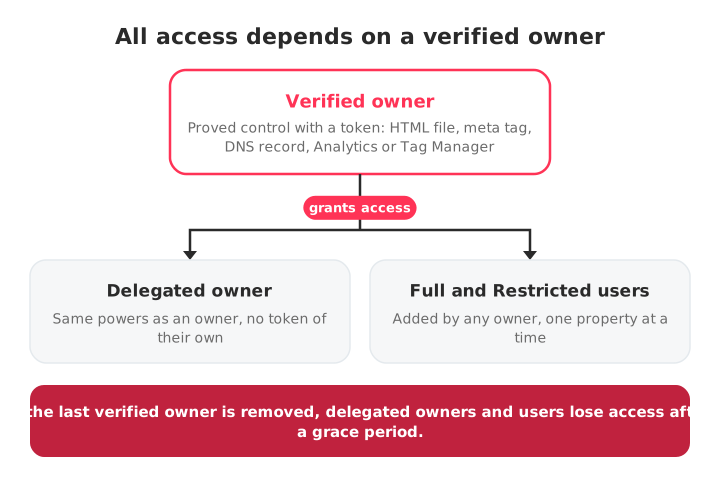
- Owner: has complete control. Owners manage users, configure the property, view all data and use every tool. Search Console distinguishes two types of owners:
- Verified owners prove ownership with a verification token: an HTML file, an HTML tag, a DNS record, or a Google Analytics or Google Tag Manager account.
- Delegated owners are granted ownership by a verified owner, without needing a token of their own.
- A property must keep at least one verified owner. If all verified owners are removed, delegated owners and all other users lose access after a short grace period.
- Full user: ideal for most SEO work. Full visibility and the key operational tools, without the right to manage who has access.
- Restricted user: view-only access to most data, suitable for clients or stakeholders who only need to follow performance.
Note: each property supports a maximum of 100 users (full and restricted). Owners don't count towards that limit.
How to add a user
You must be an owner (verified or delegated) to add new users.
- Sign in to Search Console with your owner Google account and select the property.
- Click Settings in the left navigation.
- Open Users and permissions.
- Click Add user.
- Enter the person's Google account email (it has to be a Google account; email groups are not accepted).
- Choose Full or Restricted, then click Add.
They'll see the property the next time they sign in to their own Search Console. Access is per property: adding someone to one property doesn't give them access to your other properties, so multi-site setups need the same steps on each one.
To make someone an owner rather than a user, choose Owner as the permission level in the same dialog. That creates a delegated owner tied to your verified ownership.
How to remove or change someone's access
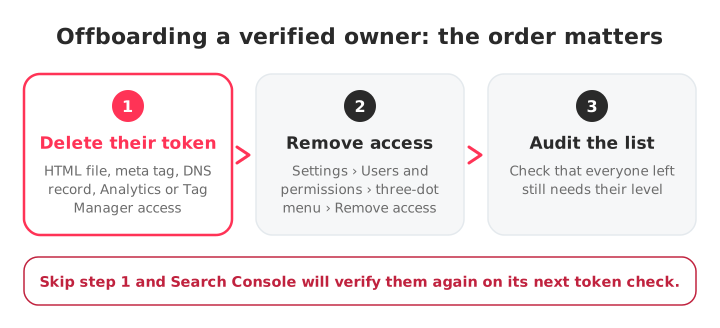
Open Settings › Users and permissions, click the three dots next to the person, and either choose Remove access or change their permission level.
Removing a delegated owner or a user is simple: any owner can do it from that screen. Removing a verified owner is different, because their access comes from a token on your site. You have to remove that verification token first (delete the HTML tag, DNS record or file they used, or their Analytics or Tag Manager access), then remove them. Otherwise Search Console periodically checks the token, finds it, and verifies them again.
This is the step people forget, which is how old agencies and former employees keep silent access for years.
Owner vs user, and how delegated ownership works
The difference is that owners control the property, users work in it. Full users can also take actions inside it; restricted users only look.
A verified owner earns access by proving control of the site, and can unverify others by removing their tokens. A delegated owner has the same powers day to day, but their access depends on a verified owner sticking around: if the last verified owner goes, the delegated owners go with them.
For agencies, Full user access is usually enough for analysis, sitemap submission and indexing requests. If the agency also needs to manage settings or the team's permissions, request delegated ownership under your individual Google account rather than sharing credentials.
Best practices for agencies and teams
- Never share logins. Every person uses their own Google account. A shared password destroys the audit trail and is a security liability the moment anyone leaves.
- Give the least access that does the job. Restricted for read-only stakeholders, Full for the people doing the SEO work, Owner only for those who genuinely need to manage users.
- Audit access regularly. Review the Users and permissions list, and check for leftover verification tokens from owners who are long gone.
- Offboard on day one. Revoke access the day someone leaves the team or the account, and remove the verification token of any departing owner.
- Use a share link for one-off reports instead of granting standing access to someone who only needs to see a single view.
Troubleshooting
- "You don't have permission to perform this action": check that you are signed in with the Google account that is an owner of the property. Only owners can add or remove users.
- Delegated owner lost access: make sure at least one verified owner is still active on the property.
- Invited user can't see the property: confirm the user is logged in with the exact Google account address used in the invitation. Also check they're looking at the right property type: a Domain property and a URL-prefix property are separate, each with its own list of users.
Managing access across many client properties
Managing permissions for a single site in Google Search Console is simple, but for agencies handling dozens of client accounts, juggling logins, permissions and forgotten tokens quickly becomes inefficient.
This is where SEOcrawl AI helps. By connecting each client's Search Console property once, teams can monitor data across every account from a single workspace, without switching Google accounts.
Our SEO client management software keeps client data organized, lets you tag and segment it, and generates white-label reports. See what each plan includes on the pricing page.
FAQs
How do I give someone access to Search Console?
An owner goes to Settings › Users and permissions, clicks Add user, enters the person's Google account email, picks a permission level (Full, Restricted or Owner) and clicks Add. Choosing Owner makes the person a delegated owner.
What is Restricted access in GSC?
Restricted access gives view rights on most data, such as the Performance and indexing reports. A restricted user can't submit sitemaps, request indexing, remove URLs, share report links or change any settings, and can only fetch existing data in the URL Inspection tool.
What's the difference between Owner and Full user?
An owner has total control of the property: adding and removing users and owners, linking Google Analytics and using the Change of Address tool. A full user sees all data and can take most actions, like submitting sitemaps, requesting indexing and validating fixes, but can't manage who has access.
How do I remove a user?
Go to Settings › Users and permissions, click the three-dot menu next to the person and choose Remove access. For a verified owner, first delete every verification token they used (HTML file, meta tag, DNS record, Analytics or Tag Manager), or Search Console will simply re-verify them.
Author: David Kaufmann

I've spent the last 10+ years completely obsessed with SEO — and honestly, I wouldn't have it any other way.
My career hit a new level when I worked as a senior SEO specialist for Chess.com — one of the top 100 most visited websites on the entire internet. Operating at that scale, across millions of pages, dozens of languages, and one of the most competitive SERPs out there, taught me things no course or certification ever could. That experience changed my perspective on what great SEO really looks like — and it became the foundation for everything I've built since.
From that experience, I founded SEO Alive — an agency for brands that are serious about organic growth. We're not here to sell dashboards and monthly reports. We're here to build strategies that actually move the needle, combining the best of classical SEO with the exciting new world of Generative Engine Optimization (GEO) — making sure your brand shows up not just in Google's blue links, but inside the AI-generated answers that ChatGPT, Perplexity, and Google AI Overviews are delivering to millions of people every single day.
And because I couldn't find a tool that handled both of those worlds properly, I built one myself — SEOcrawl AI, an enterprise SEO intelligence platform that brings together rankings, technical audits, backlink monitoring, crawl health, and AI brand visibility tracking all in one place. It's the platform I always wished existed.
Discover more content about this author
Seeing "Alternate page with proper canonical tag" in Search Console? Most of the time Google is doing exactly what you asked. Here's how to tell the normal cases from the real problems, and how to fix the ones that matter.