How to Use Google Search Console: Complete Guide to Master Your SEO in 2026

Google Search Console (GSC) is one of the most powerful free tools for SEO professionals. Learn how to set it up, read its reports, and turn your search data into improvements.
What Is Google Search Console?
Google Search Console is a free tool by Google that lets you monitor how your website performs in organic search. It provides key data for your site, making it the direct link between your site and Google's search engine.
Main Differences Between Google Search Console and Google Analytics
GSC and Google Analytics can feel similar, but they work for different things.
| Google Search Console | Google Analytics | |
|---|---|---|
| Core purpose | Search visibility, rankings, and technical health | User behavior, engagement, conversions |
| Data | From Google searches: impressions, queries, CTR, average position | From all channels: sessions, users, pageviews, conversion paths |
| Key metric | Click (from SERPs) | Session (set of interactions on site) |
| Technical health | 404s, sitemaps, indexing, Core Web Vitals | No indexing data |
What Can I Do with Google Search Console?
GSC helps you with the four pillars of technical and content SEO:
- Monitor your site's organic visibility
- Detect indexing and crawling errors
- Analyze keyword and page performance
- Review your internal and external link profile
It also connects with external platforms, giving you a centralized view of your site's search performance across different setups. For more, check our guides on CMS platforms and GSC:
How to Set Up Google Search Console
Setting up GSC takes less than 10 minutes and requires only three steps: create or access your Google account, add your site as a property, and verify ownership. Here's how to do it.
Create an Account and Access the Tool
Go to search.google.com/search-console and sign in with your site's Google account. If it's your first time, Google will prompt you to add a property before accessing the dashboard.
Add a Property and Choose its Type
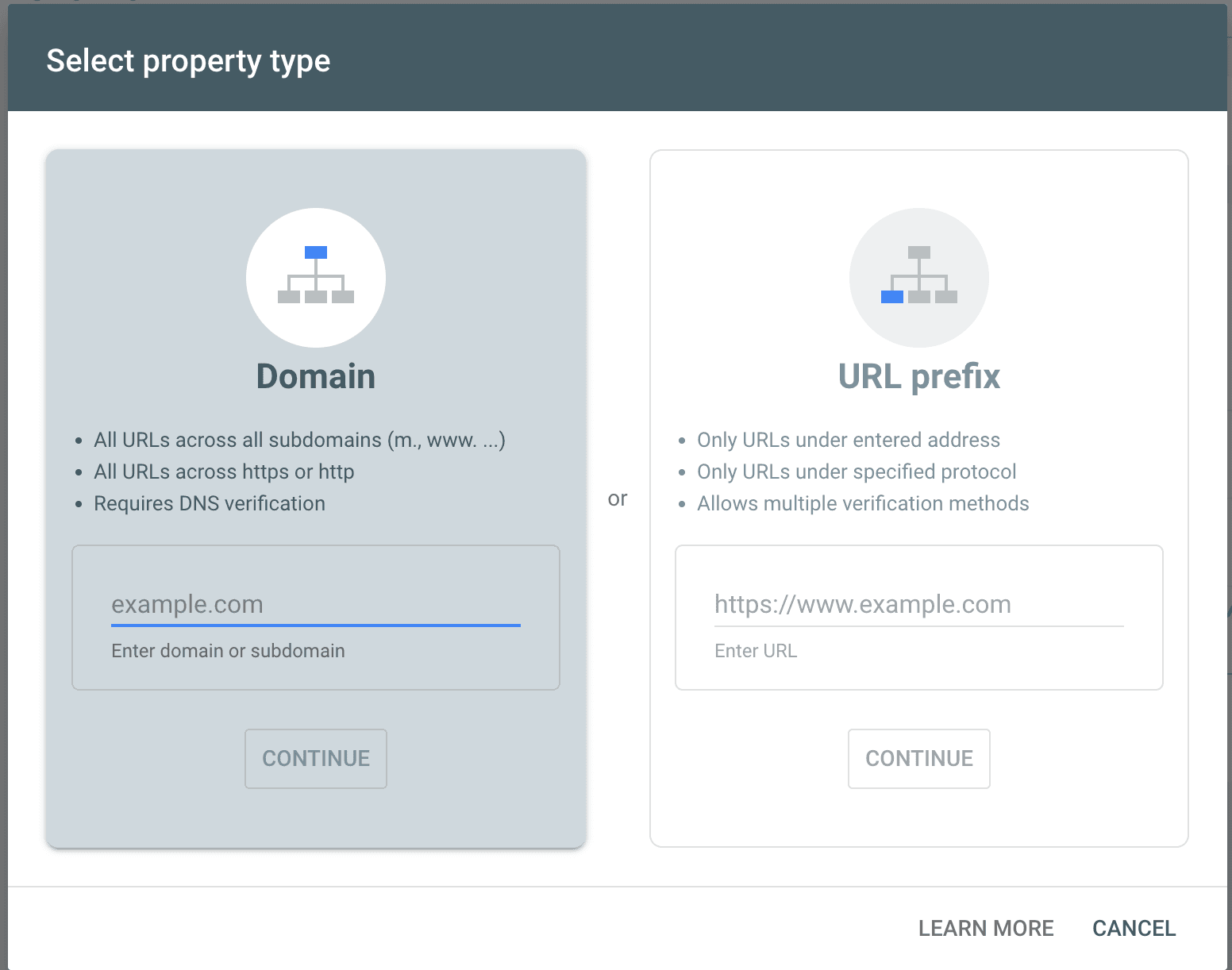
GSC offers two property types:
- Domain property: covers the full domain, including all subdomains and protocols (http/https). Recommended in most cases.
- URL-prefix property: covers only URLs under a specific prefix.
Not sure which to pick? Our guide on Domain vs URL-prefix properties compares coverage, verification and data scope with a clear recommendation.
Verification Methods: Which One to Choose for Your Case
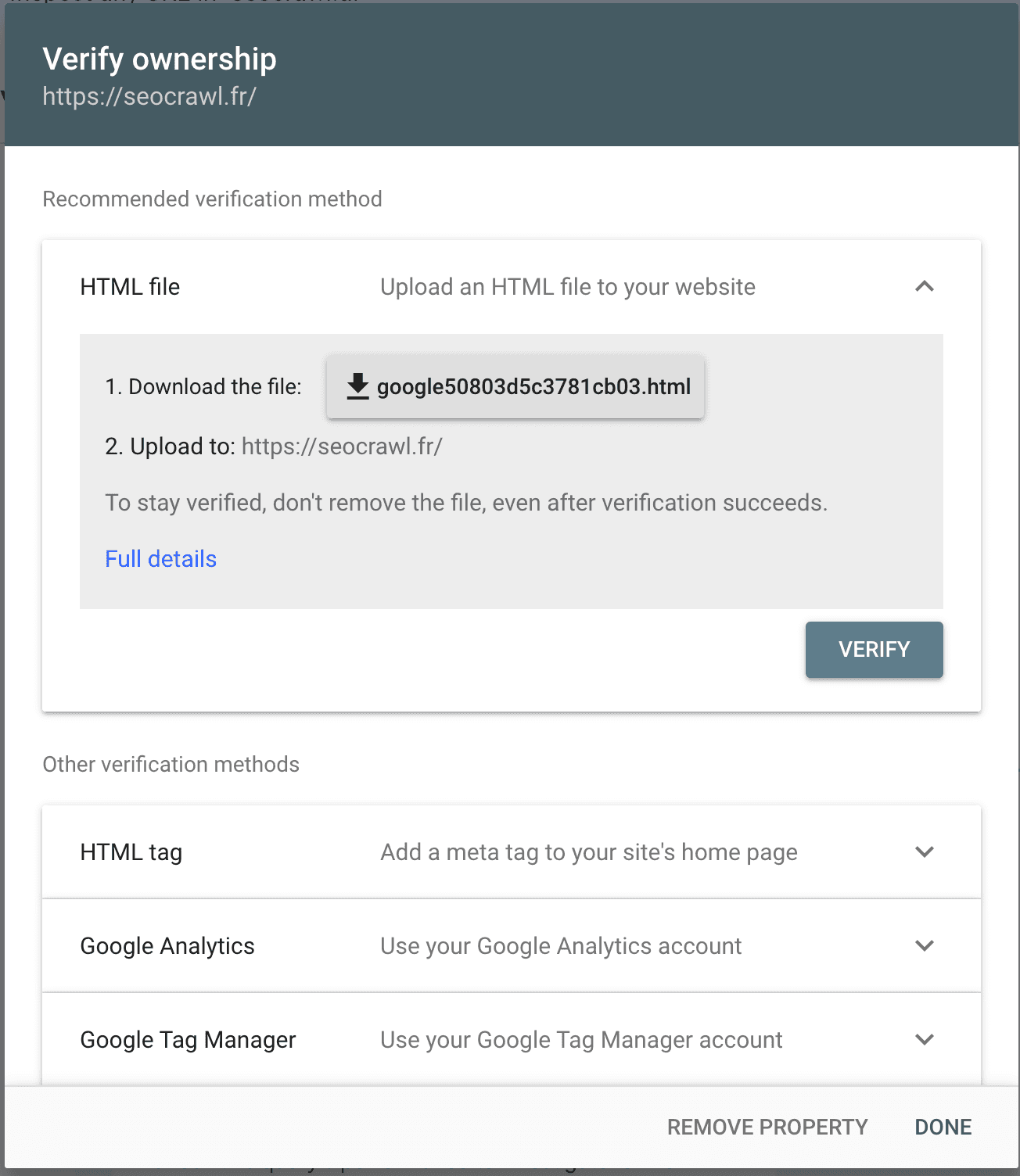
- HTML file: upload a file to your server
- HTML meta tag: add a tag to your site's
<head> - Google Analytics: if GA is already installed
- Google Tag Manager: if you use GTM
- DNS record: recommended for Domain properties
Link GSC to GA4
In GA4, go to Admin > Search Console Links and select your property. This lets you cross-reference on-site behavior data with organic search performance in one place. For the full walkthrough, see our connecting Google Analytics and Search Console.
Managing Users and Permissions in GSC
If you work with a team or an agency, controlling who can access your GSC data is essential. GSC lets you add multiple users with different permission levels:
| User type | Permissions |
|---|---|
| Owner | Full access, can add/remove users |
| Full user | Views all data, cannot manage users |
| Restricted user | Access to selected reports only |
Navigate the GSC Dashboard
Before diving into individual reports, it helps to understand what each section shows and where to find the data you need.
Key Metrics: Clicks, Impressions, CTR, and Average Position
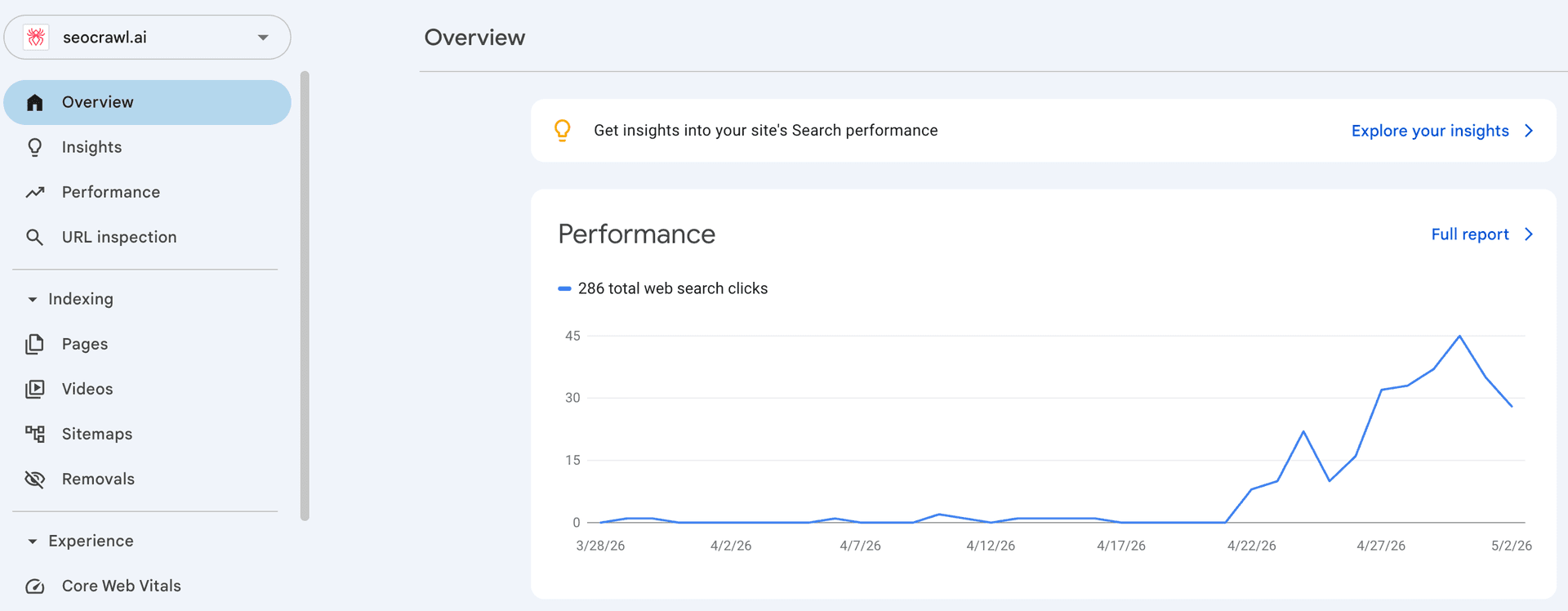
The Performance report tracks four core metrics:
- Clicks: how many times users clicked your result.
- Impressions: how many times your URL appeared in search.
- CTR: the percentage of impressions that led to a click.
- Average position: your URL's mean ranking position.
You can also filter by device, country, and date to segment your analysis.
AI-Powered Configuration
In December 2025, Google added natural language filters to the Performance report (now available globally). Instead of manually selecting filters, you type what you need. For example: "Show me mobile queries with high impressions but low CTR in the last 28 days" and GSC configures the report automatically.
For details, see the official documentation.
How to Analyze the Performance Report: Keywords in GSC
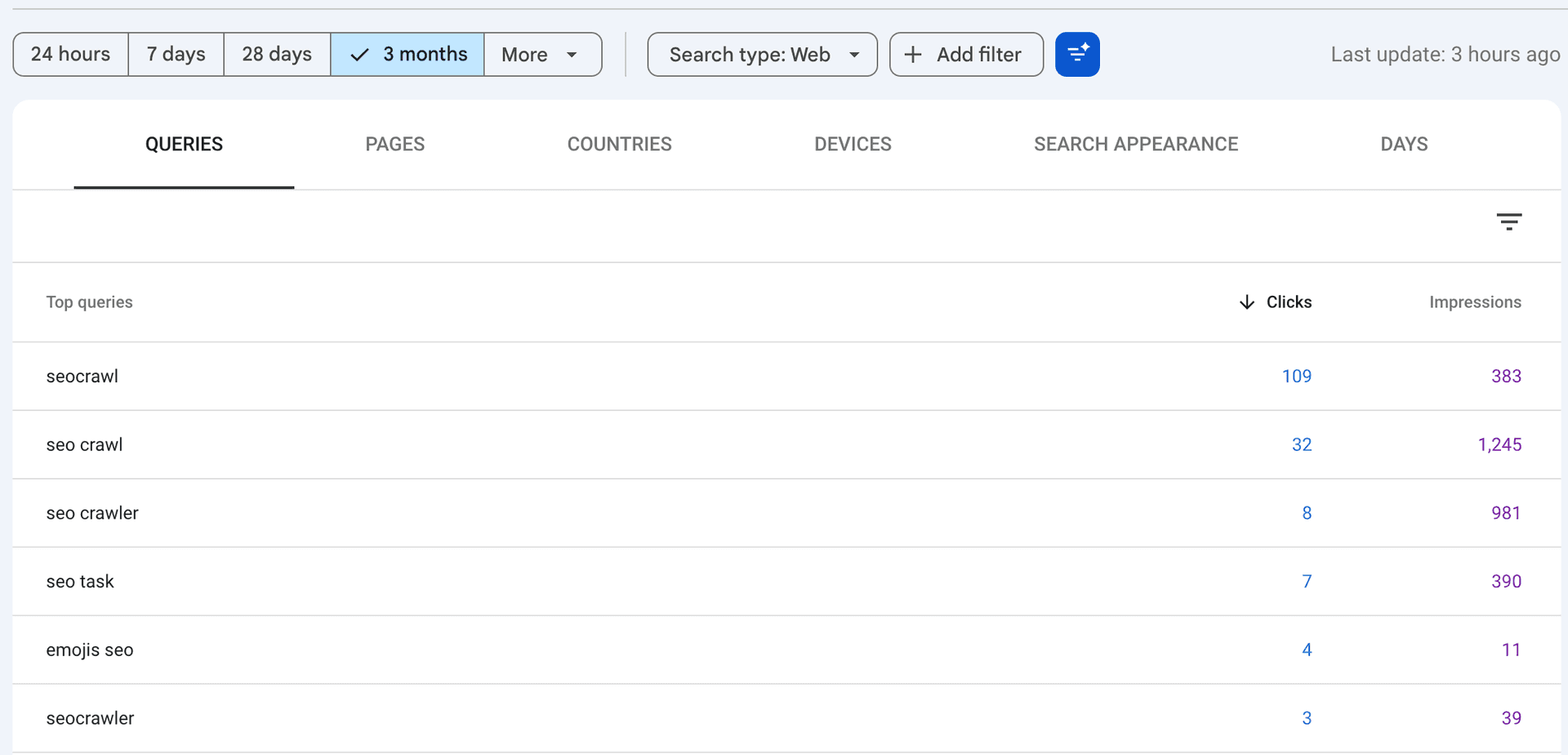
The Performance report is where you analyze which queries drive traffic to your site. Filter by Queries to see which search terms generate impressions and clicks, then layer additional filters to dig deeper (our dedicated guide on Google Search Console keywords covers how to find, analyze, and act on them):
- Filter by device, country, and date range.
- Compare periods to spot trends.
- Cross-reference average position with CTR to find quick wins (positions 5–15 with solid volume).
Performance in AI Overviews and AI Mode
Traffic from AI Overviews and AI Mode is included in the web Performance report. Use the search type filter to identify which URLs appear in these formats. See Google's official documentation for guidance on interpreting this data.
GSC's Role in Website Indexing
GSC's indexing reports let you verify which pages Google has crawled and indexed, and flag any issues preventing your content from appearing in search results. If you're new to the concepts, our guides on how crawling works and how Google indexes pages explain the fundamentals.
Page Report: Indexed vs. Non-Indexed Pages
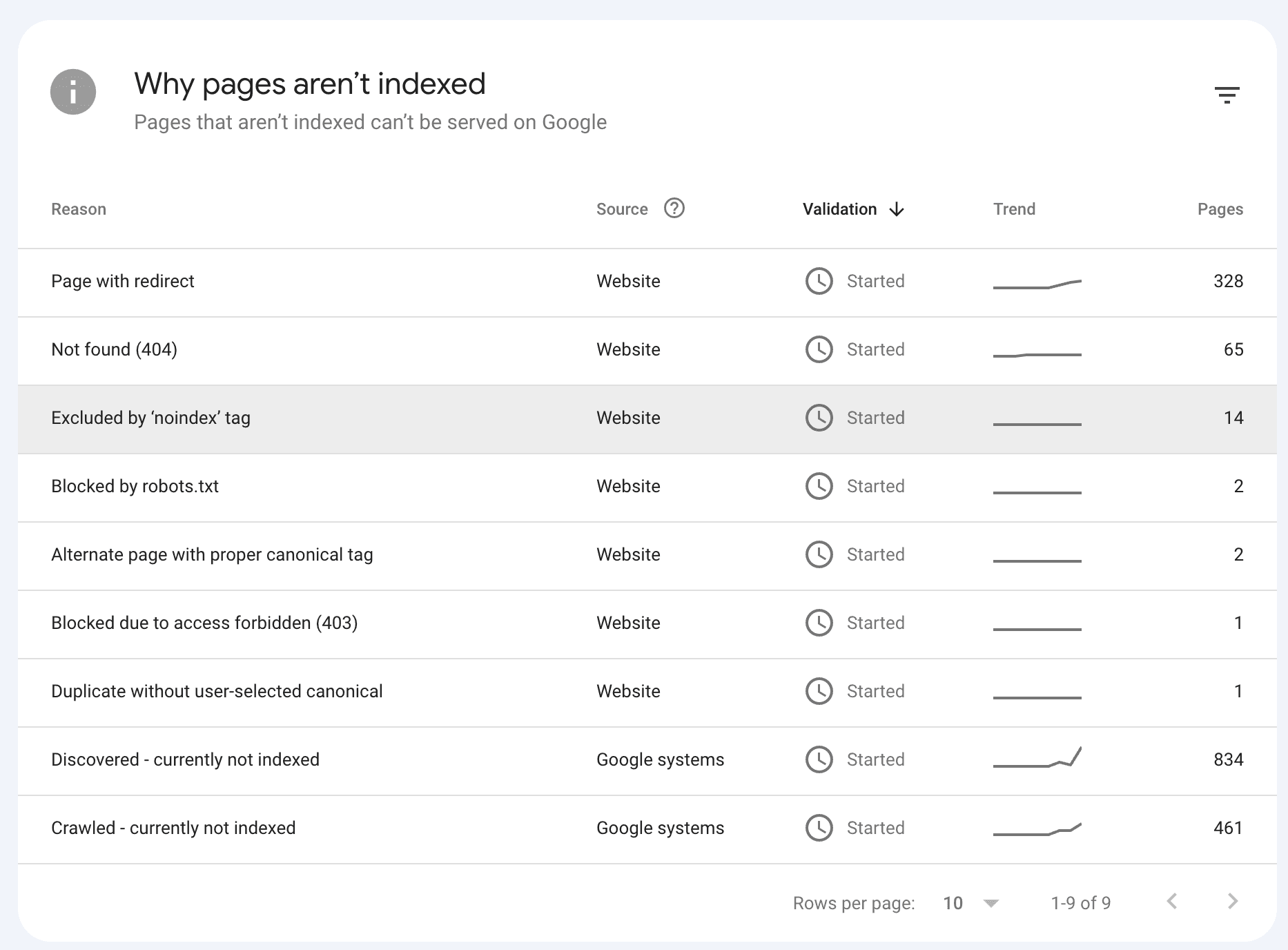
The Page Indexing report shows how many of your URLs are indexed and how many aren't, with a specific reason for each case. It's the starting point for any crawl or coverage audit.
Common Errors: 404, noindex, Blocked by robots.txt
The Page Indexing report flags a specific reason for every non-indexed URL. These are the most common ones, each with a dedicated guide on how to diagnose and fix it:
- 404 error: the URL doesn't exist or was removed — see how to fix, ignore, or remove a Not found (404).
- noindex: a directive is preventing the page from being indexed.
- Blocked by robots.txt: Google's crawler can't access the page.
- Blocked due to other 4xx issue: the server returns a 4xx status (401, 403, 429…) other than 404.
How to Submit a URL for Manual Indexing
Use the URL Inspection tool in GSC's top search bar. Once the URL is analyzed, click Request Indexing. This method is most useful for new or recently updated pages.
How to Submit and Manage Your sitemap.xml
Go to Sitemaps in the left menu, enter your sitemap URL (usually /sitemap.xml), and click Submit. GSC will show how many URLs it discovered and flag any errors. Not sure where yours lives? See how to find the sitemap of a website.
Analyze Your Backlinks and Internal Links
GSC's link reports give you a clear picture of your site's authority distribution, both from external sources and within your own structure.
External Links Report: Who Links to Your Page and From Where
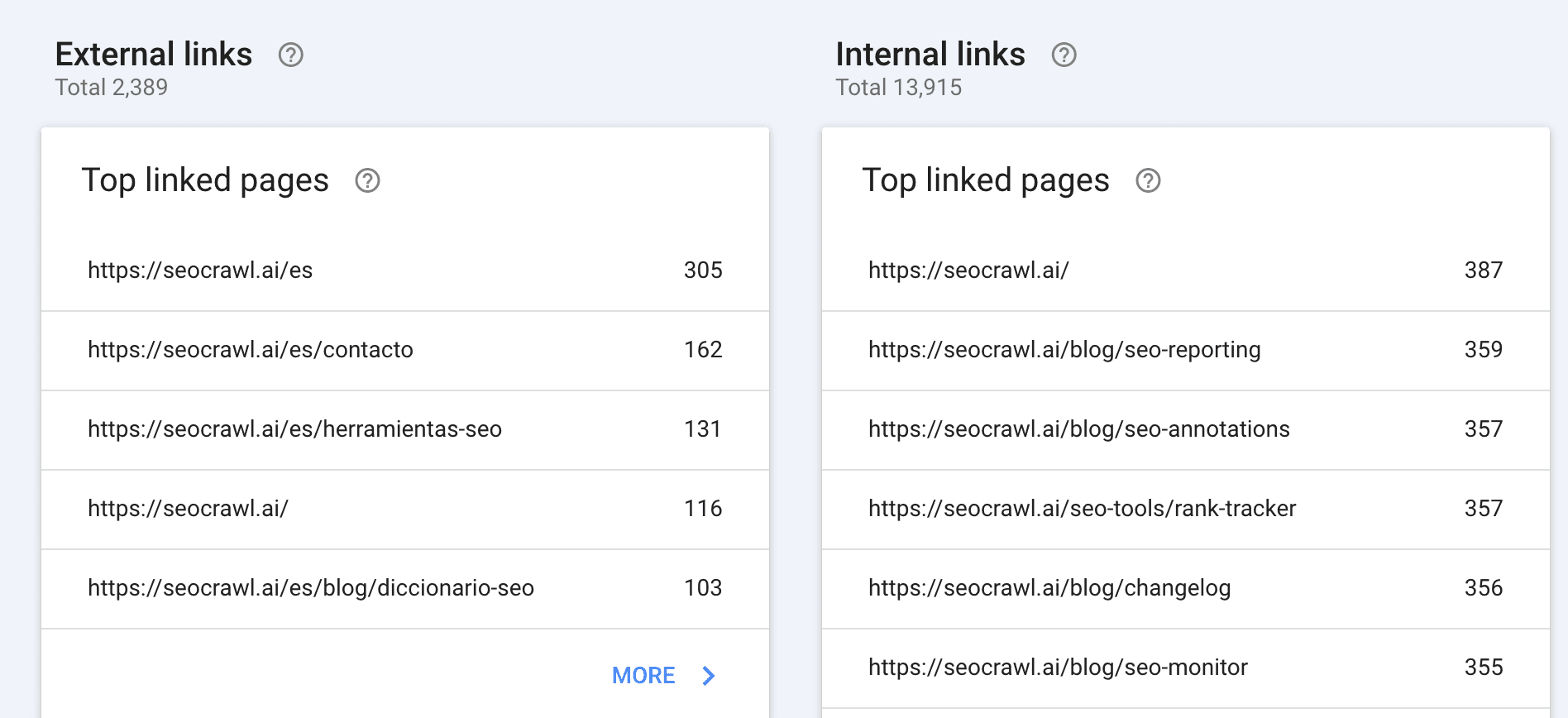
The External links report shows which domains link to your site most, your most-linked pages, and the most common anchor texts. This can be a valuable source of backlink data without paid tools.
Internal Links Report: Which Pages Receive the Most Internal PageRank
The Internal links report shows which URLs receive the most links from within your own site. Pages with more internal links concentrate more PageRank, making this report essential for optimizing your site structure.
How to Export Data from GSC
GSC's native interface covers most analysis needs, but there are times when you need your data outside the platform.
Export Reports to CSV and Google Sheets
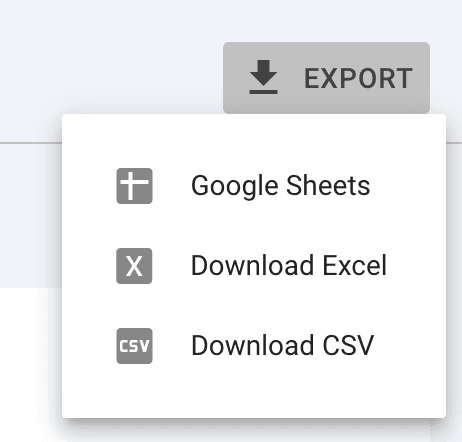
In any report, click the Export button (top right) and choose CSV, Google Sheets, or Excel. Exported data respects any active filters.
Connect GSC to External Tools Like SEOcrawl
Most SEO platforms connect to GSC via OAuth, no API setup required. The process is usually the same across tools:
- Go to the tool's Integrations or Settings section.
- Select Google Search Console.
- Sign in with your Google account and grant the requested permissions.
- Select the property you want to connect.
Once linked, the tool pulls your GSC data automatically and refreshes it on a set schedule. Connecting GSC to SEOcrawl centralizes your SEO data into clean dashboards with unlimited history and automated alerts.
Bulk Data Export with the GSC API
The GSC API lets you extract data beyond the interface limits (up to 16 months of history and higher row volumes). It's the go-to option for large-scale projects or custom integrations.
How to Use GSC in Your SEO Strategy
GSC is most valuable when used consistently, not just when something goes wrong. Check the Performance report weekly to catch visibility drops early, monitor the Page Indexing report after publishing new content, and revisit your link reports monthly.
GSC + SEOcrawl: Make the Most Out of Your Data
Pairing GSC with SEOcrawl takes your Search Console data further: automated rank tracking, visibility change alerts, keyword history beyond the 16-month limit, and unified dashboards that turn raw GSC exports into the insights you'd otherwise spend hours building in Looker Studio.
FAQs
How long does Google Search Console take to show data?
GSC typically shows first data within 24–72 hours of property verification. Performance report data usually has a 2–3 day delay.
How much historical data does Google Search Console store?
The GSC interface shows up to 16 months of data. For longer historical records, export data regularly or use the GSC API.
Can I add multiple users to a Google Search Console property?
Yes. Go to Settings > Users and permissions and add as many users as needed, assigning each the appropriate access level.
Does Google Search Console show paid search data (Google Ads)?
No. GSC only shows organic search data. Paid campaign data is managed in Google Ads and Google Analytics.
How do I know if my content appears in AI Overviews?
AI Overviews data is included in the Performance report. Filter by search type to identify URLs appearing in this format. See Google's documentation for more.
How do I use Google Search Console for SEO?
The most impactful uses are monitoring organic visibility, detecting indexing and crawl errors, analyzing keyword performance, and reviewing your link profile. Combined with a tool like SEOcrawl, you can automate tracking and scale your analysis.
Author: David Kaufmann

I've spent the last 10+ years completely obsessed with SEO — and honestly, I wouldn't have it any other way.
My career hit a new level when I worked as a senior SEO specialist for Chess.com — one of the top 100 most visited websites on the entire internet. Operating at that scale, across millions of pages, dozens of languages, and one of the most competitive SERPs out there, taught me things no course or certification ever could. That experience changed my perspective on what great SEO really looks like — and it became the foundation for everything I've built since.
From that experience, I founded SEO Alive — an agency for brands that are serious about organic growth. We're not here to sell dashboards and monthly reports. We're here to build strategies that actually move the needle, combining the best of classical SEO with the exciting new world of Generative Engine Optimization (GEO) — making sure your brand shows up not just in Google's blue links, but inside the AI-generated answers that ChatGPT, Perplexity, and Google AI Overviews are delivering to millions of people every single day.
And because I couldn't find a tool that handled both of those worlds properly, I built one myself — SEOcrawl, an enterprise SEO intelligence platform that brings together rankings, technical audits, backlink monitoring, crawl health, and AI brand visibility tracking all in one place. It's the platform I always wished existed.
Discover more content about this author