WP Rocket Tutorial to Optimize Website Speed

Page load speed optimization is increasingly important for its influence on search engine rankings and, of course, on the user's experience with our website. Within the WordPress ecosystem, different plugins have coexisted for years, such as WP Super Cache, W3 Total Cache, Swift Performance and WP Rocket.
We wanted to put together a complete guide on the latter so you don't get lost among its many options and get the best performance out of your website's loading speed. Let's go!
What is WP Rocket?
WP Rocket is a plugin that was born as a solution for the different cache optimizations in WordPress. Today it is much more, and we can not only optimize cache, but practically everything related to website loading performance optimization.
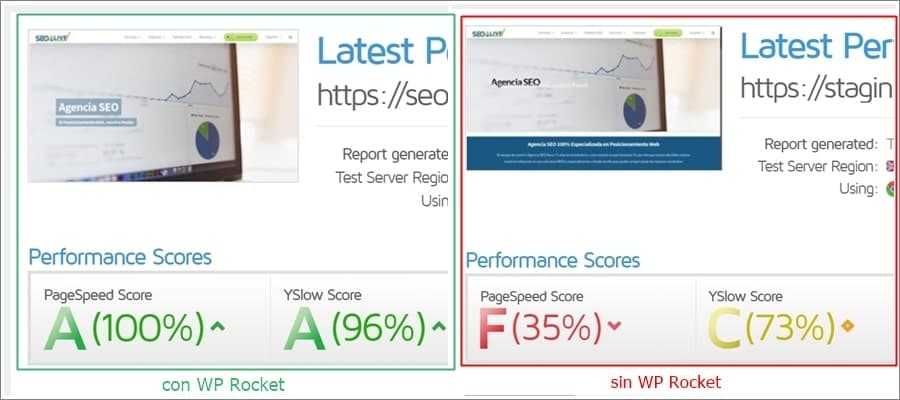
To demonstrate its impact, take a look at the performance of our own site WITH and WITHOUT WP Rocket:
Why use WP Rocket?
Although we have said that there are other alternatives for WPO optimization, and everyone is free to use whichever they see fit, in our case we have a special preference for WP Rocket. Its intuitive interface that works with a click of a checkbox, the multiple options it offers for cache configuration and resource loading, make WP Rocket our favorite among all the options.
WP Rocket Main Menu
Assuming we've had no issues installing WP Rocket, let's start explaining its interface and the different options available for optimization. When you click on the dashboard tab, the following screen appears:
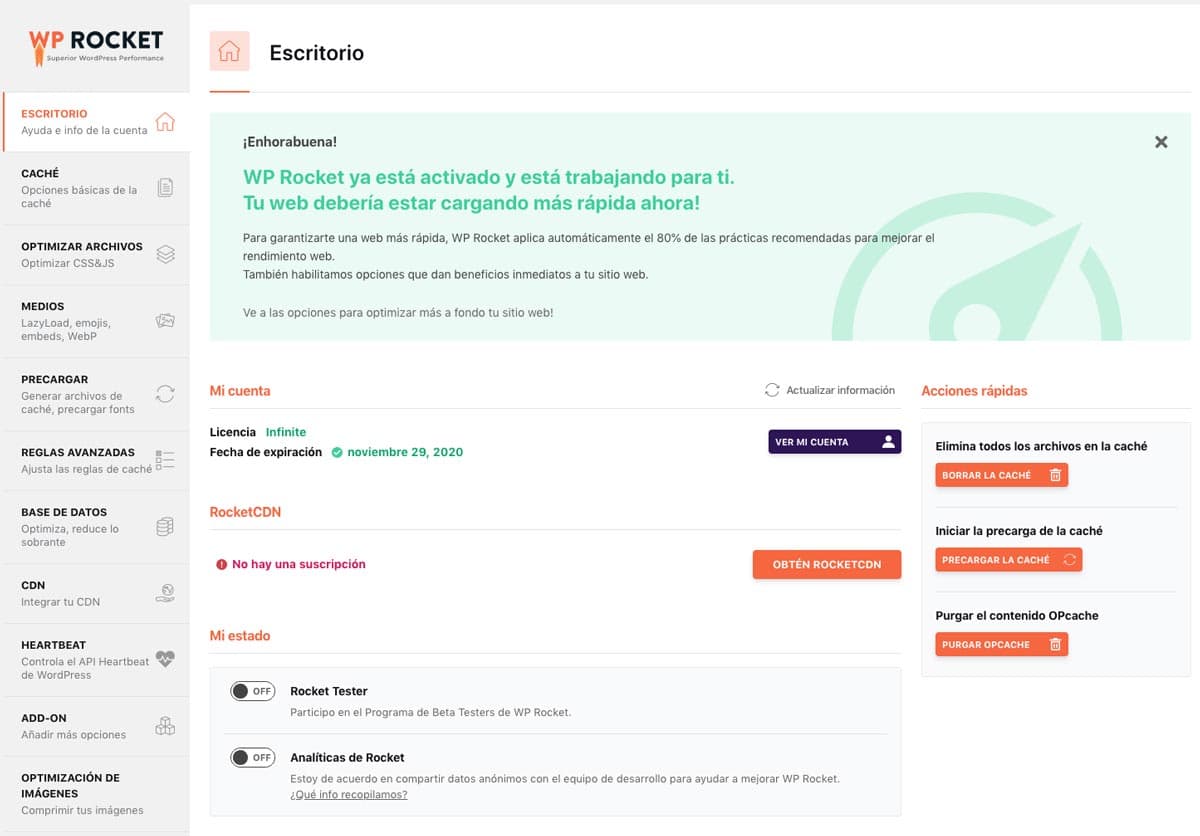
A welcome message and options that we can initially leave alone, but which we'll explain here.
My Account
If you have purchased WP Rocket, the "View my account" box will take you to the WP Rocket users page so that, once there, you can complete and check everything related to your user profile: Data, billing, etc.
RocketCDN
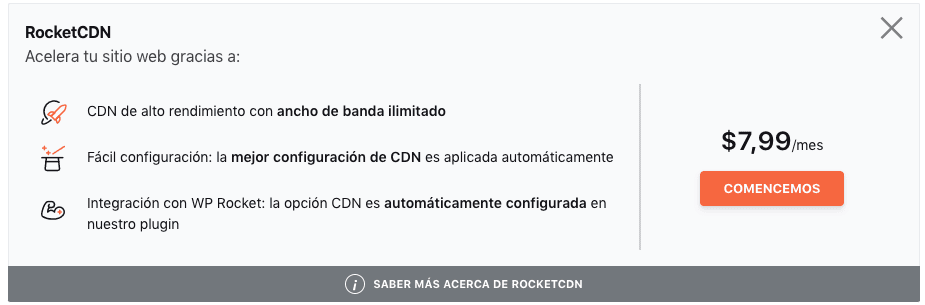
RocketCDN is a CDN service that WP Rocket has been offering relatively recently. The goal is to provide the necessary tools to achieve the best performance without having to look for solutions outside the plugin. There are other very popular and equally effective CDN services such as Cloudflare or Amazon CloudFront.
My Status
Within this option we have two switches to enable:
-
Rocket Tester: this is the WP Rocket improvements program for testing their BETA versions. You have to contact them via email.
-
Rocket Analytics: You agree to share your WordPress performance data anonymously with the development team to help improve WP Rocket.
There is little to say here, this is a personal decision that should not affect performance.
Cache Configuration in WP Rocket
It's time to get into the configuration options and we'll start with the cache:
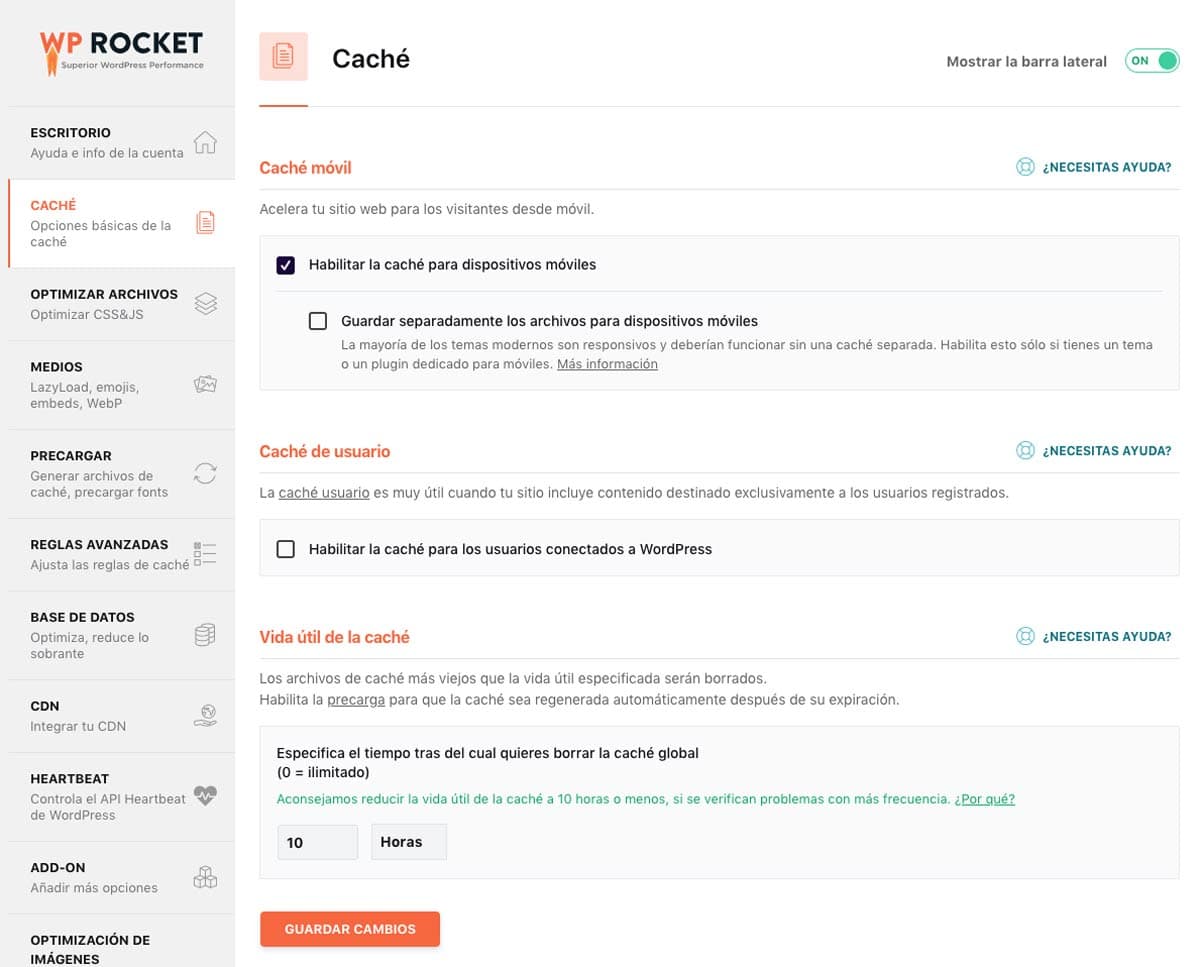
In the second tab of the plugin, we can see what cache options it offers us. Let's remember that in WP Rocket we're optimizing the page cache and, as we'll see now, we also have an option for logged-in users, but we have to be careful with this option.
Mobile Cache
Normally, when we talk about mobile we also include tablets, but this time we're only talking about mobile devices. WP Rocket detects through the user agent that we are browsing from smartphones.
We will always enable this option, since as a general rule, desktop and mobile designs are different, unless we don't have a responsive version, this option will always be enabled. To make it clear, why would we want to be delivered 2 cached versions if the design were the same? In other words, if we didn't have a mobile version, we wouldn't want this cache to be treated differently, right?
This is where an exception is added. When we have a mobile version with resources or elements that only load in that version, we will save files separately.
Example:
- We have an advertisement that on mobile loads a JS that the desktop version doesn't have.
In this case we would indeed save separate files for mobile.
User Cache
User cache is an option that WP Rocket provides for those users who browse while logged in.

By activating this option, we can offer an individualized cache version for each user. The best thing is to enable it if users log in, but you have to be especially careful which pages are cached and which are not, because if the user enters personal data (for example banking information), storing it in cache could cause us legal problems.
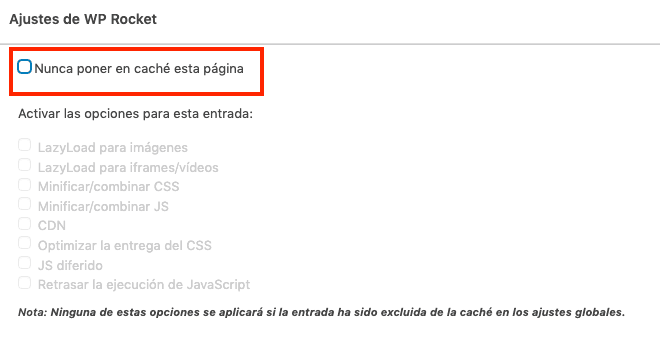
How to exclude a page from being cached?
If you want to avoid problems of this type, the best thing is to go directly to the page you want to exclude and in the WP Rocket options (sidebar or bottom) select "never cache this page".
Cache Lifespan
In this section we just need to indicate the duration we want for the cache files that are generated. That is, WP Rocket generates a file saving the version of your page, and this file will be the one delivered to the user when accessing the website.
Through a process manager (CRON), files generated that exceed the indicated duration will be deleted and new ones will be created.
Things to keep in mind
WP Rocket already takes into account certain processes to delete and generate new cache files, which are as follows:
-
Generation of new entries, pages, categories, taxonomies or edits
-
Generation and editing of new modules, widgets or any element of the website
-
When WP Rocket configurations that affect the frontend are changed.
Otherwise, you must keep in mind that storing cache files takes up space on your server and this space is limited. It is also advisable to clear the cache from WP Rocket so it gets updated and no files remain that are no longer needed.
As for time, you can leave the default value.
File Optimization in WP Rocket
After briefly going over the cache configuration, it's time to work on file optimization. File optimization is done to lighten the loading and rendering of HTML. How can we work on this optimization?
In several ways:
-
By reducing file weight
-
By removing unnecessary files, and
-
By executing files progressively as they are needed.
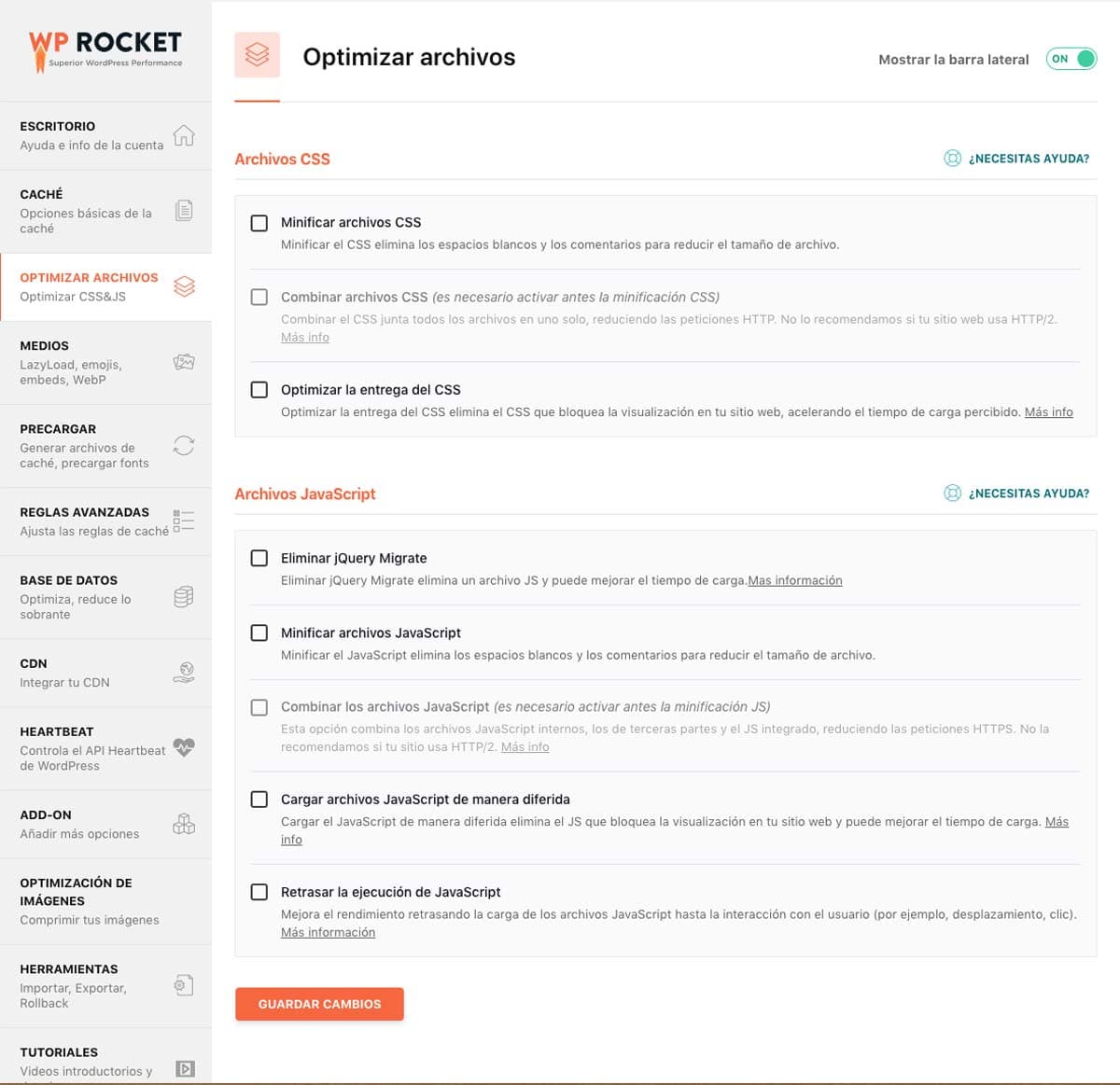
CSS Files
CSS files are responsible for the visual part of the website. The style sheets that give shape, color and style to our WordPress. In this aspect, an attractive design may not be an optimized design, because the designer, when building the CSS, may not have followed a series of basic optimization rules.
Among the most common problems we usually encounter with style sheets are:
-
Heavy CSS files
-
CSS files that load on pages that don't use those styles
-
Poorly built CSS files
-
Loading too many external CSS
-
Using @import to bring in external style sheets
In short, there is a world of practices that are often used that are not advisable for the optimization of a good design, but let's get to what WP Rocket offers us.
Minify CSS files
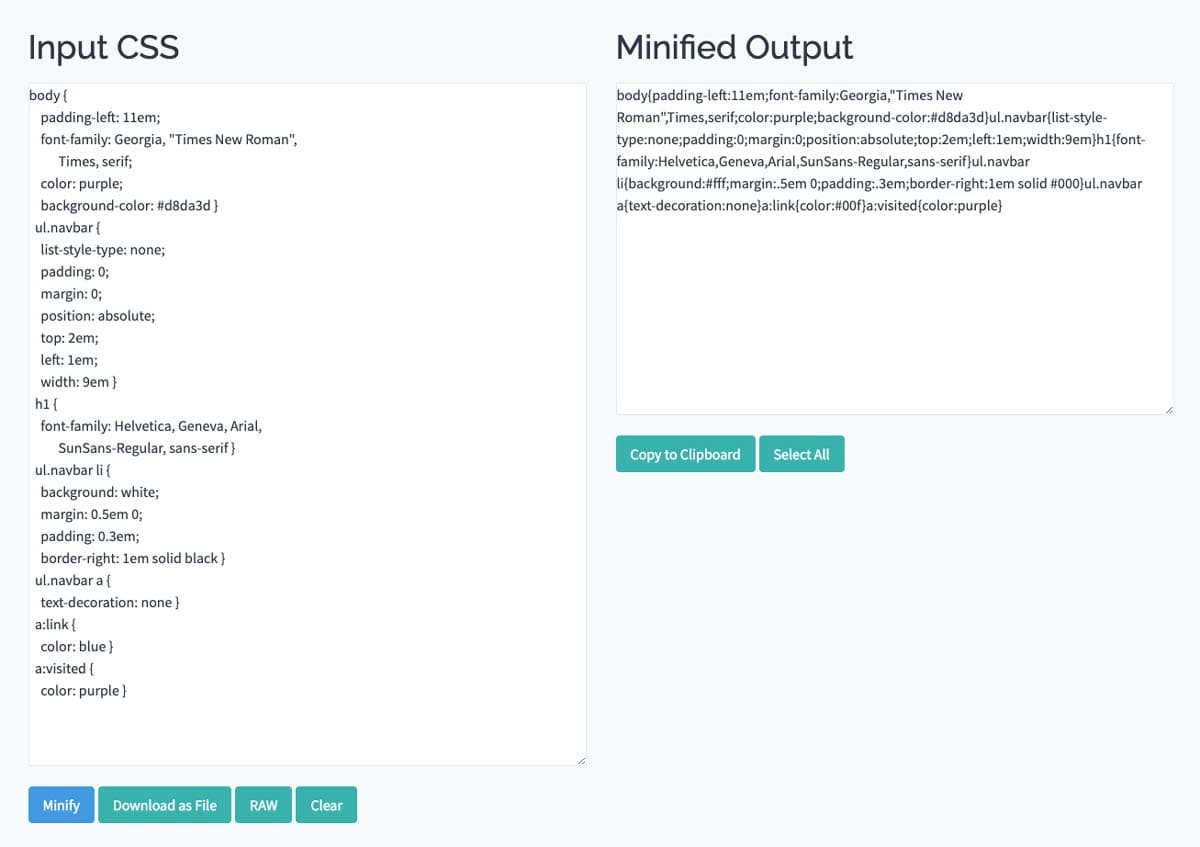
This option aims to reduce the weight of CSS files by removing spaces and line breaks. WP Rocket implements it by activating the checkbox.
SEOcrawl AI Tip: Whenever we perform an action, it is a good idea to try loading the website to see if everything is correct, do it in the browser's incognito mode.
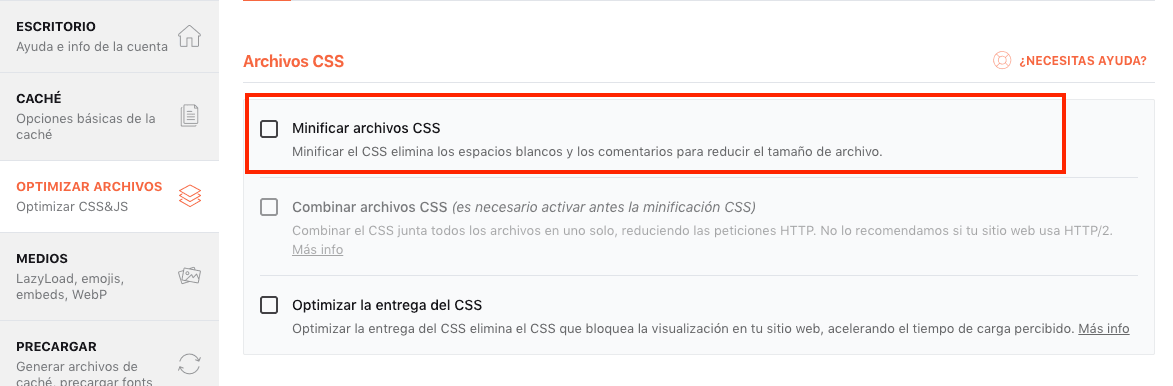
The process is represented in the following image taken from the minifier.org tool.
Combine CSS files
This feature performs a kind of "copy and paste" of the code from one CSS into another to avoid loading multiple CSS files and just have one.
It is advisable to keep testing because it depends a lot on how the theme has been developed, because if I have a CSS file that only loads on a specific type of page, what I don't want is for that code to be loaded into a single file on all pages.
The ideal thing is to load the code used by the URL. Check the box and test with some tool like GTMETRIX to see if you have improved loading speed.
The benefit of combining CSS files is reducing requests to the server.
Optimize CSS loading
WP Rocket has been updated taking into account the recommendations provided by various Google tools for loading speed optimization. If we already have experience with these tools, we have surely encountered the "Eliminate render-blocking resources" warning. By activating this check, we prevent CSS from blocking loading by making it load asynchronously.
That is, the HTML rendering does not stop when it has to download the CSS file; this file loads in the background, preventing the loading process from being halted. So it's worth enabling.
JS Files (JavaScript)
JavaScript has been one of the big problems Google has encountered when processing HTML. Without going too deep into this type of language, WP Rocket has designed 5 basic actions for optimizing this type of file. Let's take a look!
Remove jQuery Migrate
jQuery Migrate is a JavaScript library that allows compatibility with jQuery code developed for versions of jQuery prior to 1.9. This library comes natively in WordPress but practically has no use (some plugins may need it).
With this action, we want to avoid an unnecessary request and the loading of a JS that won't be used. Disable it and browse through your website to see if everything is working correctly!
Minify JavaScript Files
Just like what was explained with CSS files, this action would be applied to JS files, slightly reducing the size of JS files.
Combine JavaScript files
Another action similar to the CSS optimization module. Remember that when we activate these checkboxes we must verify if everything is working as before.
Load JavaScript files deferred

The check on this action makes two improvements in performance:
-
It adds the "defer" attribute to the JS to prevent HTML rendering from stopping due to a JS load. With this action, it downloads in parallel and executes at the end of the HTML processing.
-
It moves the JS that blocks the initial rendering.
WP Rocket warns us that this type of activation can cause problems, which is why it introduces a safe mode to avoid loading problems of essential elements for the correct visualization of the page.

Delay JavaScript execution
Another option to delay the execution of JavaScript that is not essential until the user interacts with the page. This action doesn't seem very important, but it does allow us to gain time for loading to happen more quickly. The interaction can be a click, scroll, mouse movement...
Media Optimization
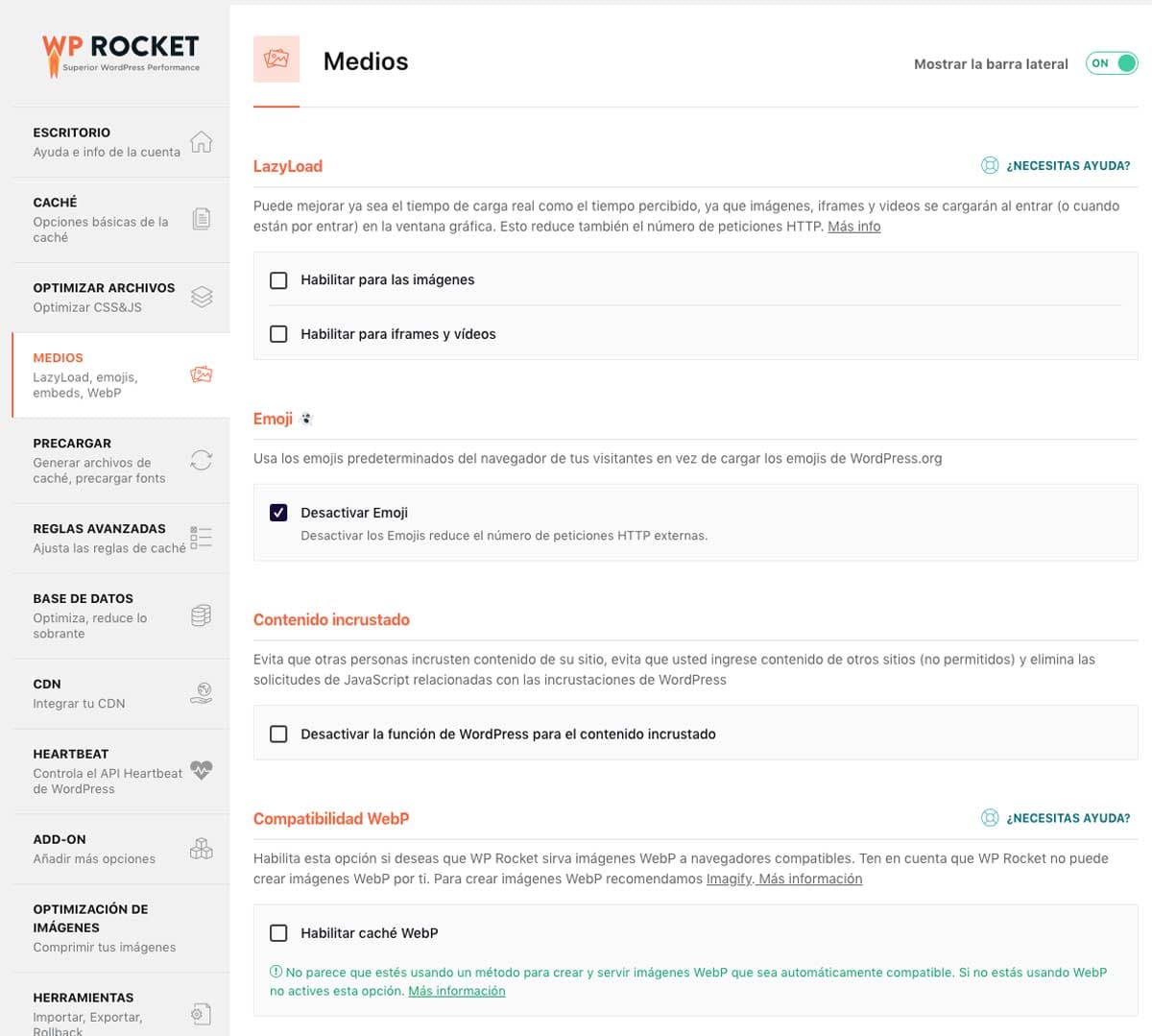
In this tab, we'll cover the optimization of key elements in the first steps of WPO optimization. We're talking about images, videos, iframes, and elements built into WordPress whose functionality is, at the very least, questionable.
Lazyload
An essential action in any loading speed optimization. The Lazyload function causes elements like images, videos, and iframes to not load until they are essential for display.
Let me give you an example. As we scroll, images load. Imagine what loading this page would be like if 30 images loaded all at once, especially if the user isn't even viewing them at first.
Emoji
Browsers already include their own emojis, so we can save that request that is made if we don't activate this check. My recommendation is that you activate it.
Embedded Content
Prevents other people from embedding content from your site and also prevents you from embedding content from other unauthorized sites. Requests made with this JS are reduced.
WebP Compatibility
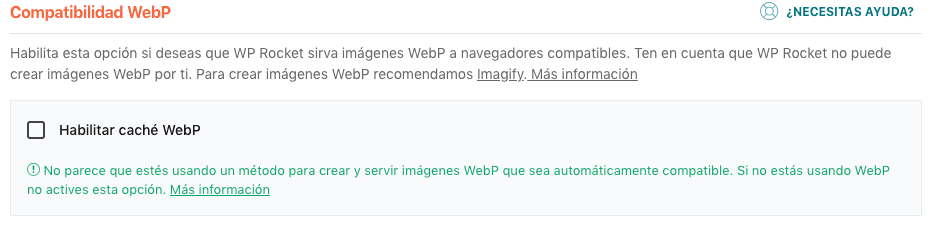
WebP is a relatively new format that Google introduced around 2010, for lossy compression of 24-bit graphics on the web, improving the provision of these resources to speed up their loading.
Currently not all browsers support it, so you will have to be careful and know which browser your users use when working with this format. Enable this option if you work with WebP images.
Cache Preloading Configuration
We need to understand well how WP Rocket's cache files are generated to understand the Preload function.
When a user visits a page on our site for the first time, that's when the page gets cached and a cached file is generated that will be delivered to subsequent users. The same thing happens when the cache expires (the time we have determined) and the cached version is eliminated, or when we ourselves clear the cache of all our URLs.
Preload Cache
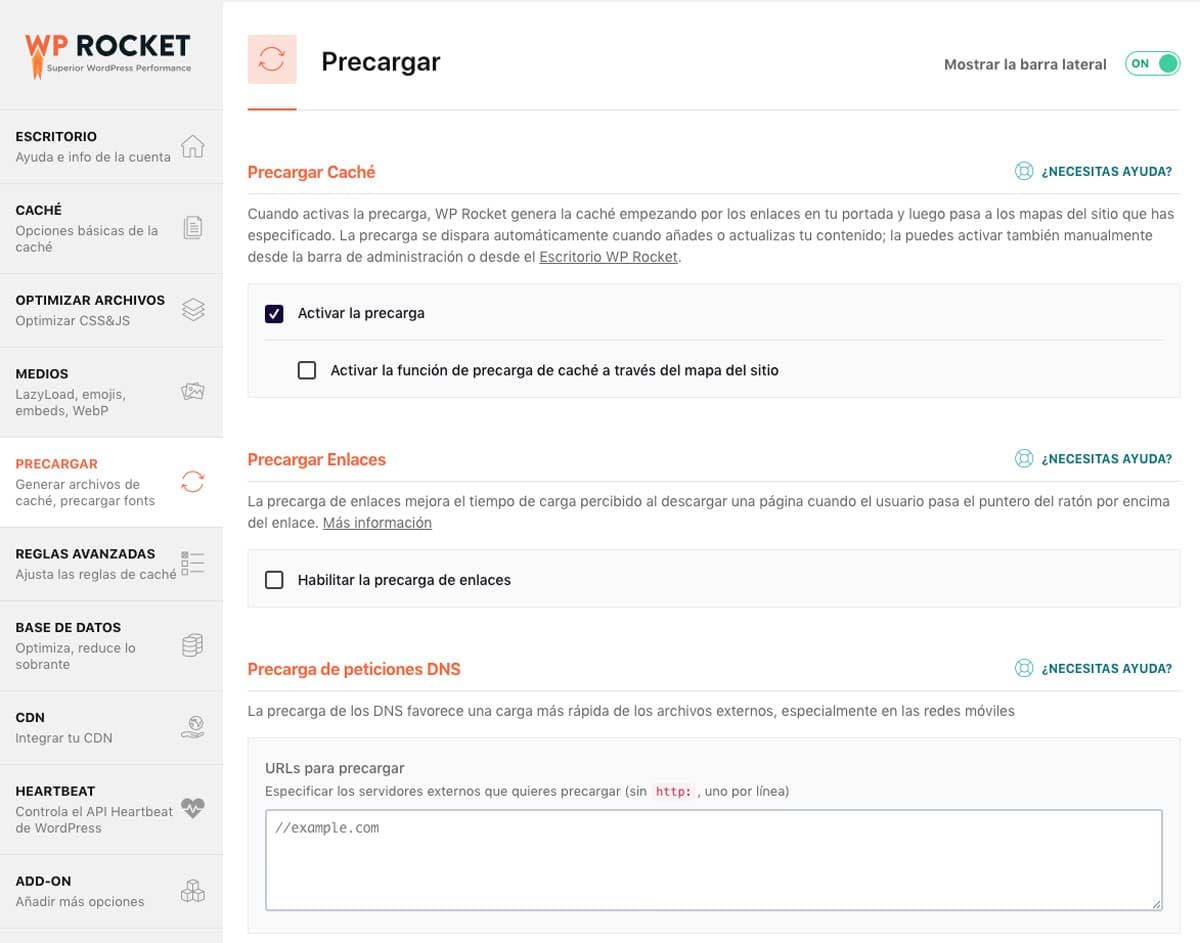
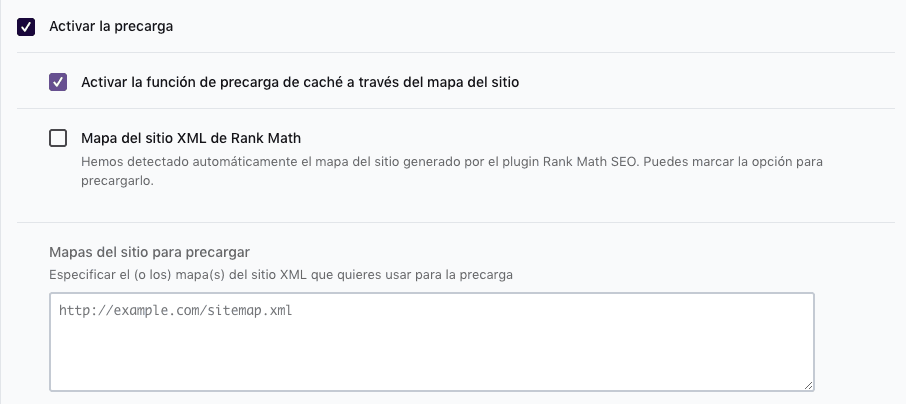
By activating the Preload option, what we'll do is load a previously cached version so that even the first user has a faster version of our site. This action is performed through the sitemap links, so we'll need a sitemap.
The sitemap is a file generated where the URLs of our site are shown. With plugins like "Rank Math" or "Yoast" we can generate it easily. If you want to see how to create a sitemap with Rank Math, here we show you.
Preload Links
This is a function that WP Rocket has incorporated in its latest versions. The aim is to anticipate the loading of the "next pages the user is going to visit". When hovering the cursor over, the page preload takes place in case the user clicks on the link.
WP Rocket has adopted this function that specific plugins like "Flying Pages" were already implementing to improve navigation fluidity within the site (user experience). That said, this is not a factor that improves loading time, and you won't see the improvement in WPO audit tool metrics.
DNS Request Preloading
DNS request preloading comes in very handy when we use third-party resources like YouTube, Facebook, fonts or iframes that we frequently request.
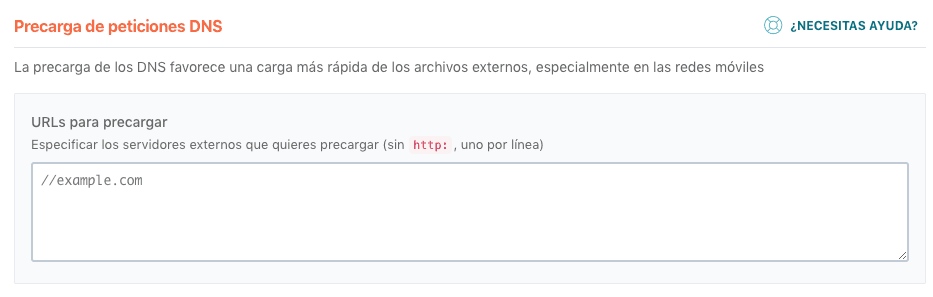
When we make any connection on the Internet, a DNS request is made that must be resolved and sent to the server. This has a duration that we can improve if we add the URLs of the necessary resources in this box that WP Rocket provides us.
As we can see in the example, it is only necessary to use the domain name //youtube.com //facebook.com
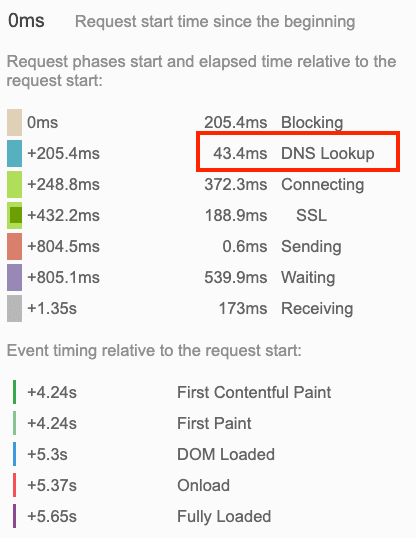
The DNS resolution takes approximately 20 to 120 milliseconds, as GTMETRIX indicates, the browser will not download anything from the host until this process is complete.
Preload Fonts
Preloading fonts requires a previous step, which is downloading the fonts and having them on our server. Once there, we can do the same action we did with cache preload, making a much faster version of the fonts file and providing it to the user when they connect to our page.
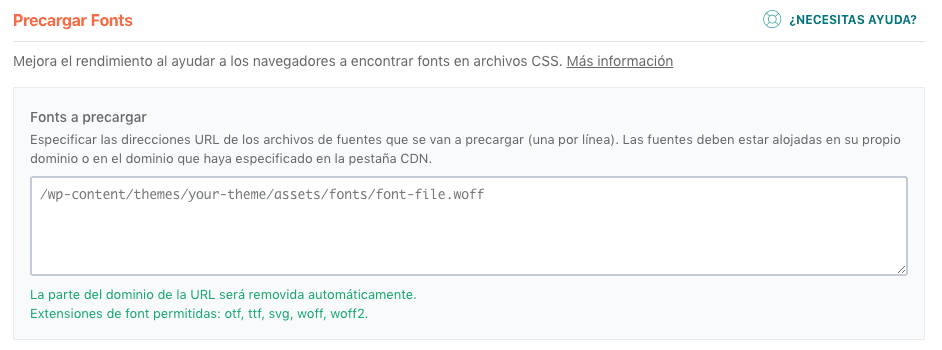
Once the fonts are hosted, we'll indicate to WP Rocket the exact path of the fonts used. It is recommended not to abuse different fonts on our pages because they require different downloads. Also note that requests to the server are made with the different variations of the font, let me explain:
-
Bold font --> 1 request
-
Underlined font --> 1 request
-
Uppercase font --> 1 request
Configuring WP Rocket's Advanced Rules
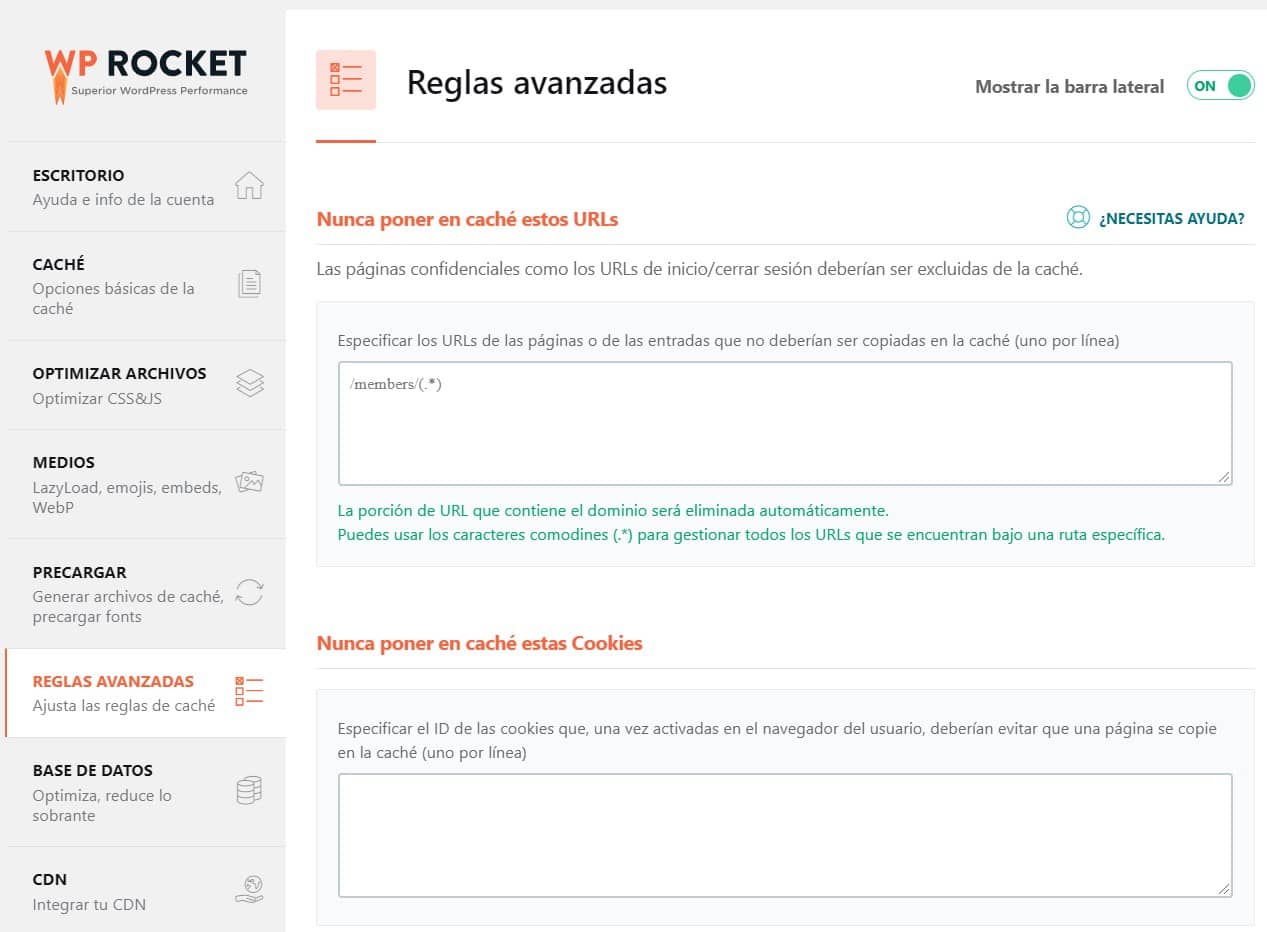
Never cache these URLs
There are certain URLs that, due to their uniqueness, we don't want a cached version saved. From this tab, WP Rocket allows us to enter a list of URLs we never want to be cached.
Never cache these cookies
WP Rocket gives us another control tool beyond doing it by URLs. Many plugins work with their own cookies or we can even install our own to identify certain users; there are many ways to use these small files.
With WP Rocket we can stop caching URLs identified by the cookie ID, once downloaded in the user's browser, thus further customizing the type of URLs we want to be cached.
Never cache these user agents
The user agent is a descriptive field within the HTTP protocol, used to provide information about the device making a request. Knowing this information, we can prevent cached pages from being delivered to these user agents.
For example, one of Google's user agents is Googlebot, so by indicating it in this part of the web, every time it accesses our website we will offer the pages without caching.
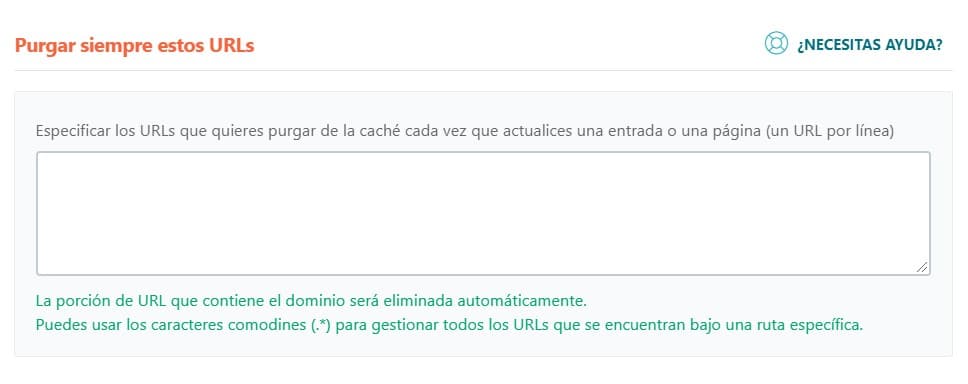
Always purge these URLs
This option is very interesting for a type of URL that, for example, you're interested in always having its cache file deleted when updated.
For example, I have URLs with sports results and what I don't want is to deliver a cached version to the user, since the results are updated very frequently.
Cache these query strings
Query strings are data that are sent when making a request to a web page through the URL.
They are usually identified by the question mark symbol "?" and as a general rule WP Rocket does not cache this type of URL. In this option we can force it to do so.
Database Configuration with WP Rocket
As we've said repeatedly throughout the article, WP Rocket has stopped being just a cache plugin to become a plugin for optimizing our website's loading speed. In this configuration section, we can delve deeper into database optimization.
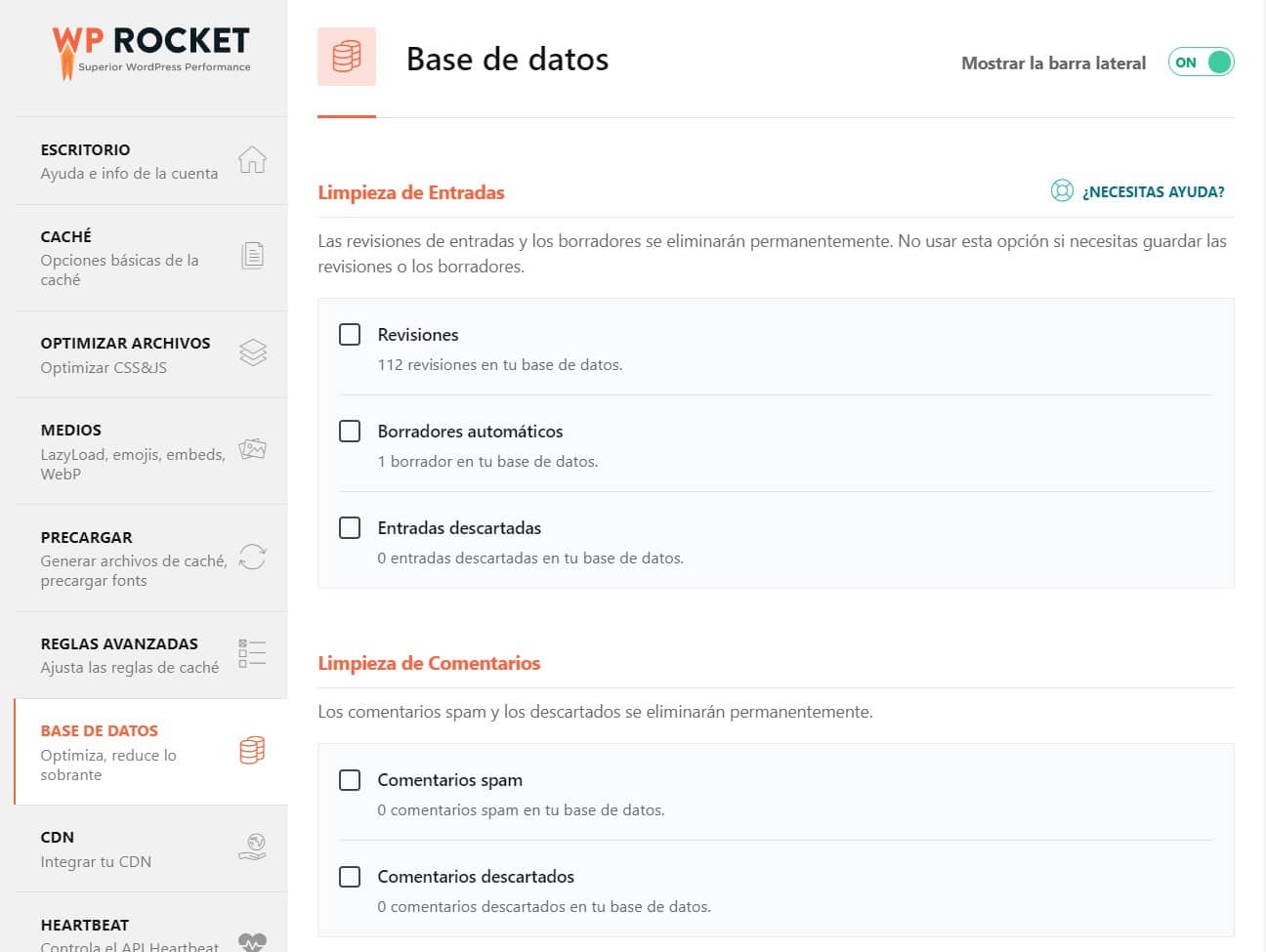
As we work on our content within WordPress, we generate other types of information that are not useful and harm our website's performance. For this, WP Rocket provides us with this tool to do a more or less thorough cleanup.
Post cleanup
As we can see in the image, there are 3 elements that can be taking up space in the database without us being interested in them. When we update content, a previous version is saved, an auto-draft of what we are editing is also generated, and discarded entries.
If we remove these elements, we will free up space in our database.
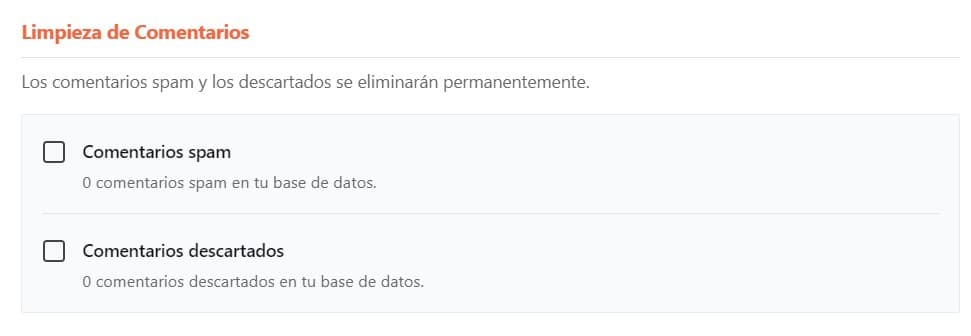
Comments cleanup
This part is important because sometimes our database fills up with "spam" comments, which is why WP Rocket has introduced this option to clean up this type of element.
Transients Cleanup
When we are working in WordPress, certain transient elements are generated that we can delete without issue since they will be regenerated.
Database Cleanup
Both this point and the next one, I recommend making a backup of the database because, although nothing should happen, going deeper into actions within the database always has its risks, so it's not a bad idea to make a backup.
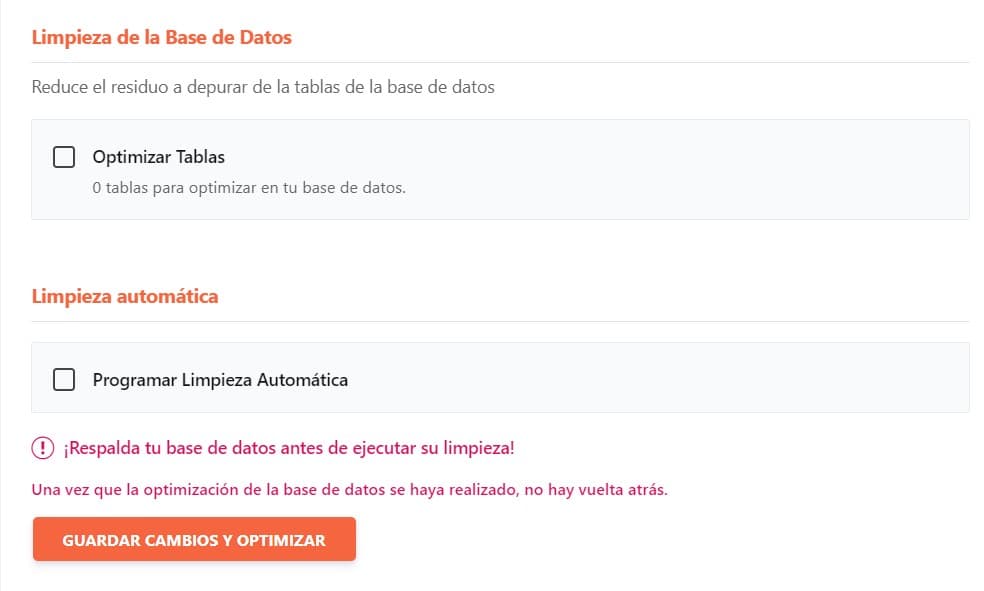
Activating this check will perform a cleanup of the database tables. This process can be automated.
Configuring CDN with WP Rocket
Before we dig deeper into how to configure CDNs with WP Rocket, I want to explain what a CDN is and why it is used.
What is a CDN?
A CDN (Content Delivery Network) is a service whose objective is to improve the content transfer speed to the user. To do this, it creates a content distribution network in different servers around the world to shorten the times in the user's resource request. That is, if the user is in Brazil, a CDN offers the content hosted on a server closer to them than the actual web hosting server.
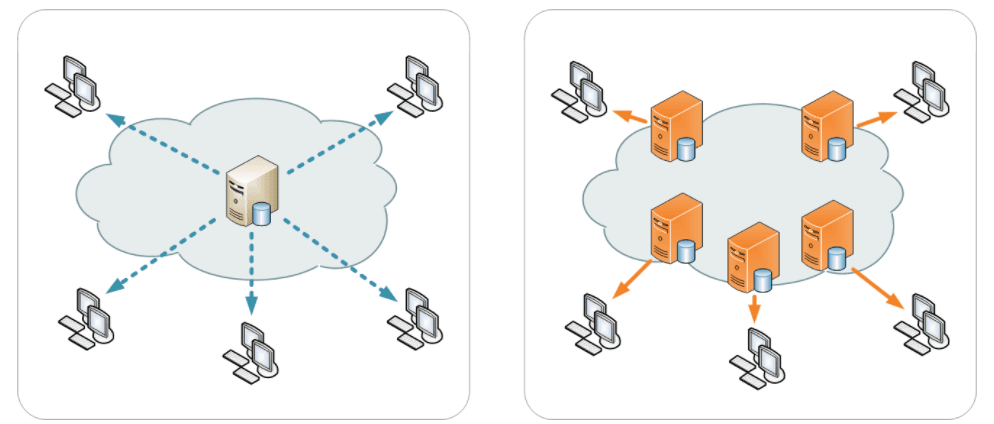
Images taken from the WP Rocket page
How does a CDN work?
It operates through these other servers that store a cached copy of the website, and when the user requests this content/resources, a nearer server performs the transfer.
These types of services are very useful when you have heavy content such as images, audios, video and/or many visits. If you initially have a website with few visits, you shouldn't worry about this aspect.
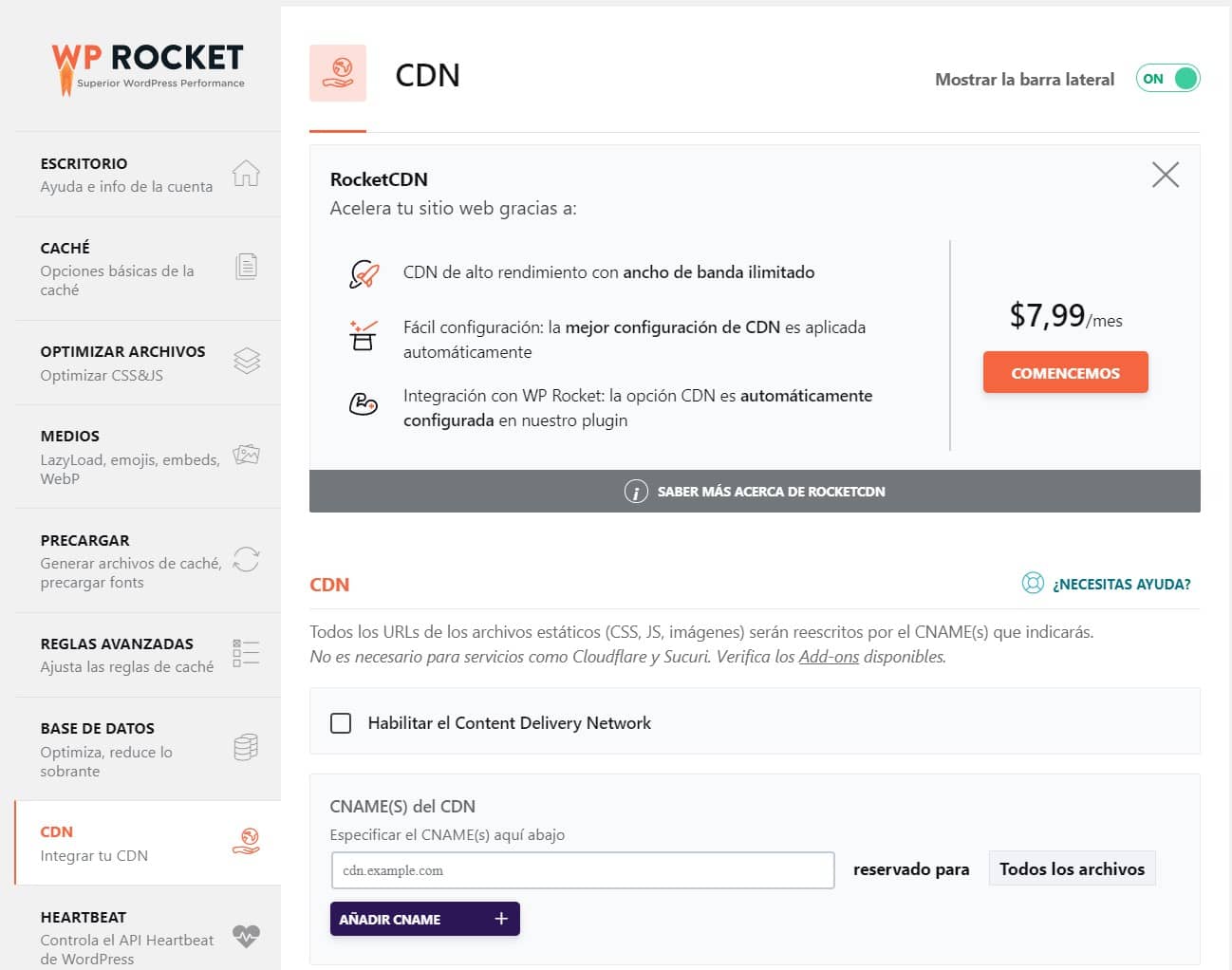
RocketCDN
WP Rocket offers us the possibility to hire its CDN at a price of 7.99 dollars per month, less than 7 euros.
CDN
When we hire a CDN we are provided with information to use it. One of these elements provided is the CNAME, although if it isn't provided we can obtain it.
The CNAME is a type of DNS record that maps a source domain name to a target domain name
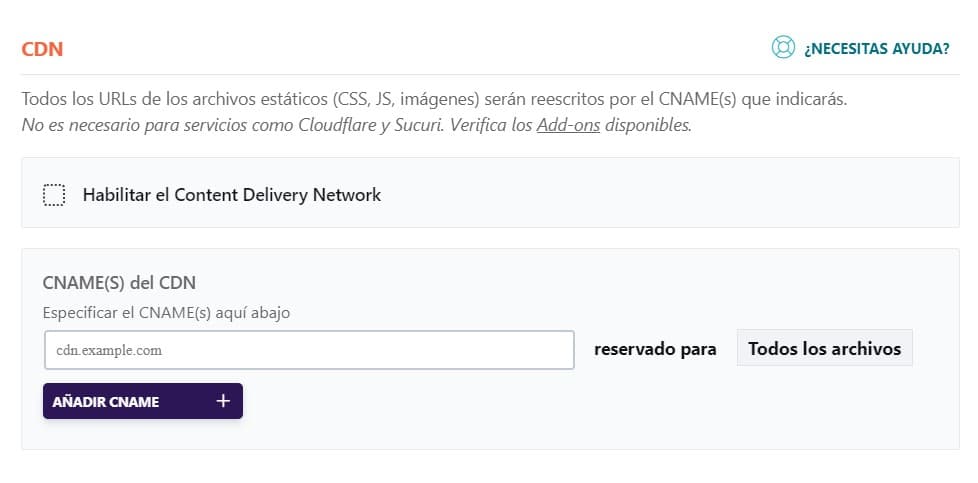
To use this function we will only have to indicate that CNAME and tell it for which files we want it.
Exclude files from CDN
The next option, as expected, is to exclude those files that we don't want to go through the CDN.
WordPress Heartbeat Function Optimization
WordPress heartbeat is a control data transfer to establish communication between the backend and frontend of WordPress and the server. This type of process can be one of the reasons why you may experience slowness in your WordPress.

Among the actions that can be limited are:
-
Auto-save and revisions in the post editor.
-
Notifications in the WordPress administration panel.
-
Information about who is editing.
-
Real-time data.
If our WordPress is working correctly, I don't recommend doing anything at this point, but if we notice slowness, we can try to limit activity in the different options.
Configuring WP Rocket Add-ons
There are certain elements such as the Google Analytics and Facebook scripts, that simply by activating them in this part of the configuration we can obtain a cache version and improve performance. This action responds directly to one of the requests usually indicated in loading speed audits like Pagespeed "Leverage browser caching".
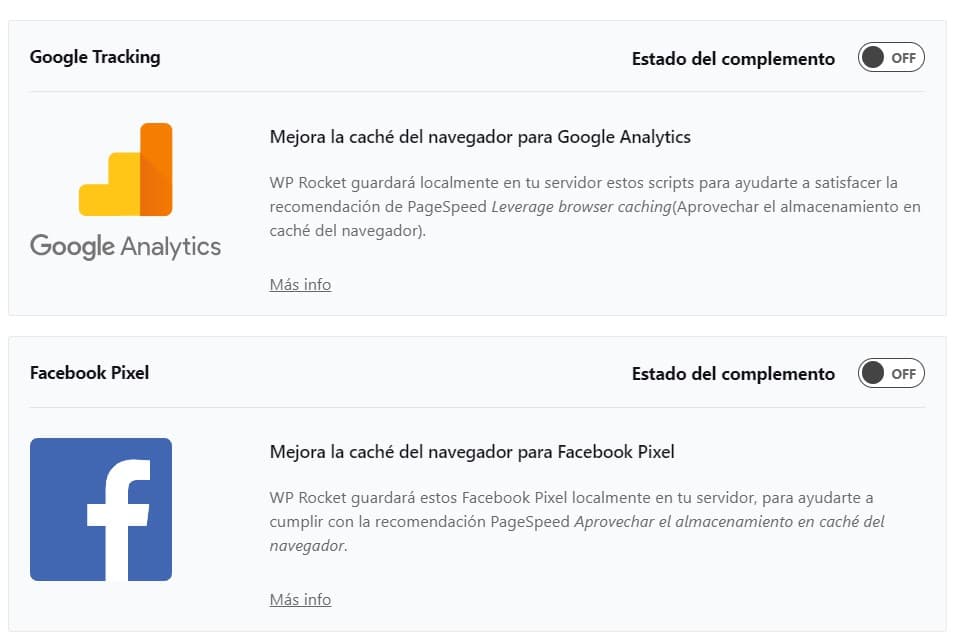
Image Optimization
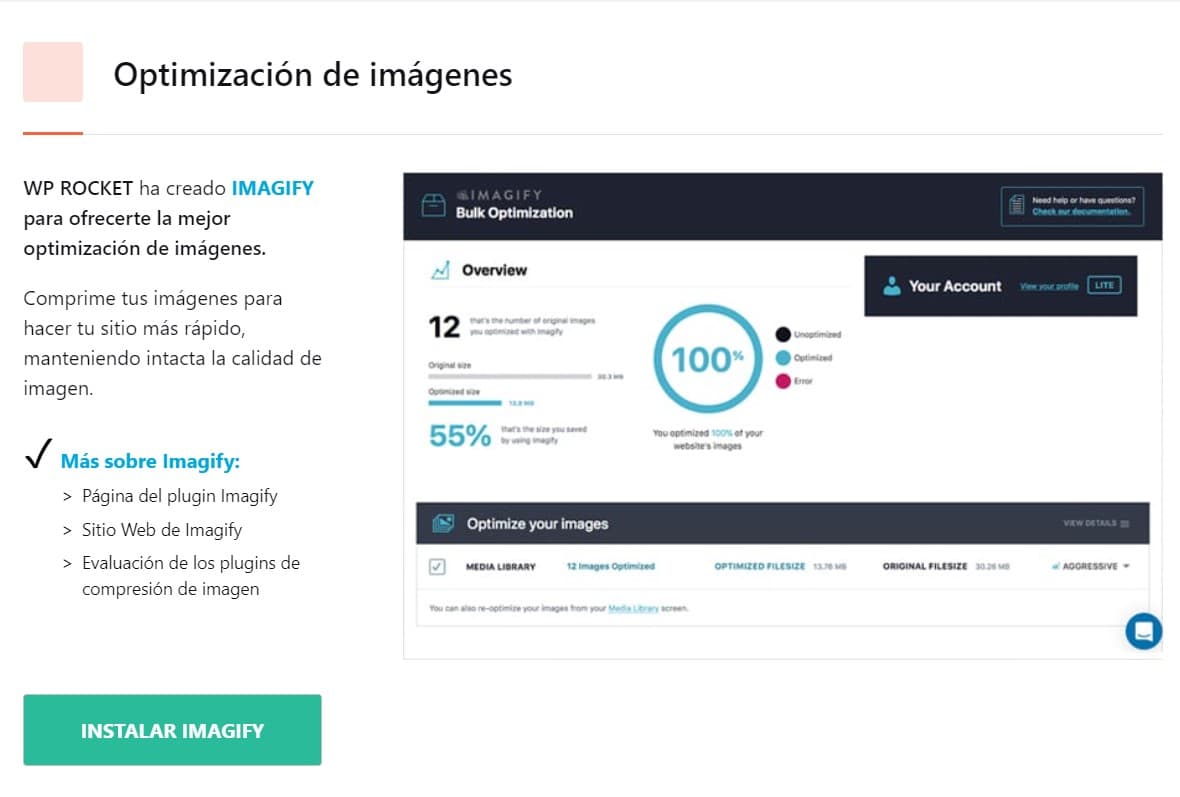
Image optimization is a process that due to its complexity could have its own guide. WP Rocket offers an independent plugin to work with these resources. From WP Rocket we can access the download of its "Free" version.
WP Rocket Tools
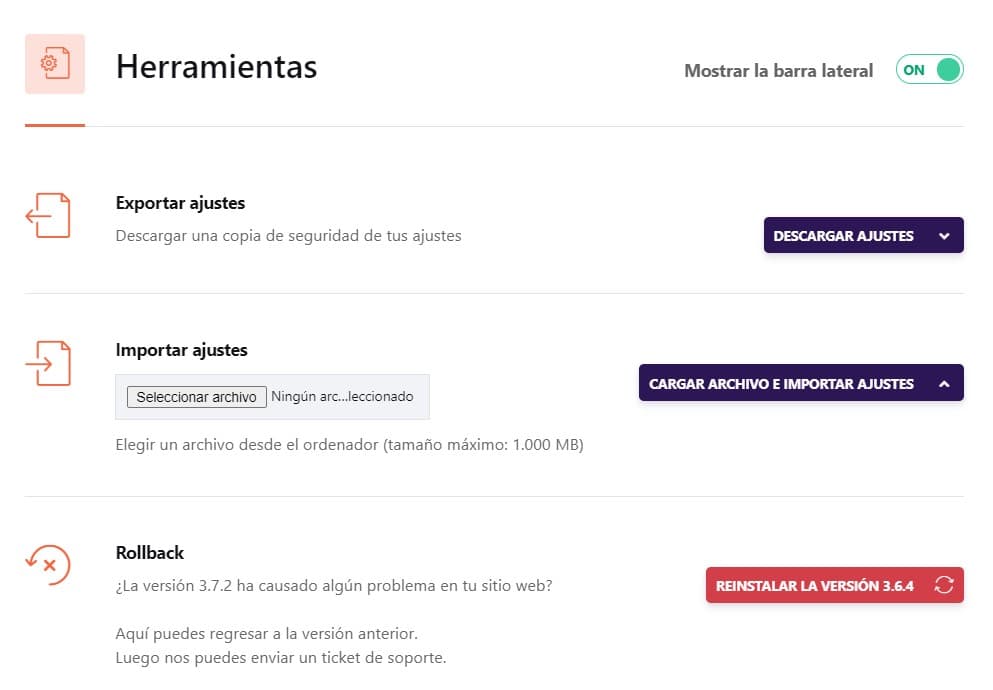
WP Rocket configurations can be saved and imported to avoid having to spend time on this process again. It also gives us the option of performing a "Rollback", i.e. going back in terms of the installed version.
WP Rocket Tutorials
To end this WP Rocket guide, the plugin itself provides a series of videos giving information on the different actions that are performed and how to carry them out.

Conclusions
As you've seen, WP Rocket is more than a cache plugin; we have at our disposal a complete suite to optimize the speed and performance of our website, so now all we have to do is try the different options. What are you waiting for to make your WordPress fly?
Did you know WP Rocket? Have you been able to improve your performance with this guide? Do you have any questions? We're waiting for you in the comments!
Author: David Kaufmann

I've spent the last 10+ years completely obsessed with SEO — and honestly, I wouldn't have it any other way.
My career hit a new level when I worked as a senior SEO specialist for Chess.com — one of the top 100 most visited websites on the entire internet. Operating at that scale, across millions of pages, dozens of languages, and one of the most competitive SERPs out there, taught me things no course or certification ever could. That experience changed my perspective on what great SEO really looks like — and it became the foundation for everything I've built since.
From that experience, I founded SEO Alive — an agency for brands that are serious about organic growth. We're not here to sell dashboards and monthly reports. We're here to build strategies that actually move the needle, combining the best of classical SEO with the exciting new world of Generative Engine Optimization (GEO) — making sure your brand shows up not just in Google's blue links, but inside the AI-generated answers that ChatGPT, Perplexity, and Google AI Overviews are delivering to millions of people every single day.
And because I couldn't find a tool that handled both of those worlds properly, I built one myself — SEOcrawl AI, an enterprise SEO intelligence platform that brings together rankings, technical audits, backlink monitoring, crawl health, and AI brand visibility tracking all in one place. It's the platform I always wished existed.
Discover more content about this author