Over recent years, we've watched marketing professionals place loading speed at the top of every optimization process. In 2017, Google began emphasizing the importance of loading speed and its future influence on rankings, but it wasn't until the summer of 2018 that Google made this statement official.
In this article we aim to help you start optimizing and improving your website's loading speed on your own. Like any optimization process, there is a technical side that can get complex. At SEOcrawl AI, whenever we write an article of this kind we want you to be able to implement it by yourself, although some actions require a more technical level of knowledge. Honestly, though, let's not go crazy chasing the scores in the tools we'll use to audit our site's WPO.
Optimization depends largely on how the template was designed, and not every template allows you to get the same performance. It's important to keep that in mind.
Let's get started!
What is WPO?
Web Performance Optimization, which we call WPO, is simply the optimization of the different processes that affect how a website loads.
How to measure a website's loading speed?
There are plenty of tools for measuring loading speed. The most popular ones are:
Before starting an audit, it's important to keep in mind that loading speed varies for every user. Different variables can affect how the speed feels for a user in Cuenca versus one in Ottawa.
That's why, rather than working on loading times in seconds, we recommend focusing on optimizing:
›
Website weight (MB)
›
Requests
›
Server response time
If we improve these 3 areas, the loading speed will improve regardless of where the user is located.
We'll dive into each area and, through the different tools, we'll see how to work on them to improve the performance of every URL. Why do I say every URL? Because, though it may seem obvious, I've run into many cases where only the homepage data was evaluated, and of course, every page on a site doesn't load the same resources.
Google Developer Tools
Before we begin, I want to explain some options that Google offers through its developer tools. This tool is one of the most important for analyzing how a website works. Right-click on the page the browser has open and a panel with different options will appear. We'll go to Inspect (Ctrl + Shift + I).
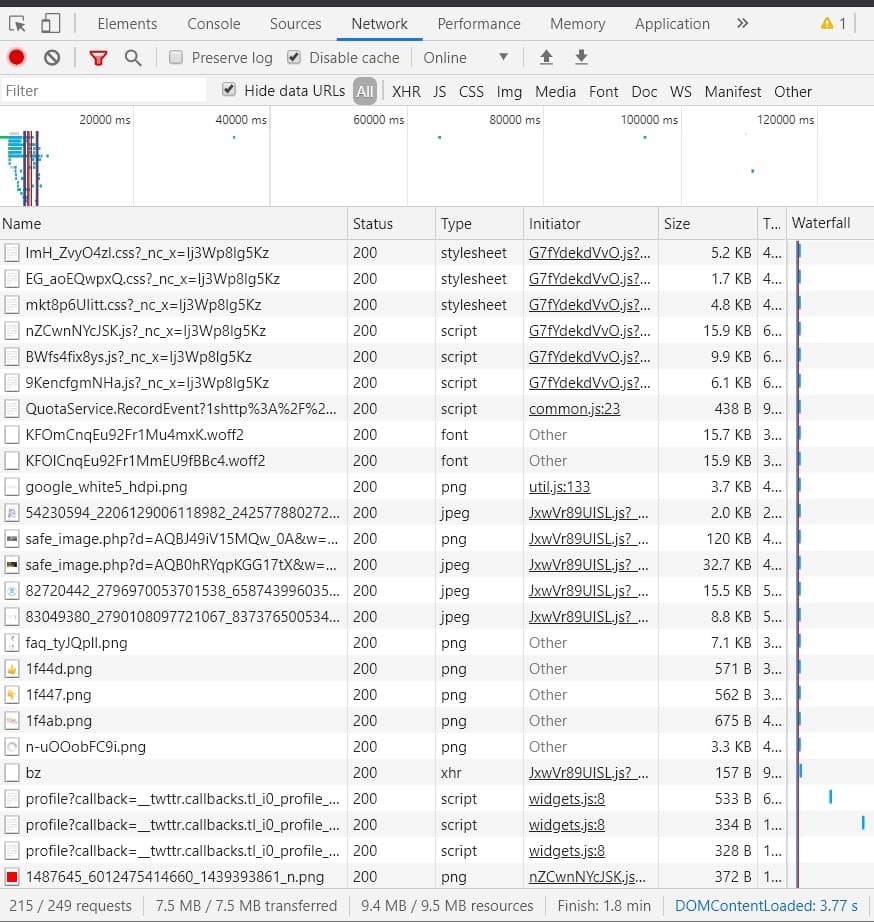
Once that tool is open, we'll head to the NETWORK option you'll find at the top. If we press ENTER again in the browser, the tool will show the loading of the different resources.
loading time in Google developer tools
At the bottom of the image, we can see the data we're interested in for a general view of how the site loads.
Digging deeper into this panel from the top and looking at the column structure, we have:
›
Name: the name of the resource.
›
Status: the resource's response code (200, 301, 404...)
›
Type: the type of resource (script, font, png, jpg, stylesheet...)
›
Initiator: which resource triggers the request.
›
Time: how long the request took.
›
Waterfall: a graphical representation of a resource's load times.
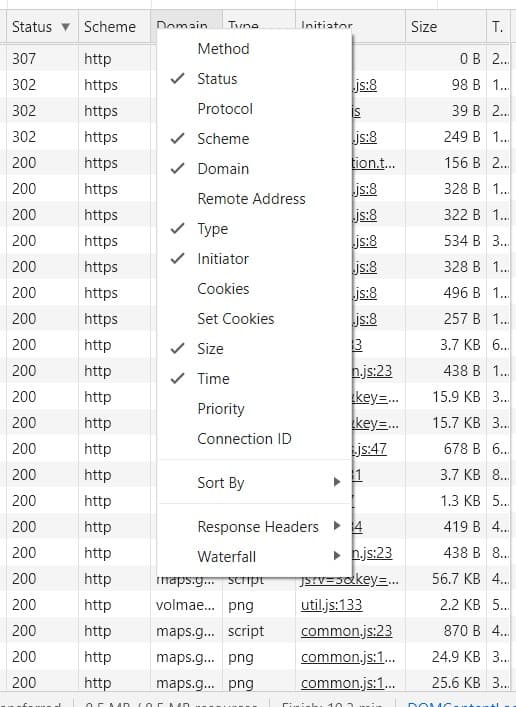
If we right-click at the top, we can add and remove columns with this information.
adding and removing informational elements in network
Enabling additional informational elements like Domain, Scheme or Cookies can help in specific cases to locate resources that might be causing us some sort of issue, but at this point we'll stick with the ones that come pre-defined.
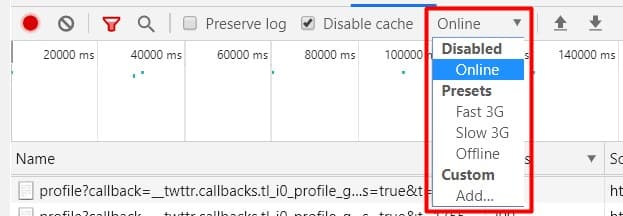
There's one aspect that, though very interesting, I'll only touch on lightly so we keep it in mind. Connection speed, especially on mobile, is a key piece of how a site loads. From this tool we can simulate slower speeds like 3G on mobile.
simulate a slow transfer speed
How to know the weight of a URL and how to reduce it?
Weight, whether in Megabytes or Kilobytes, is one of the main reasons a URL takes time to load. That's why we start by diving into this aspect, since it will set the path for achieving good optimization on our site.
The following data comes from the tool mentioned above, GTMETRIX, and corresponds to a website I'm about to start optimizing.
web weight metrics
We're going to focus on the data in the right column, the one that refers to (Page Details), specifically the Total Page Size.
At first glance, this site's weight is well above the average, but keep in mind that what matters isn't the total weight of the site but how long that weight takes to load, because there's something called Lazy Load, a feature that delays loading until the user needs the resource. We'll talk about it later.
We can also find this information in the developer tools, in the panel we looked at above, which I'll remind you of again.
loading time in Google developer tools
If you look at the bottom, both the 7.5 MB and the 215 requests come very close to the figures reported by GTMETRIX. It's important for you to know where GTMETRIX gets its information in case you ever want to use a different tool.
Now let's see what's weighing so much and how we can fix it.
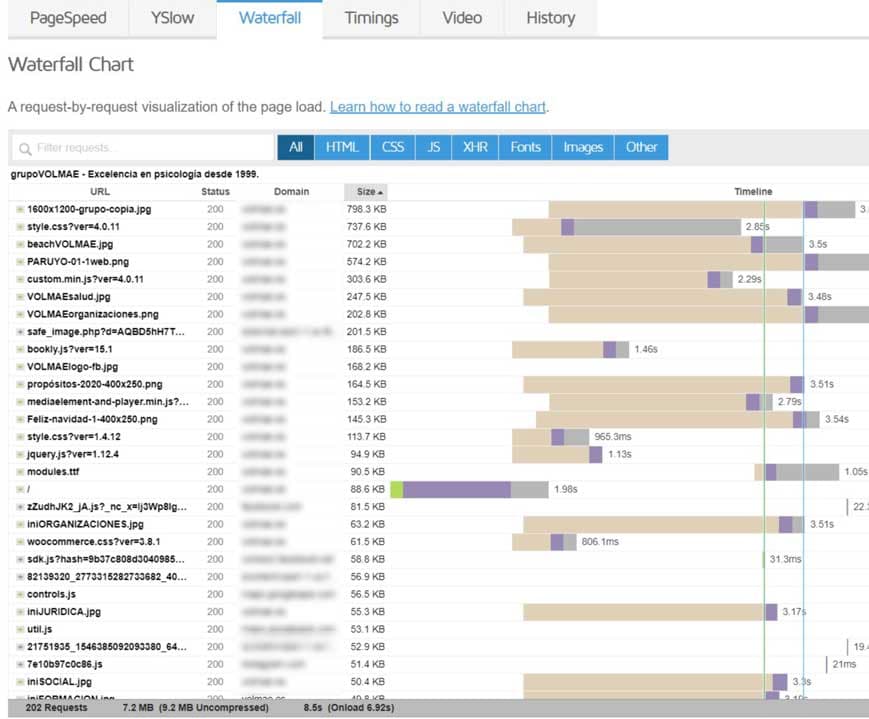
The Waterfall option offers a visual look at how resources load, showing the resource URL, status, domain and the Size column. If we click on that last column it sorts weights from largest to smallest and from smallest to largest.
analyzing load through the waterfall
Looking at the weights, we can see, as happens in most cases, that images are largely responsible for the URL's excessive weight.
There's no formal specification for the maximum weight an image should have, but we recommend no more than 100 KB and, if you have the option (if you use Photoshop you do), set images to load progressively as JPG and avoid PNG whenever you don't need an Alpha channel (transparency).
By reducing image weight we'll significantly improve the site's loading, and there are several tools you can use. I personally optimize with Photoshop, but there are interesting online options:
Both GTMetrix and the Google tool let us view resources by type, that is, only images, scripts, CSS...
This is useful for a broader perspective on where to work. On this URL, images account for 4 MB out of 7.2 MB, so a large part of the weight problem is there. Even so, there are other resources that stand out as extremely heavy for their type, like a CSS file over 700 KB and a Script over 300 KB.
At this point I'd like to clarify that when we carry out a loading speed optimization (WPO) we have to face certain problems that, while they have solutions, aren't within our reach to act on.
In this case we see a very large CSS file. If the designer created a CSS over 700 KB, optimizing that specific file will be difficult.
What can we do to reduce the weight of these files?
Minify (CSS, JS and HTML)
Minification is a process that seeks to reduce file weight by removing unnecessary data such as comments, spaces, repeated code and unused code. There are many tools to perform this process, except for the unused code part, which is harder to optimize and would require going manually into the file (something I don't recommend).
Luckily we're talking about WordPress, and as we all know, in WordPress it's very rare not to find a plugin that handles this operation.
Personally I like to use a completely free one, Autoptimize, and a paid one, WP Rocket.
In this article I don't want to explain how these plugins work so much as how to carry out the optimization tasks. Because if we use other plugins, they also have these options, and the best thing is to understand what we're doing.
Minifying with WP Rocket
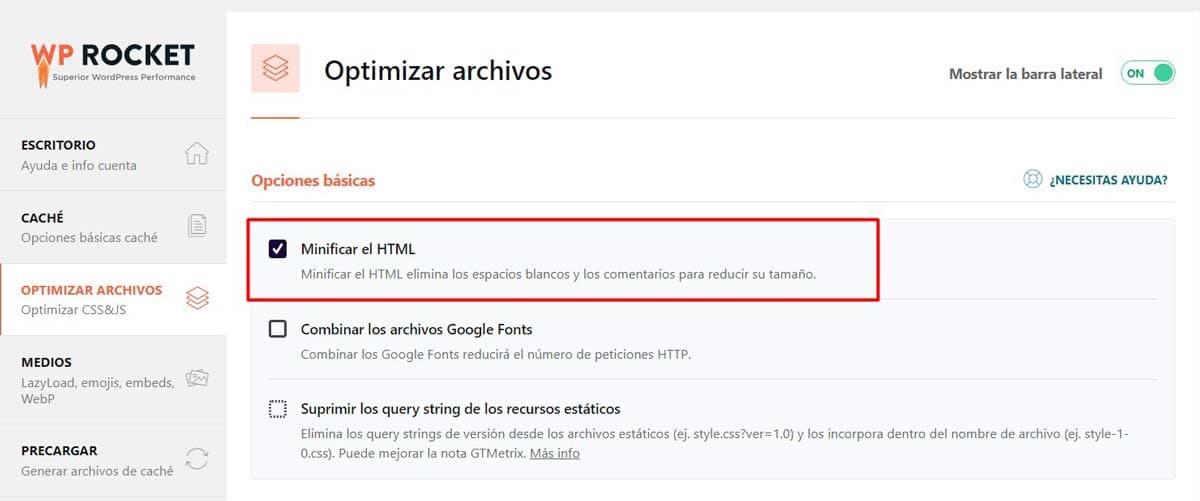
This part isn't complex. We just go to the file optimization tab and tick the minify HTML box. In WP Rocket this option is repeated below for CSS and JS files. Still, I recommend enabling this box and testing. Repeat this option one at a time, since if something fails it'll be easier to pinpoint the issue.
minify html with wp rocket
Before checking the effect of minification we have to clear the cache, otherwise we won't see the result of the updated HTML.
How to clear the browser cache?
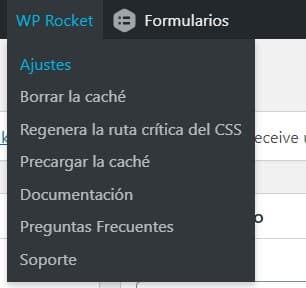
These kinds of plugins come with options to clear the cache, which we can see at the top.
clear the cache with wp rocket
Another way is through the browser, once Google Developer Tools is enabled (Ctrl + Shift + I).
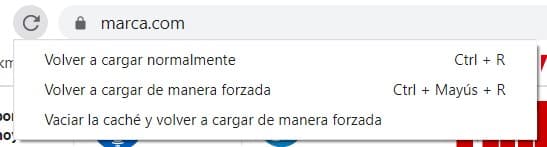
Right-click on the "reload page" arrow and select "empty cache and hard reload."
clearing the cache from Chrome browser
Minifying with Autoptimize
With Autoptimize, the optimize action is what performs minification, with the particularity of offering an option to keep HTML comments. These comments are usually added by developers to keep information that may be useful in the future.
minify html with autoptimize
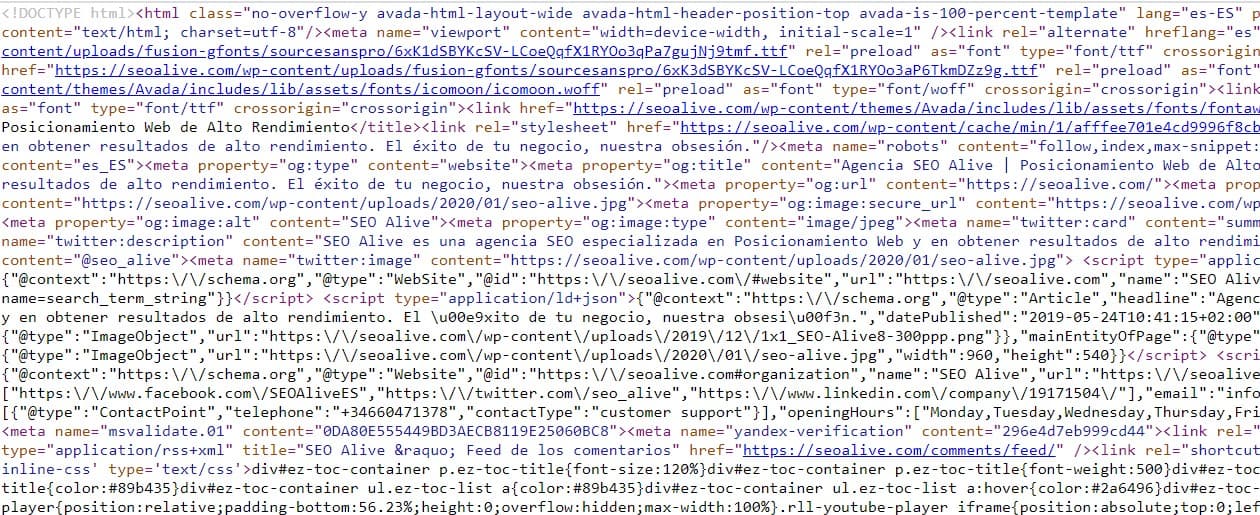
To check that this optimization has taken effect, we'd go to the URL's source code and should see something like this:
example of minified html
The code becomes illegible but its functionality is the same.
These options repeat the same way in WP Rocket and Autoptimize for CSS and JS files. As I mentioned earlier, I don't recommend optimizing everything at once, but 1 by 1. These plugins keep copies of the minified files, so reverting to the original is possible by unchecking the corresponding box.
To keep reducing the page weight we have 2 more options:
›
Remove or reduce plugins that add CSS or JS to the load.
›
Remove or trim unused code from the CSS file.
These 2 options are more complex and require more knowledge, since you have to be careful and make sure there are no calls from other pages to the part you're removing.
While removing plugins isn't always possible because of the resource they provide, there are plugins that are better optimized than others, meaning fewer requests and lighter JS. So in the wonderful WordPress ecosystem there's almost always an alternative.
Loading time vs response time
Now it's time to talk about requests, response time and loading time. At this point we have to mention a fundamental part of the process: the server. Server optimization is usually out of our hands, so it's important to choose an efficient solution.
But let's take it step by step.
What is a request?
A request, or HTTP Request, is a call made from the client to the server to ask for a given resource. Requests can hit different servers.
Requests can be either HTTP or HTTPS. If we look at the structure of a request, we can analyze where the delay in time happens.
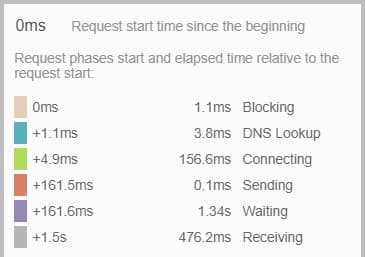
Analysis of an HTTP request time
HTTP request structure
Let's break down what we see in this timing chart.
›
The request is started but blocked or queued: If the block lasts a long time it can be due to several reasons: higher-priority requests or many requests to this origin.
›
DNS Lookup: the browser is resolving the request's IP address.
›
Connecting: the time it takes to connect to the server to resolve the request. If this time is high, it could indicate network problems, connection errors or an overloaded server.
›
Sending: the resource request is sent.
›
Waiting: this is the time the server takes to resolve a request and send a response; if it's long, there's a problem on the server.
›
Receiving: receiving the resource.
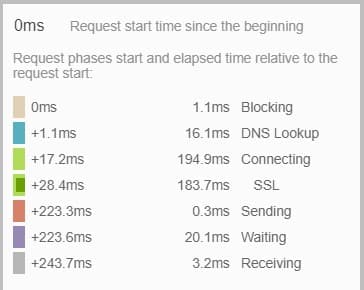
An HTTPS request adds one more step, shown here.
analysis of an HTTPS request
These two screenshots belong to two different sites, one unoptimized (HTTP Request) and another optimized (HTTPS Request).
If you look closely and compare, the biggest difference is in the waiting time. In these cases, you'd need to analyze the server in more detail.
Server requests: how can we reduce them?
As we've seen, the number of requests is closely tied to loading time, so reducing the number of requests would improve a URL's loading times. Common sense plays a role in the optimization process and knowing whether a resource is really useful for the user or our business. This is the moment to say goodbye to certain resources that add nothing, but I'm not the one to decide that.
Still, we have options for improving requests, even if these actions don't bring a huge change to the site's load. I'll repeat myself: the best thing is to remove resources that don't add anything.
Combine CSS and JS
Another popular action when optimizing a web page is combining CSS and JS resources, but what does that mean?
The goal of combining is to reduce requests at the cost of increasing the file weight. Combining means unifying the different CSS or JS resources into a single one.
If response times are long, combining can be beneficial. If send times are very slow, maybe another technique is better.
The ideal is to combine while having a good server, so we win on both sides.
Combining resources with WP Rocket and Autoptimize
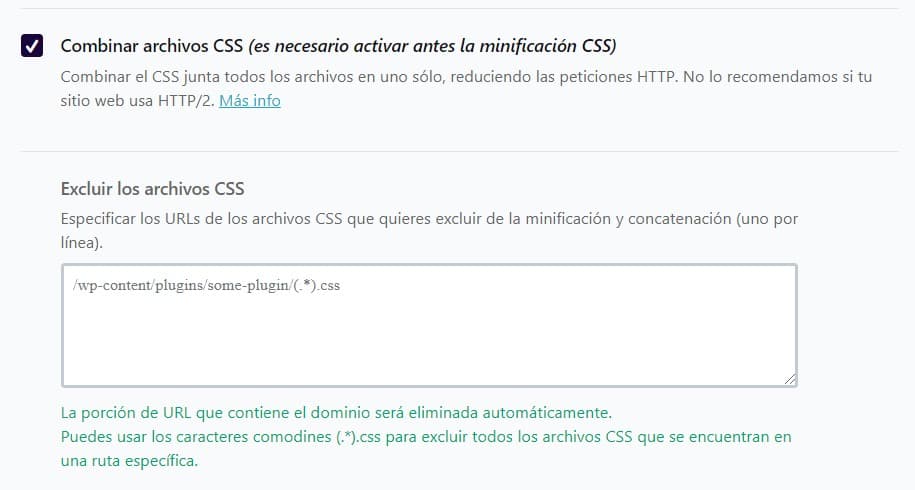
The combine operation with these plugins is as simple as before. We just tick the corresponding box.
combine css in wp rocket
In WP Rocket the options for combining CSS and JS are the same; the panels are practically identical. As we see in the image, there's a box for adding the path of files we don't want to combine.
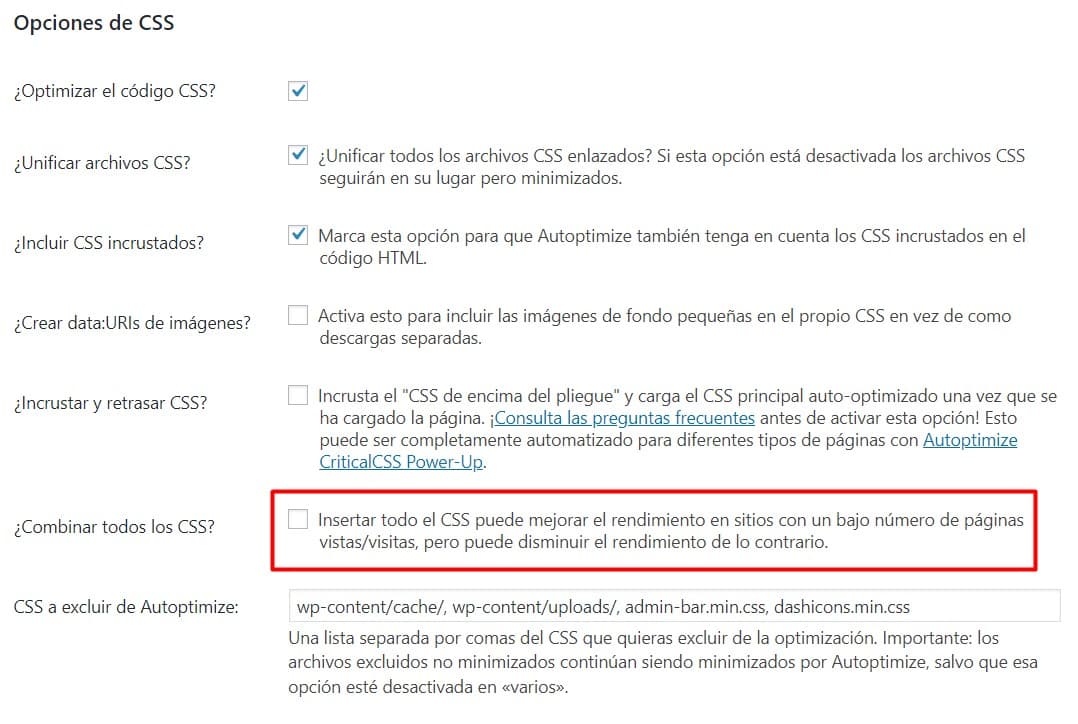
Autoptimize offers more options for working with CSS and reducing requests. In the option I mark, it combines and gives you a warning about the effect it might have, but in the end this is always relative.
In this first part of the article, I wanted to explain what certain basic actions consist of, the ones we usually see in practically all WPO optimization plugins, but there's still plenty we can do to improve both requests and loading times.
Cache configuration
Without a doubt, cache optimization is one of the actions where we'll notice the greatest improvements in how a site loads. In this article on SEO for WordPress I explained how the cache works. I encourage you to take a look to understand how it works.
Autoptimize and WP Rocket perform caching actions, but WP Rocket gives you a couple more options. It's worth noting that plugins have turned this optimization into something simpler: you barely have a couple of options and the process is quick and painless.
configure wp rocket
As you see, WP Rocket lets you work on 4 things:
›
Enable caching for mobile devices.
›
Save files separately for mobile devices.
›
Enable caching for logged-in users.
›
Specify the time to clear the cache.
It depends on each project which option to select, but with all this in mind my advice is:
›
Mobile cache always, because although most sites are responsive, there is content you may have on mobile but not on desktop.
›
Files separately.
›
No cache for logged-in users, above all because if I'm doing edits I don't want caching.
›
Cache time, which depends on how many changes you make to your site. If it's a daily news site, short; if it's content that doesn't update frequently, longer.
Lazyload
The lazyload feature helps display resources (Images and Iframes) when the user needs them; that is, the browser doesn't load these resources until the user scrolls to them. This feature is implemented in many plugins and even comes pre-configured in some WordPress themes. From Chrome version 76 onwards, it even comes natively in the browser.
This means that by adding the loading="lazy" attribute, the browser already interprets the image's lazy loading, but of course not every browser will interpret this, so I recommend continuing to use the plugin. Here's a video pulled from web.dev showing an example of what image lazy loading is about.
Iframe optimization
If we use iframes to embed content from other sites, we have two actions we can use to improve our load.
›
Lazy loading via the lazyload function
›
Or replacing the iframe with an image until the user clicks on it.
Both the first and the second option can be enabled through, once again, our go-to plugin WP Rocket.
JS files are one of the culprits of what speed audits call render blocking of a page. This happens when, while rendering, the browser stops to download a JS file and execute it. The goal of WPO optimization is to deliver information to the user as soon as possible, which is why this is considered blocking, because nothing is rendered until the downloaded JS executes.
That's why this type of action tends to be flagged in the audit. When using third-party plugins or themes that aren't well optimized, we can have JS that blocks rendering because it's, for example, in the header.
In these cases we should use two attributes that are added in the JS call code, Defer and Async. For these attributes to work, the scripts have to be external.
At SEOcrawl AI we use the plugin Pre Party Resource Hints, which lets you select which files and which loading method you want to apply. A marvel!
What's the difference between Defer and Async?
Although both attributes have a similar goal, preventing the DOM HTML interpretation from being stopped by the JS, there's a notable difference between the two.
With the Async attribute the resource is downloaded without stopping HTML loading, but once downloaded, HTML loading is paused to execute the JS; with the defer attribute the resource is also downloaded in parallel with HTML loading, but it runs when loading finishes, so there's no blocking by the script.
In this regard there are differences between WP Rocket and Autoptimize. WP Rocket makes decisions much easier for you and acts in a semi-automatic way to keep JS from blocking rendering; in Autoptimize, on the other hand, you can only toggle the Async option.
In Autoptimize, under the extra tab we have this option to add the JS files we want to load with Async, but for greater flexibility they recommend another complementary plugin, "Async Javascript".
async load autoptimize
With this plugin we can work with both Defer and Async, and it even offers one-click options to make things easier. The good thing about this plugin is that we can work with scripts and exclude the ones we deem necessary. In WP Rocket, on the other hand, we have to trust what the plugin does, though it does it well.
This option is in the same file optimization tab.
defer attribute wp rocket
What is a CDN and how can it help us?
A CDN is what's known as a content delivery network. The CDN is in charge of saving part of the information and the resources to ease the server's load for those resources and respond better to the load. CDNs also have a geographic copy function, to keep the resource available at different points and serve it to the user regardless of where they connect from. Usually this kind of service is used for heavy files like Images and Videos.
Signing up for this service is important when we have sites with lots of traffic, though it shouldn't be ruled out for sites with little traffic.
Other actions that will get us a bit more improvement
To wrap up the article we have 3 more improvements that, although they won't produce huge changes in loading times, will help us reduce requests, and in the end that's what we want.
Font optimization
Font optimization can be done through plugins or manually by editing and optimizing the CSS. The ideal would be to only call the font you're going to use and not, as happens in many cases, download a file with all the Google Fonts.
Autoptimize has an option to work on fonts.
optimize fonts with autoptimize
It's hard to say which option to choose without seeing the project, because I don't know which font your template uses and when it loads, so the best thing is to test and see the result.
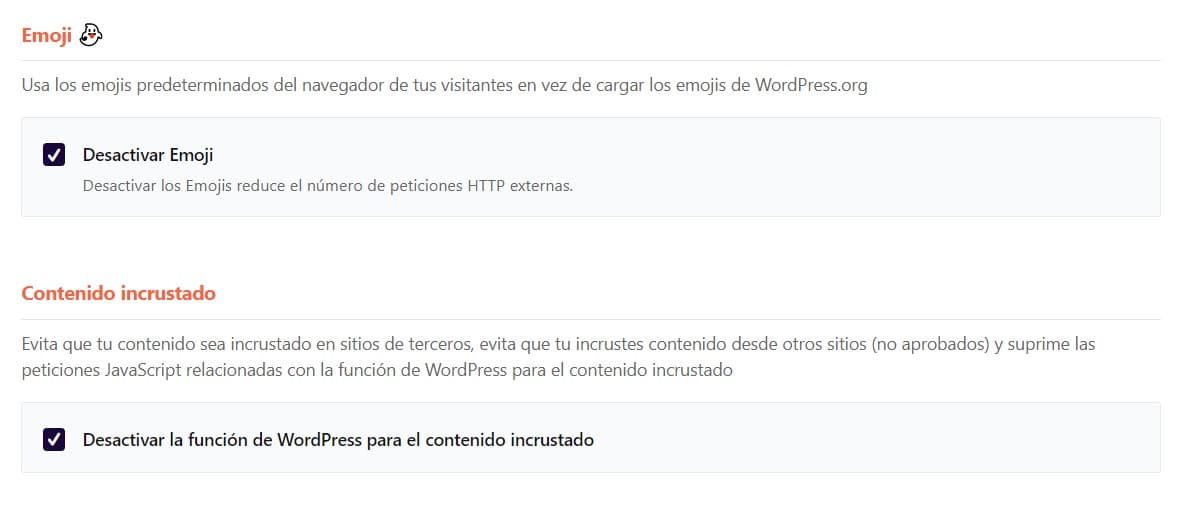
As you see, right after the Google Fonts options we have "Remove Emoji", which will save us a request to the server. Its function is simply to convert emoji-representing symbols into the icon.
emojis wp rocket
WP Rocket also lets us disable these emojis and also offers the option to prevent content from being embedded on third-party sites.
In the end there are many actions for improving a site's loading speed. It's not always possible to work in depth to optimize every resource, because it depends on the type of business and what it needs.
I hope this WPO optimization guide is helpful and that you can apply it to your projects or for your clients.
I've spent the last 10+ years completely obsessed with SEO — and honestly, I wouldn't have it any other way.
My career hit a new level when I worked as a senior SEO specialist for Chess.com — one of the top 100 most visited websites on the entire internet. Operating at that scale, across millions of pages, dozens of languages, and one of the most competitive SERPs out there, taught me things no course or certification ever could. That experience changed my perspective on what great SEO really looks like — and it became the foundation for everything I've built since.
From that experience, I founded SEO Alive — an agency for brands that are serious about organic growth. We're not here to sell dashboards and monthly reports. We're here to build strategies that actually move the needle, combining the best of classical SEO with the exciting new world of Generative Engine Optimization (GEO) — making sure your brand shows up not just in Google's blue links, but inside the AI-generated answers that ChatGPT, Perplexity, and Google AI Overviews are delivering to millions of people every single day.
And because I couldn't find a tool that handled both of those worlds properly, I built one myself — SEOcrawl AI, an enterprise SEO intelligence platform that brings together rankings, technical audits, backlink monitoring, crawl health, and AI brand visibility tracking all in one place. It's the platform I always wished existed.