SEO Footprints: Complete Guide with 17 Examples
As you probably know, the way 99% of Internet users run a search on any engine is pretty much the same:
- Open Chrome or Safari (If you still use Internet Explorer, we invite you to come back to 2011)
- Type your query into the search bar and hit search.
- The engines return, in most cases, countless results.
- The user clicks on the first results; note: if you want to be there, check out our SEO Services ;)
And it has been those of us who work daily with (sometimes against) Google who have found ourselves needing to optimize this process by using certain shortcuts.
In your case, since you've landed on our article with the intention of finding out what footprints are, wanting to discover how to use them and which are the best ones, I'm sure you already knew these little tricks existed, so I won't ramble on any longer — let's get to it.
What are footprints and how to use them?
Footprints are advanced search commands that allow us to get more precise results, giving us access to information that in a regular search would be shown in a less segmented way. In SEO, they are especially useful when performing SEO audits, competitor analysis, or when searching for sites to do link building on.
To use Google footprints you just need to type them into the search box without adding spaces between the symbol or word and the search term.
For example,
- the search site:seocrawl.ai works
- but the search site: seocrawl.ai does not
Official Google footprints
If there's one thing that sets Google apart, it's the amount of information it provides users about how to use its features, and commands are no exception. That's why, on its official website, it offers a list from which we've picked out the ones that work best, even though some of them don't have a strictly SEO-related function:
View Google's cached version of a website
We need to type "cache:" before the website address.
Example: cache:seocrawl.ai
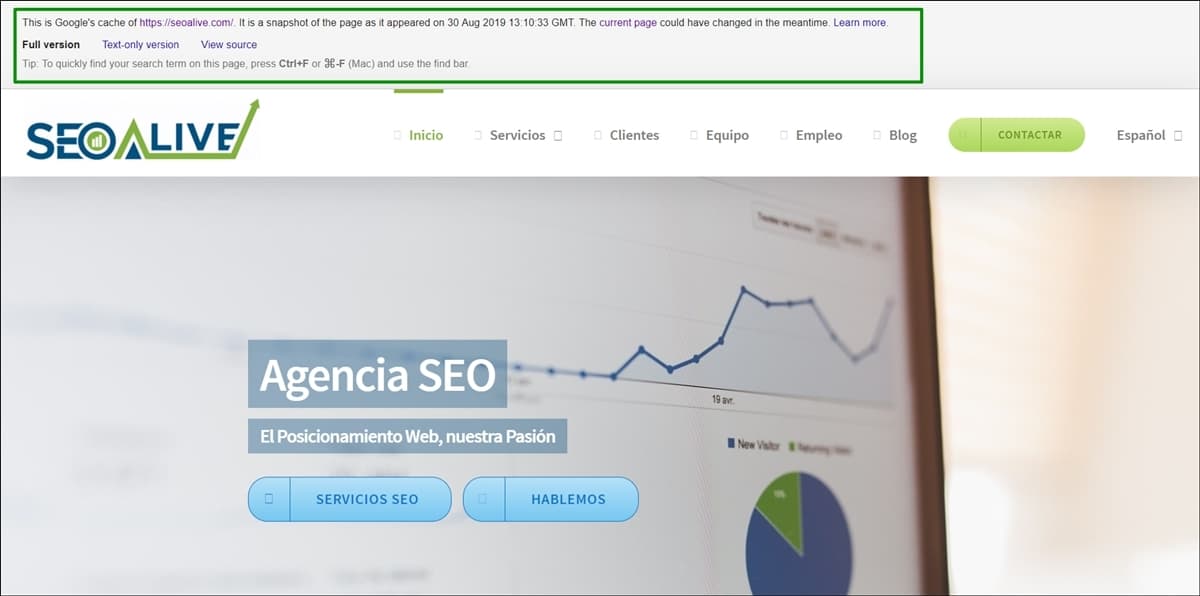
Through the cache search, we can see the last "snapshot" Google has of our website.
This command is one of the most basic, since by using it we can see the latest version of a website saved in Google's cache. It will let us know if recent changes have been made to it (or if a new offer is actually an offer).
Limit searches to a range of numbers
We'll type ".." between two numbers.
Example: sneakers €50...€100.
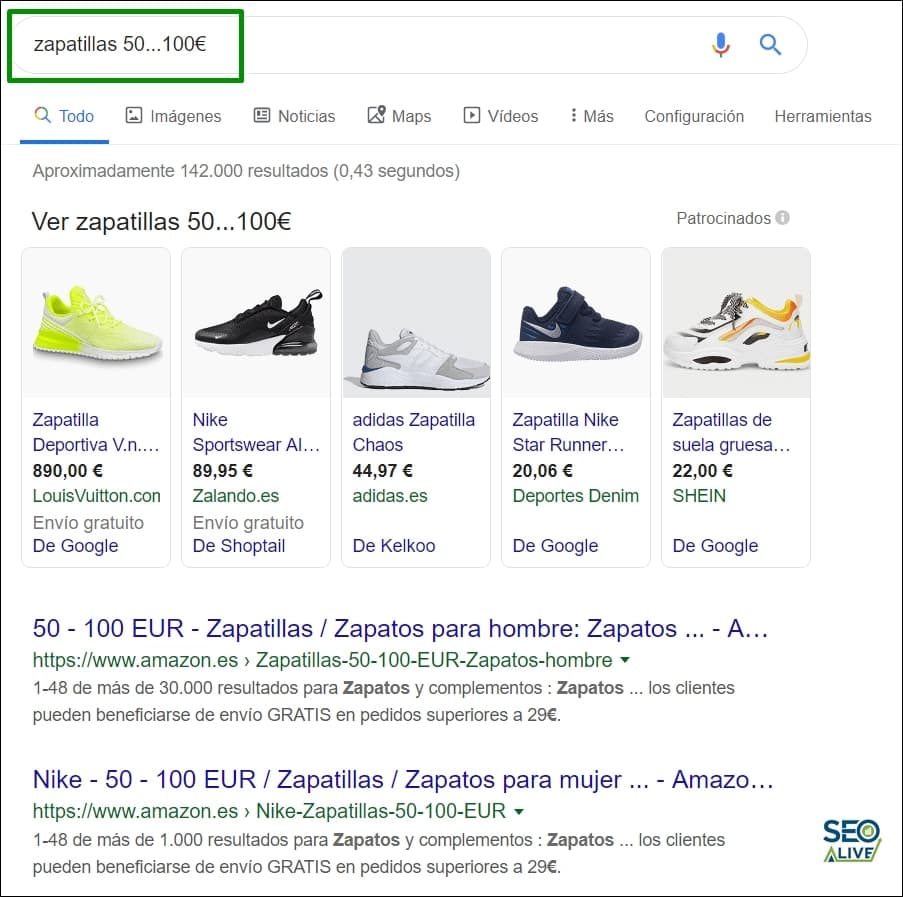
Using the three dots, we can narrow down the price range for the products we're searching for.
This search will give us results for products or services whose price falls within the specified range.
Search by #hashtag
We'll type "#" in front of a word.
Example: #SEOcrawl
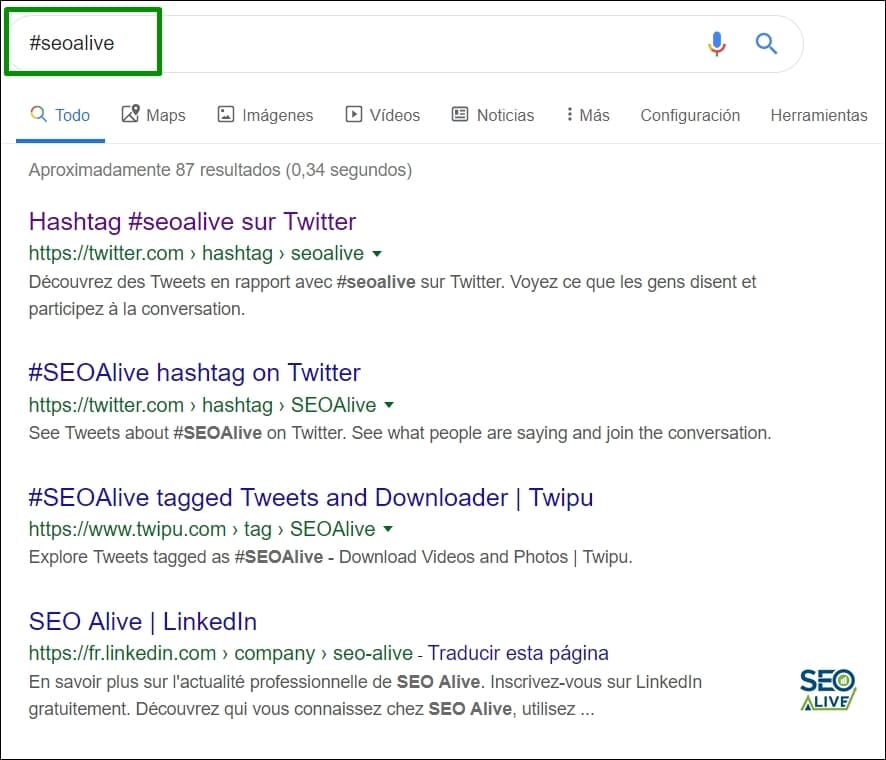
By adding the hash symbol in front, we can see all hashtags in the search results.
It will show us results whose content includes the specified hashtag.
Footprints most used by SEOs
Now we're really getting into it, and we're going to cover the best and most useful search commands when performing an SEO audit.
Indexed results for a specific domain
To know how many and which pages of a website are indexed we need to type "site:domain" in the search bar.
Example: site:seocrawl.ai
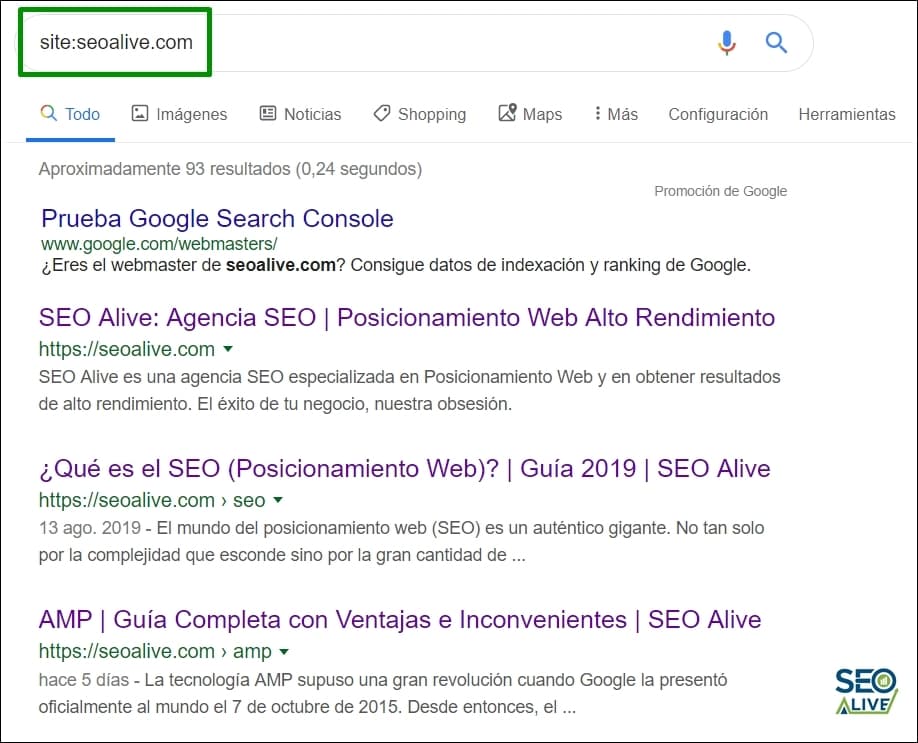
With this search (site:domain.com), we can see all pages indexed in the search engine.
This is without a doubt the footprint I use the most and have used most throughout my SEO career. I consider it essential when analyzing a website's indexation status.
Keyword in Meta Title
We can find indexed URLs that include certain keywords in the meta title tag by using the "allintitle:keywords" command.
Example: allintitle:seo agency
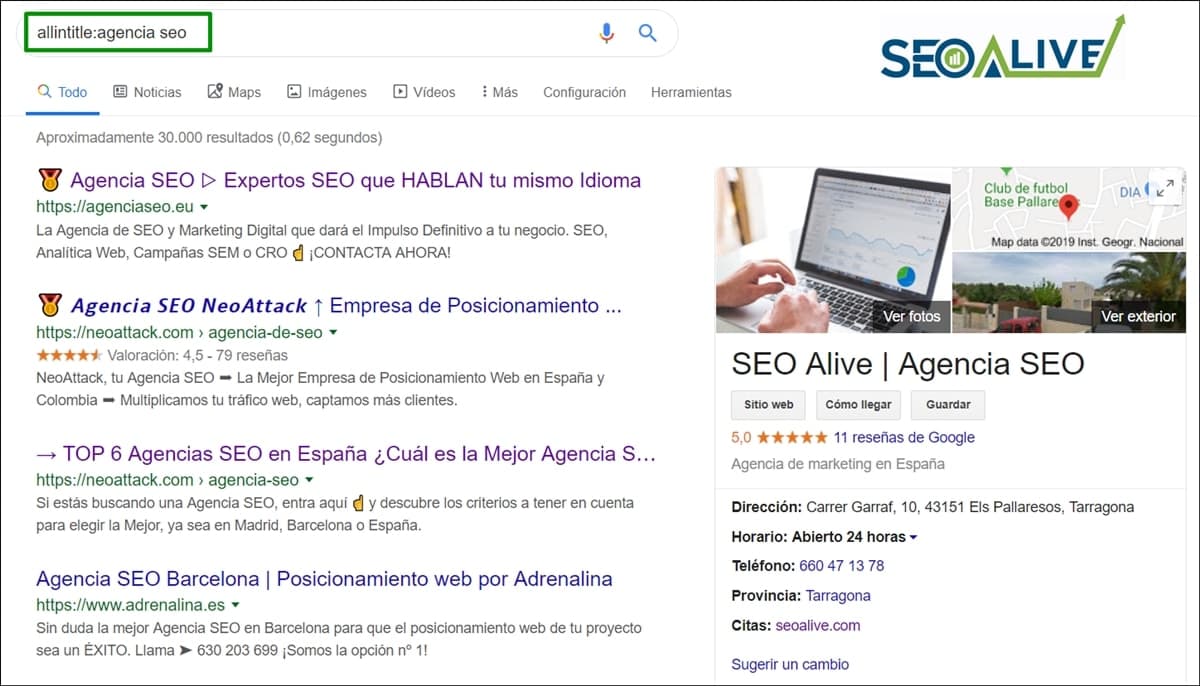
Through this search, we can see all results that have "SEO Agency" in their title, even from Maps.
Keyword in URL
Using this command, we'll see results containing all the keywords we've specified in their URL. To do this, we need to include "allinurl: + the keywords in question".
Example: allinurl: mexican soccer
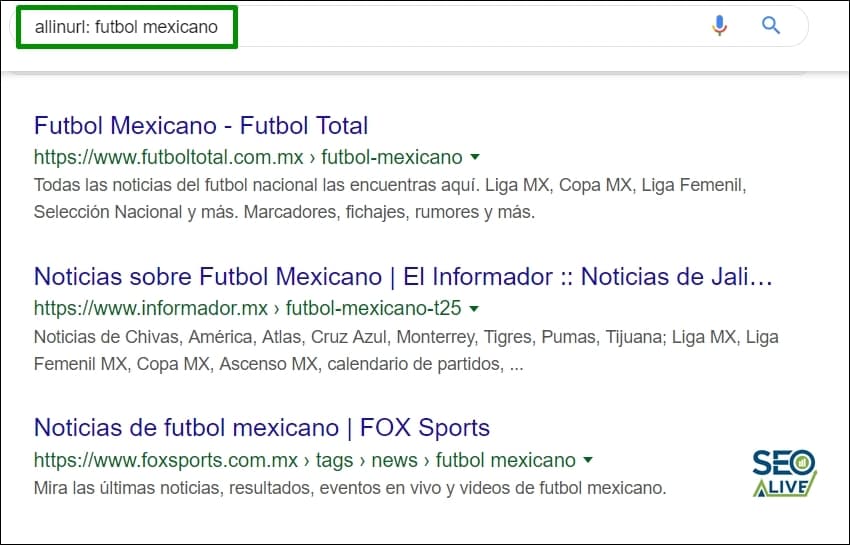
This command will return all results that have the keywords we've specified in the URL.
Links with specific anchors
It will show us websites whose content includes links using the specified keyword as an anchor. It's used by including "allinanchor + keyword".
Example: allinanchor: chess
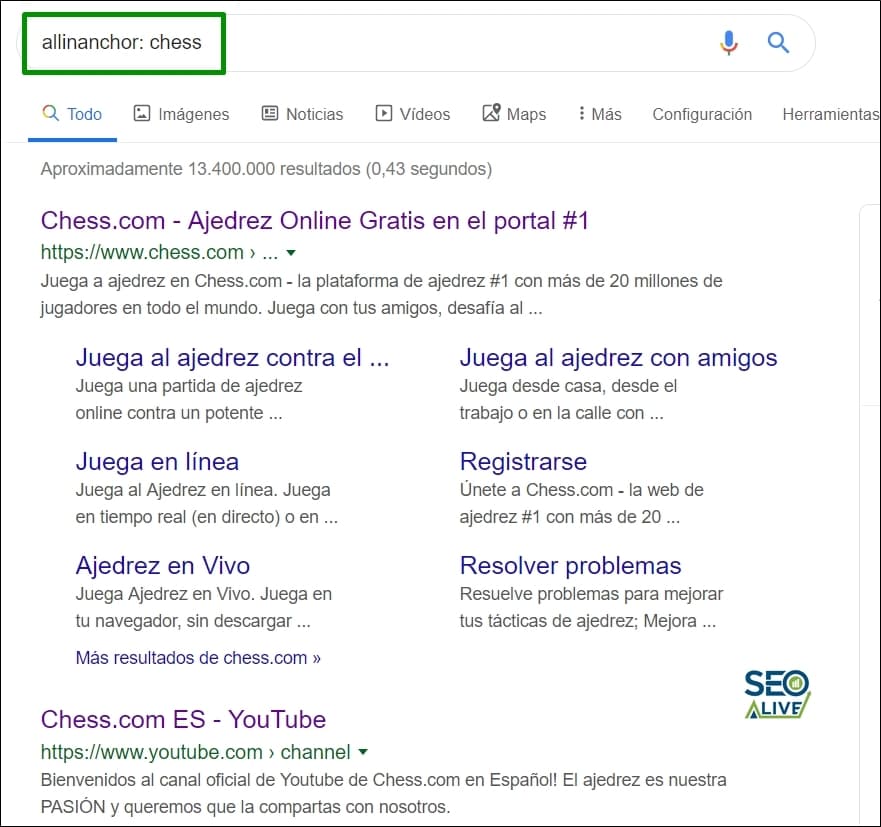
This command will show us whether a site contains links with the mentioned anchor. In the example, the search "chess", with Chess.com, one of our clients, right at the top.
Find related websites
For this we'll use the "related: + domain" command. This footprint is especially useful for finding sites to do link building on when you already know one whose characteristics match what you're looking for. It's also, as you can probably guess, essential for finding your competitors.
Example: related:amazon.com
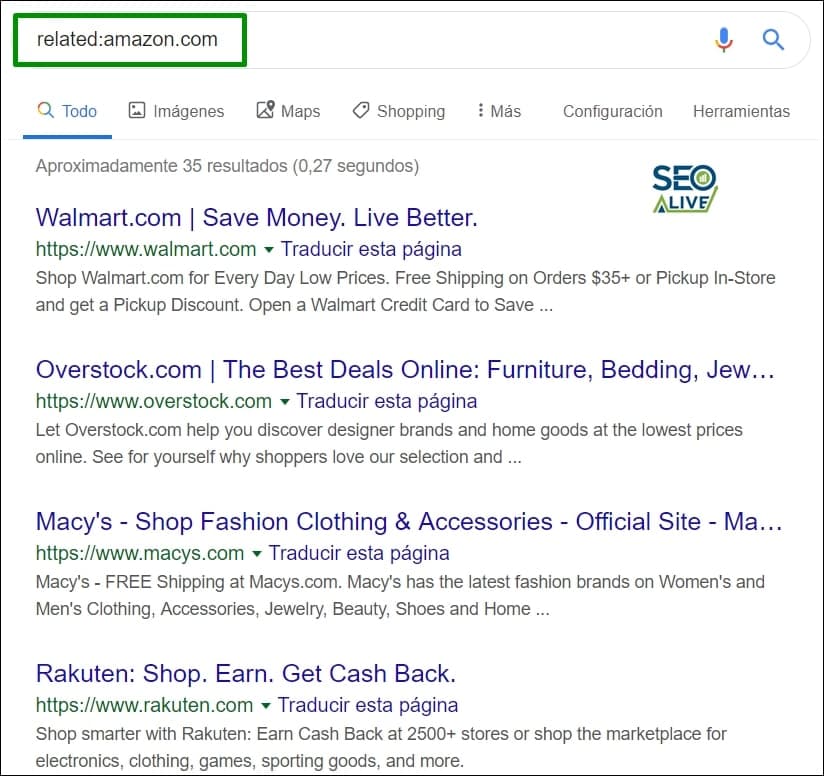
The "related" search will return websites similar to the one we're searching for.
Find pages whose content includes EXACT words or phrases:
To do this we just have to put the query between quotation marks.
Example: "flights England"
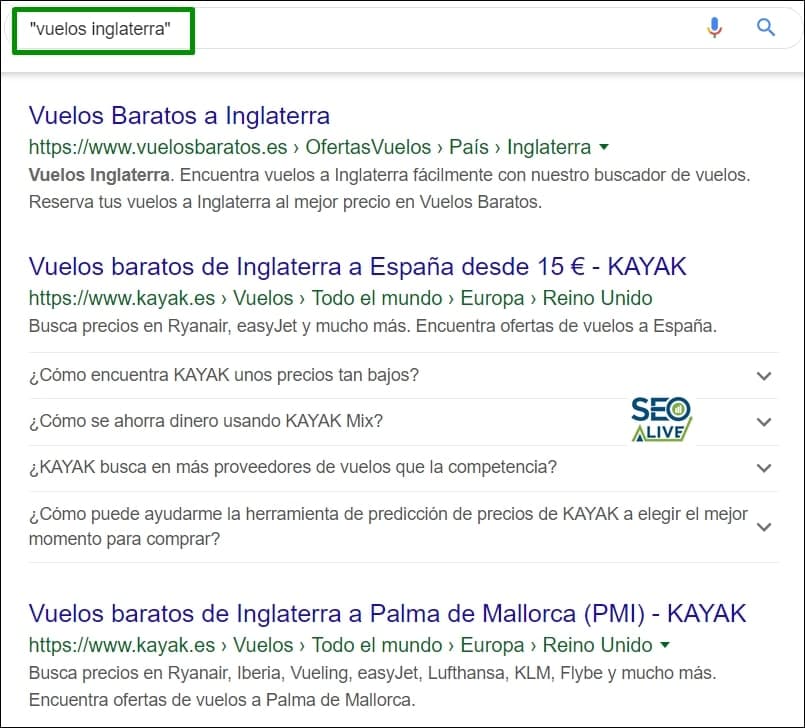
The search "flights England" will return results that contain this information on their website.
Exclude words or phrases from the search
If when running a search we want to avoid having the results include URLs whose content shows certain words or phrases, we need to use a hyphen.
Example: flights England -ryanair
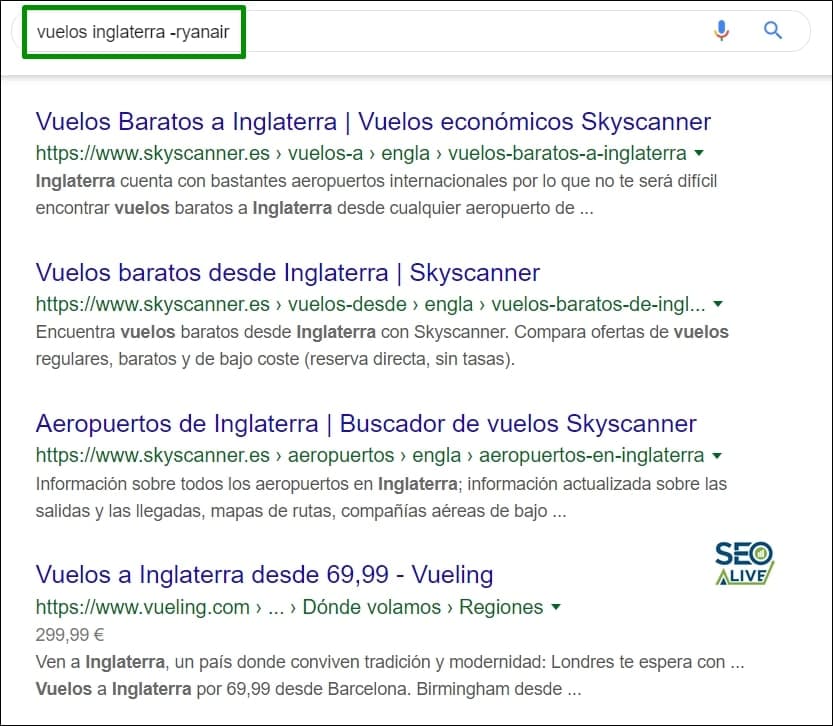
This search will return all sites that offer flights to England and that aren't Ryanair.
Search for keywords inside the content of a page
With this footprint, we'll get pages with texts containing all these words as a result. To use it you just need to include "allintext: keywords" in the bar.
Example: allintext:travel england
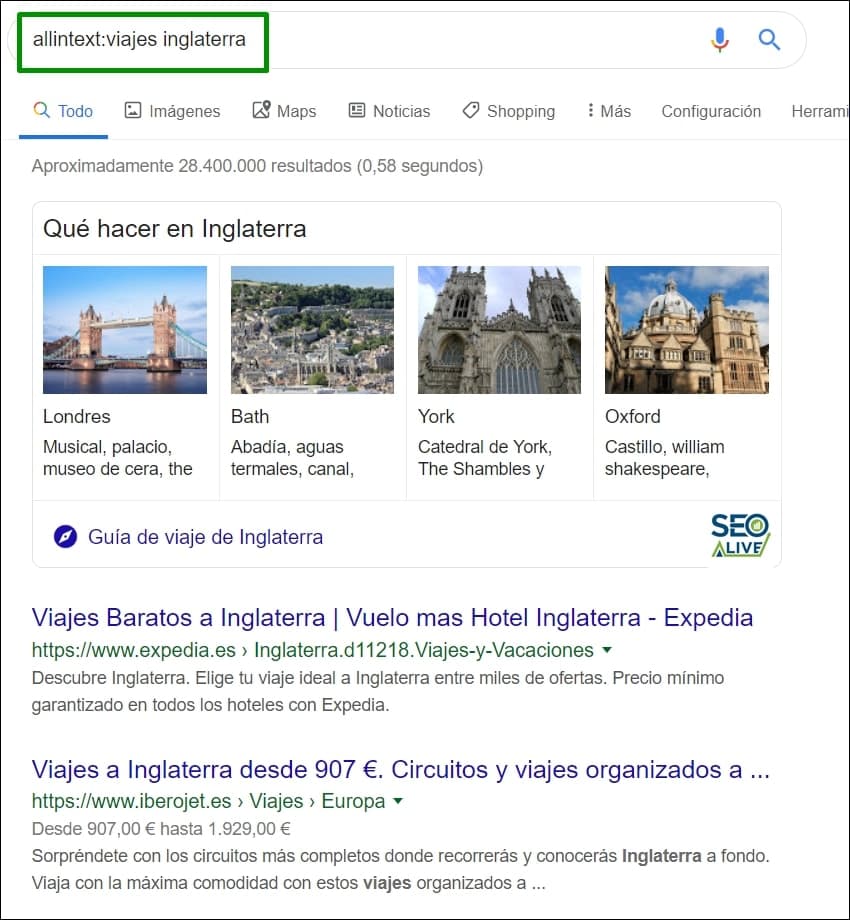
This command will return pages that include the keyword and not just in exact match.
Right now you might be saying "This is the same as the quotation marks one", I understand the confusion, it happens to all of us, but it's not the same. If you look closely, when I talked about "Find pages whose content includes EXACT words or phrases" I emphasized that it corresponded to EXACT words or phrases. In this case, the results that will appear, though they'll contain all the queried keywords, may not be shown in the same order.
Footprint to find files by format
If you're only looking for results that offer PDF files or other formats, this command is for you. Like all the ones mentioned above, it's pretty simple to use — we just have to include "topic/author/title + filetype: + the format" in the search bar.
Example: seo filetype:pdf
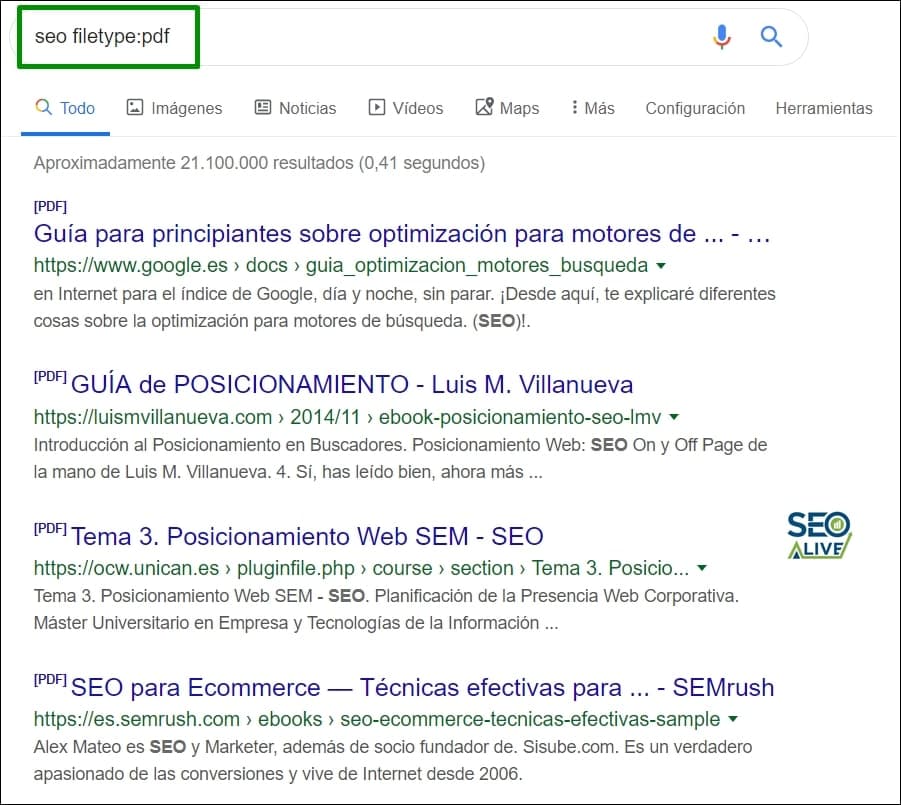
This search will return all the results for the keyword we've searched for in the format we want.
It's useful for finding books to download (always without infringing copyright).
Advanced footprints for Link Building
Now that you know the most commonly used footprints in the SEO world, we're going to take it up a notch so you can get information on other less well-known footprints or combinations, but ones with huge potential for any SEO consultant, especially when it comes to acquiring links.
Find sites with specific CMSs
This is especially useful if we're looking for blogs where we can place links. As you know, in most cases blogs are built with Wordpress, so we can find them by adding the "powered by wordpress" command to our query.
Example: site:.es "inurl:seo "powered by wordpress"
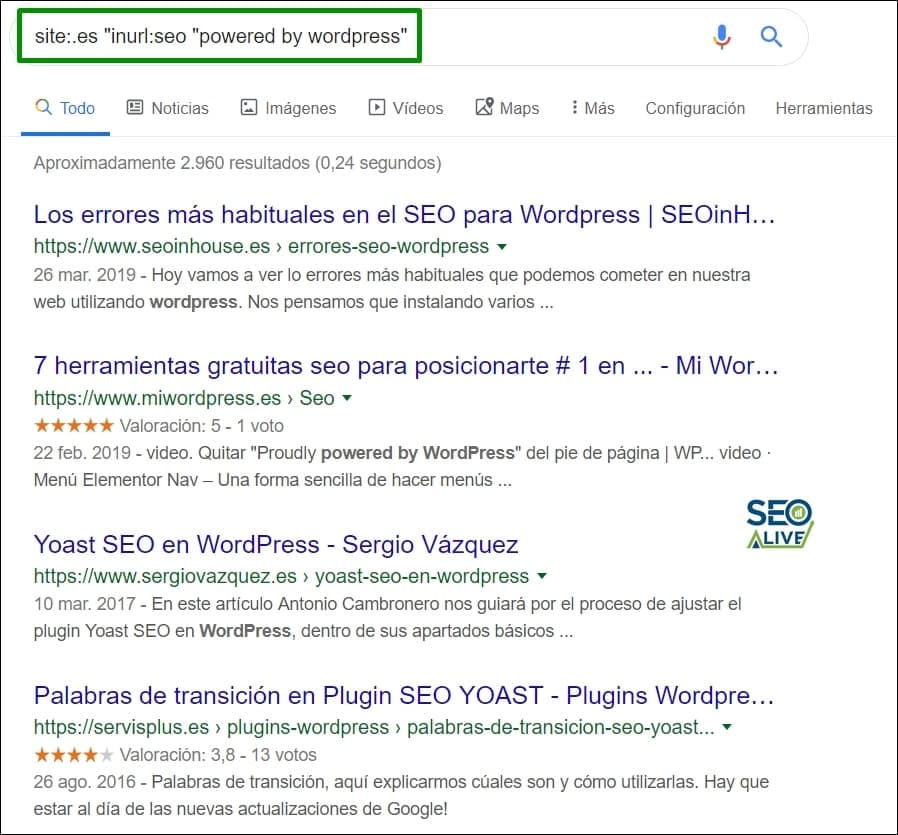
This search will return sites within a niche that were built on Wordpress.
With this pattern we are searching for:
- Spanish domain (.es)
- Whose URL includes the word SEO
- Wordpress
Site:.es inurl:keyword "post a comment" –"you must be logged in":
With this command we can (breaking down each part):
- Country-exclusive domain (in this case from Spain)
- Whose URL includes a certain keyword
- And where comments can be left without needing to be logged in.
Example: site:.es inurl:seo "post a comment" - "you must be logged in".
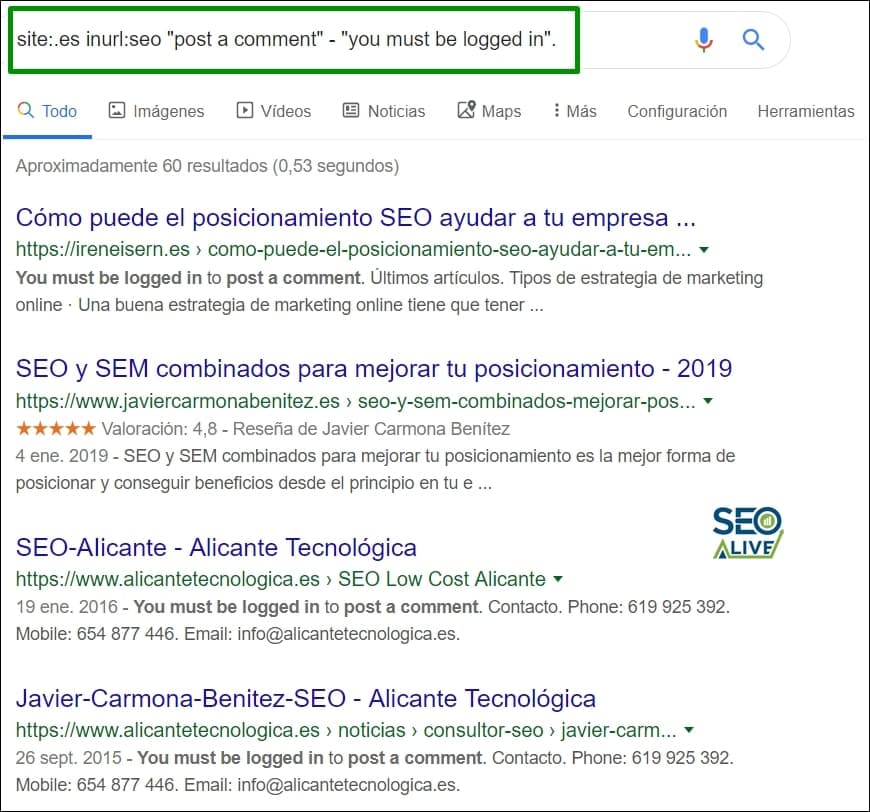
The depth of the filters is huge, so we can customize each search a great deal.
Site:.gob inurl:keyword "post a comment" –"you must be logged in":
Very similar to the previous one, but in this case we're talking about government domains (we can also use .edu or .org).
Example: site:.edu inurl:seo "post a comment" - "you must be logged-in"
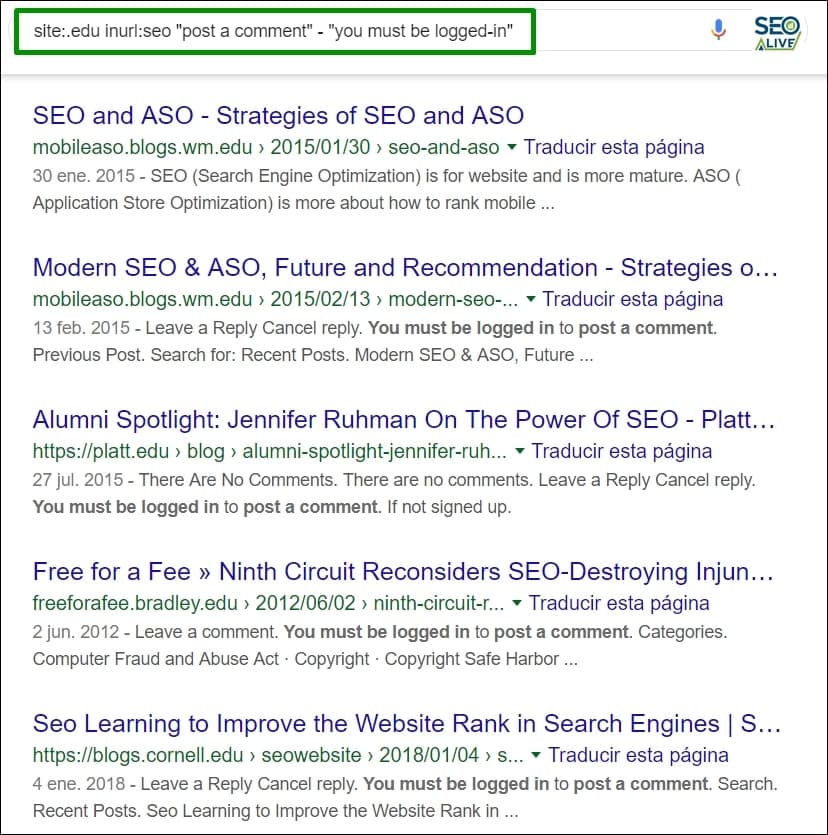
You could rarely have imagined that some search commands could be a reference for Link Building.
In these cases, we might be fine-tuning the search a lot, and depending on what we specify in the "inurl" command, Google may or may not show us results.
Replying to comments
An effective method for including contextual links in forums or in comments on certain pages, such as posts, without the administrator removing them is by providing a useful reply to existing comments.
Obviously we don't want you to go searching for unanswered questions forum by forum or article by article, which is why we have a command to find them, and it's very, very simple — you just need to include the following: "keyword" + "leave a reply". For example:
We can make it more complex (better) if we add a type of domain (either by country or institutional).
Example: site:.edu "economy" "leave a reply"
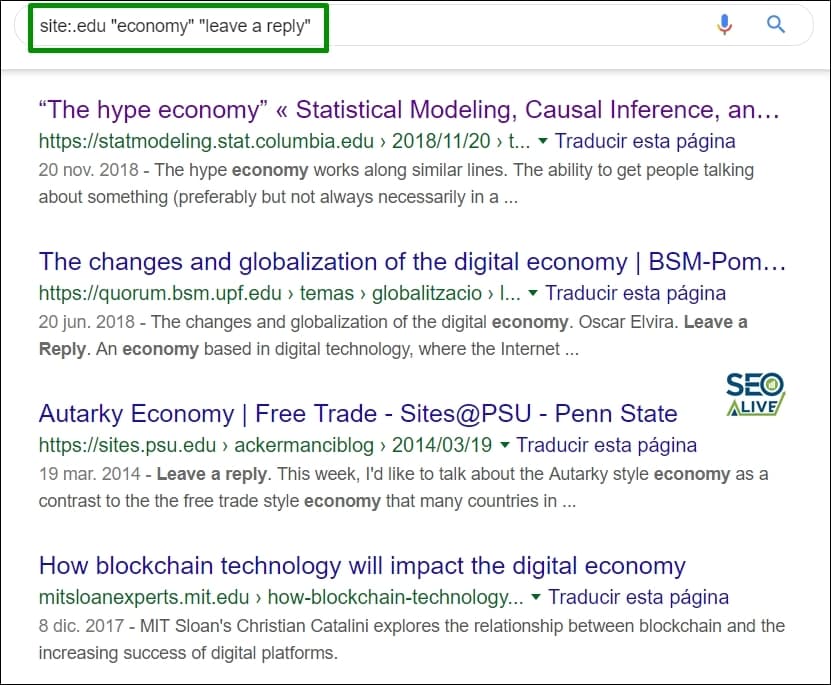
This search will return sites where we can provide a reply on a specific topic.
Create an account on institutional sites to comment
For this we'll also use a very simple command: site:edu inurl:login "Create an account"
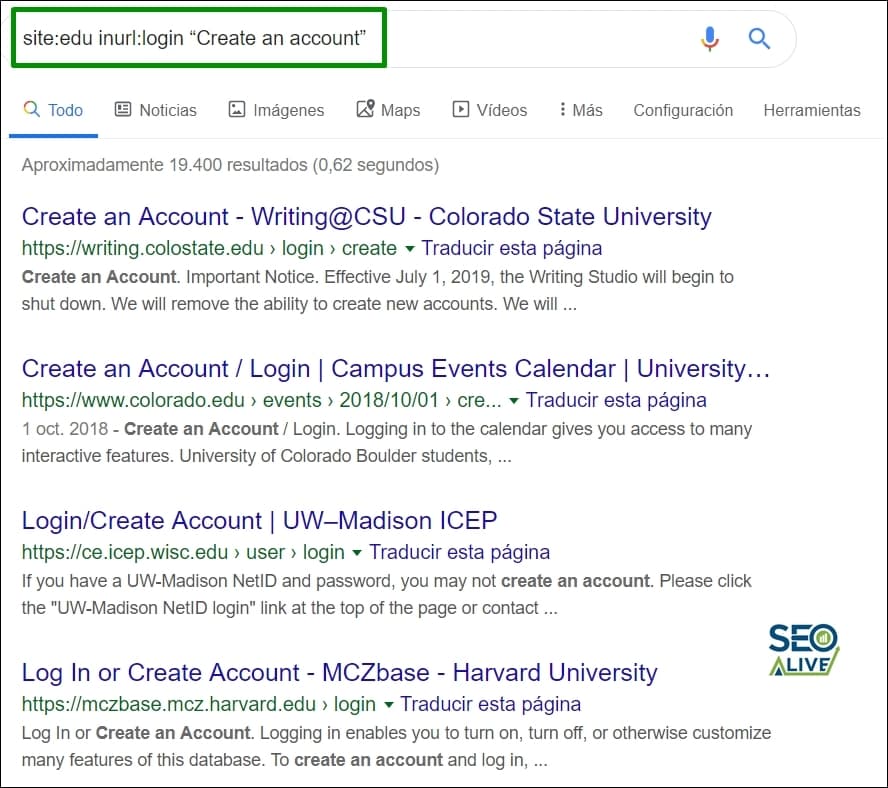
This command will give us a list of institutional sites (.edu) where we can create an account.
As you've been able to see, footprints are not only very useful, but they can easily be combined with one another. In this article I've shown you the most basic ones, from which very advanced patterns can be generated. I've also given you the guidelines so you know how to combine them.
Which is your favorite or the one you use the most? Don't forget to leave your opinion in the comments section!
Author: David Kaufmann

I've spent the last 10+ years completely obsessed with SEO — and honestly, I wouldn't have it any other way.
My career hit a new level when I worked as a senior SEO specialist for Chess.com — one of the top 100 most visited websites on the entire internet. Operating at that scale, across millions of pages, dozens of languages, and one of the most competitive SERPs out there, taught me things no course or certification ever could. That experience changed my perspective on what great SEO really looks like — and it became the foundation for everything I've built since.
From that experience, I founded SEO Alive — an agency for brands that are serious about organic growth. We're not here to sell dashboards and monthly reports. We're here to build strategies that actually move the needle, combining the best of classical SEO with the exciting new world of Generative Engine Optimization (GEO) — making sure your brand shows up not just in Google's blue links, but inside the AI-generated answers that ChatGPT, Perplexity, and Google AI Overviews are delivering to millions of people every single day.
And because I couldn't find a tool that handled both of those worlds properly, I built one myself — SEOcrawl AI, an enterprise SEO intelligence platform that brings together rankings, technical audits, backlink monitoring, crawl health, and AI brand visibility tracking all in one place. It's the platform I always wished existed.
Discover more content about this author